How to set a Cryptnox FIDO2 Card on iPhone/Apple ID account
Step by step tutorial
Security Key Support Across Operating Systems and Web Browsers:
The availability of security key support may vary based on the operating system and web browser in use.
MacOS: Security Key support is available in browsers such as Safari and Firefox.
Windows: Most modern web browsers provide security key support.
Mobile devices: It is recommended to use the mobile web version of the service, as many applications redirect users to a mobile browser to complete the security key setup process.
Step by step tutorial
Step 1
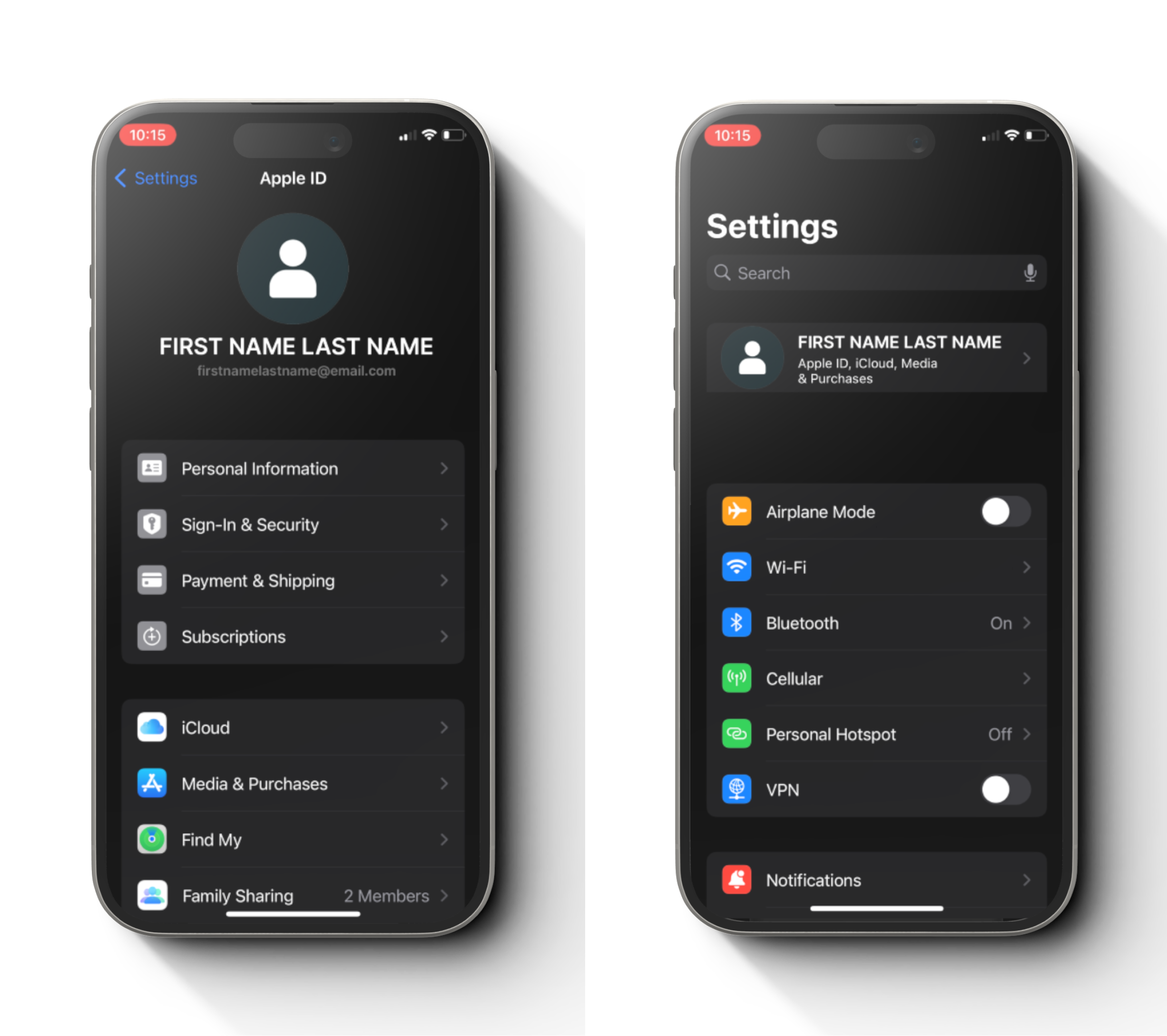
Open setting, tap on your name and tap on “Sign-in & Security”.
Step 2
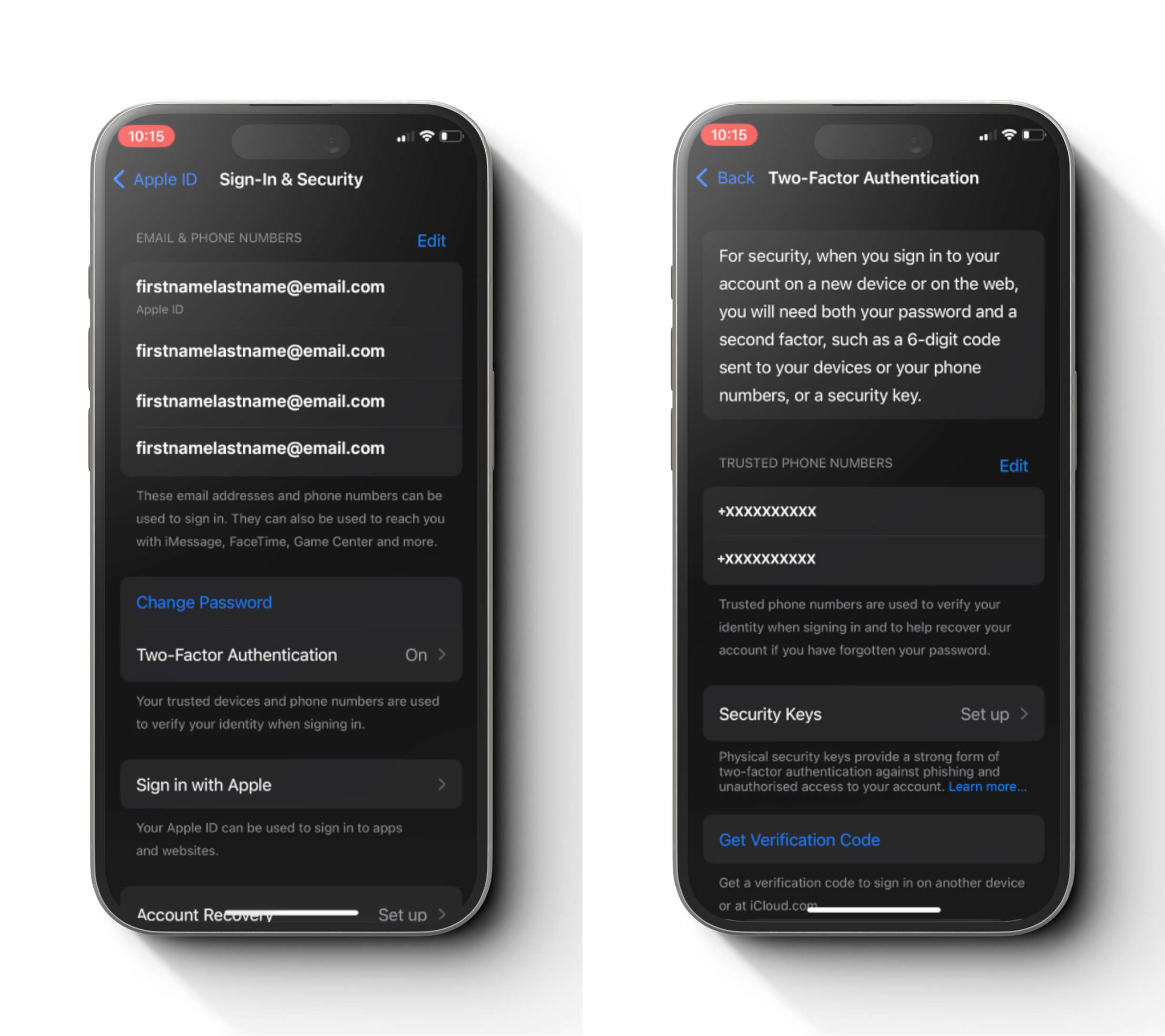
Tap on Two-Factor Authentication and tap Security Keys.
Step 3
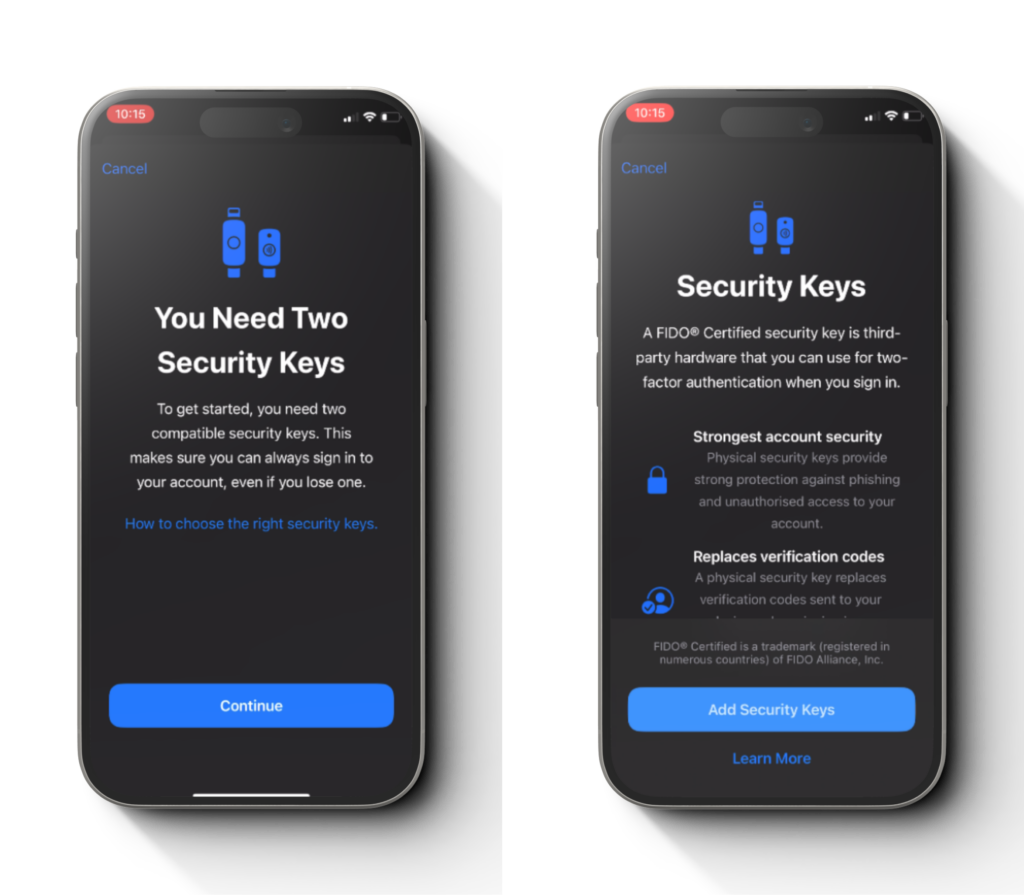
Tap “Add Security Keys” and tap “Continue”.
Step 4
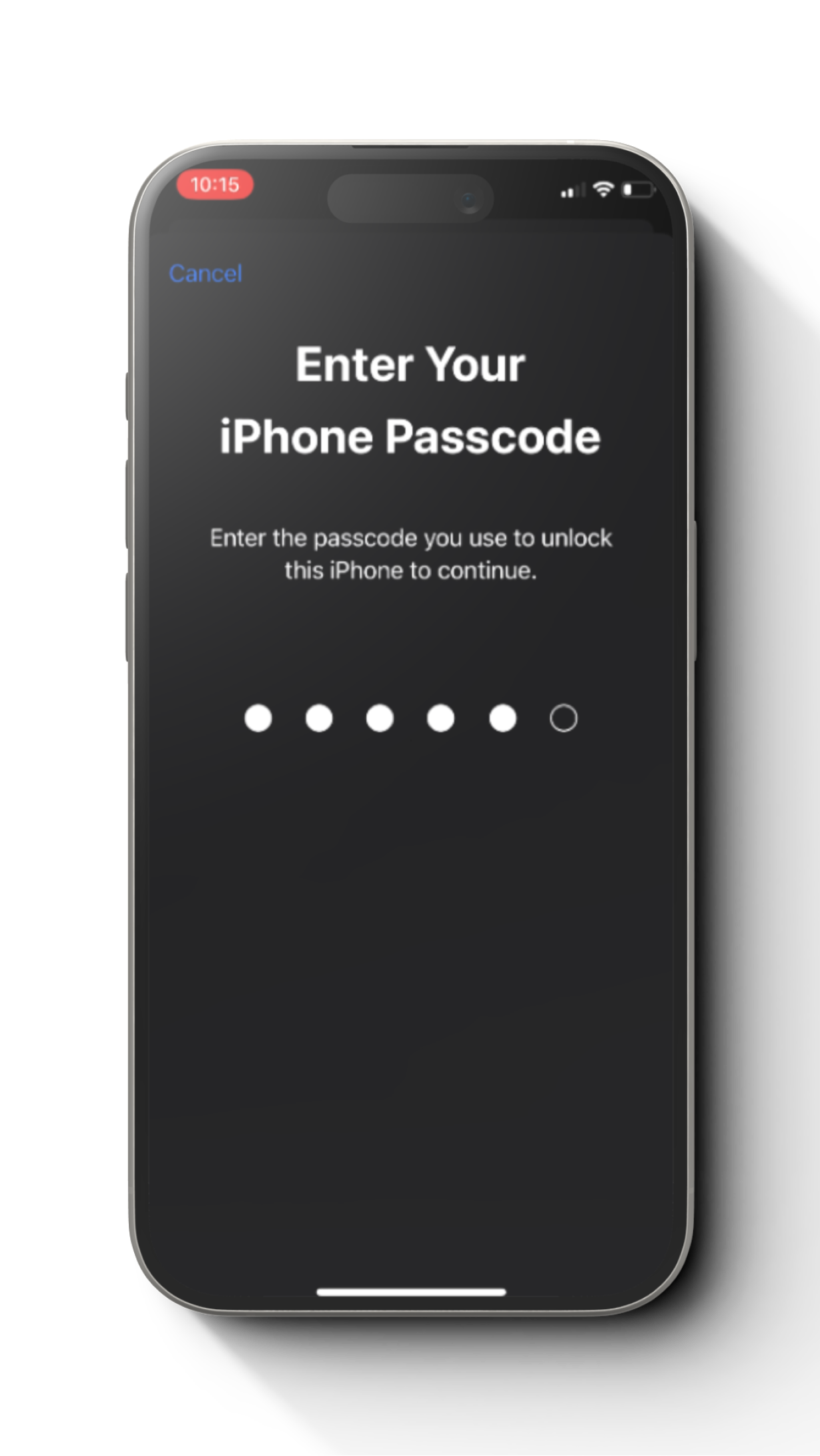
Enter your phone passcode.
Step 5
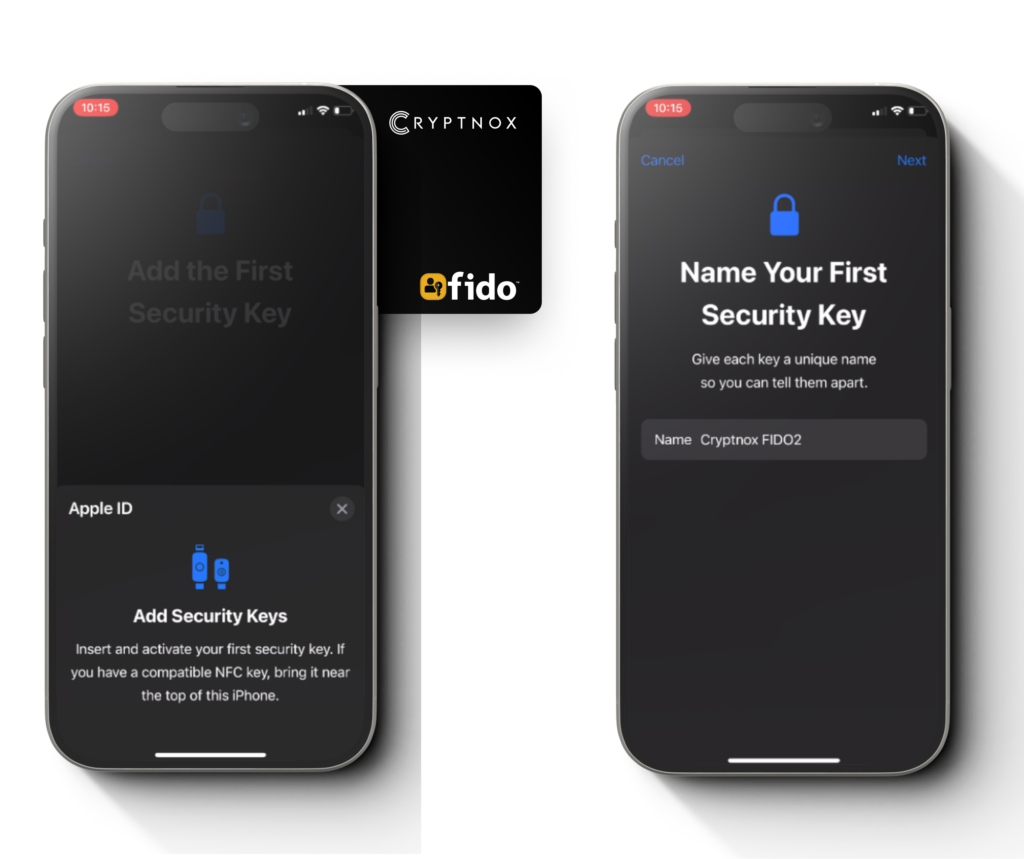
Tap the 1st FIDO2 card from back of the phone, give a name for the card and tap “Next”.
Step 6
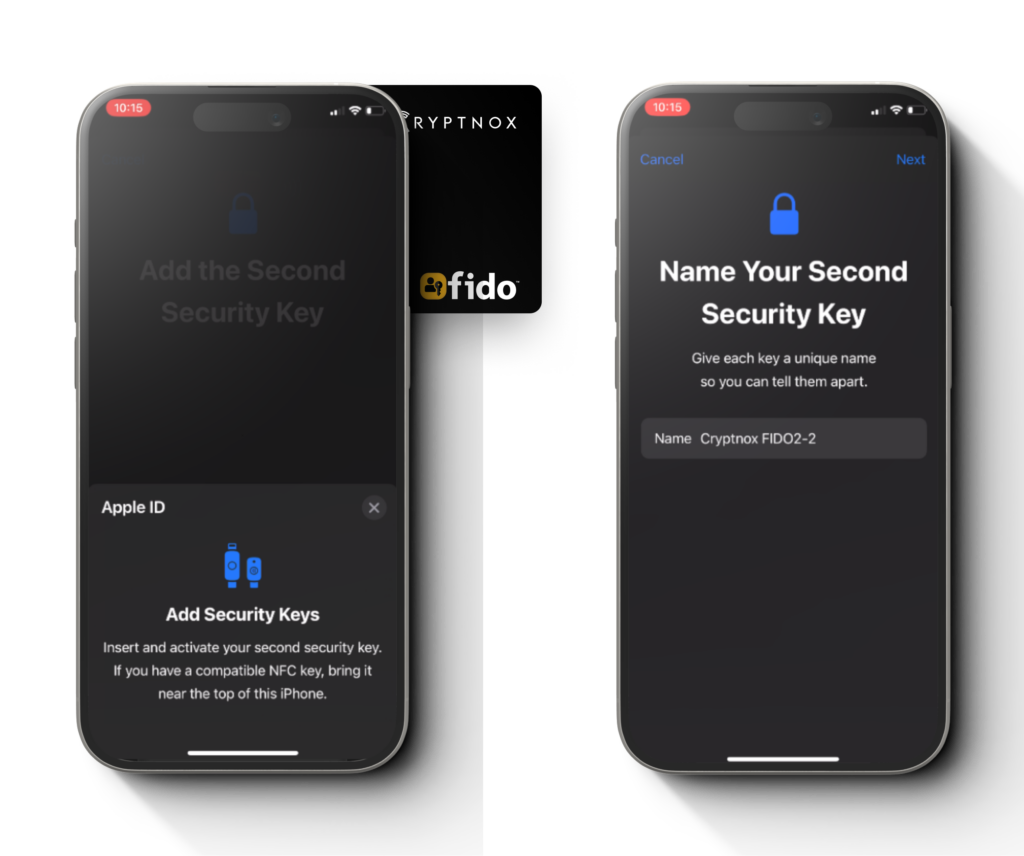
Tap the 2nd FIDO2 card from back of the phone, give a name for the card and tap “Next”
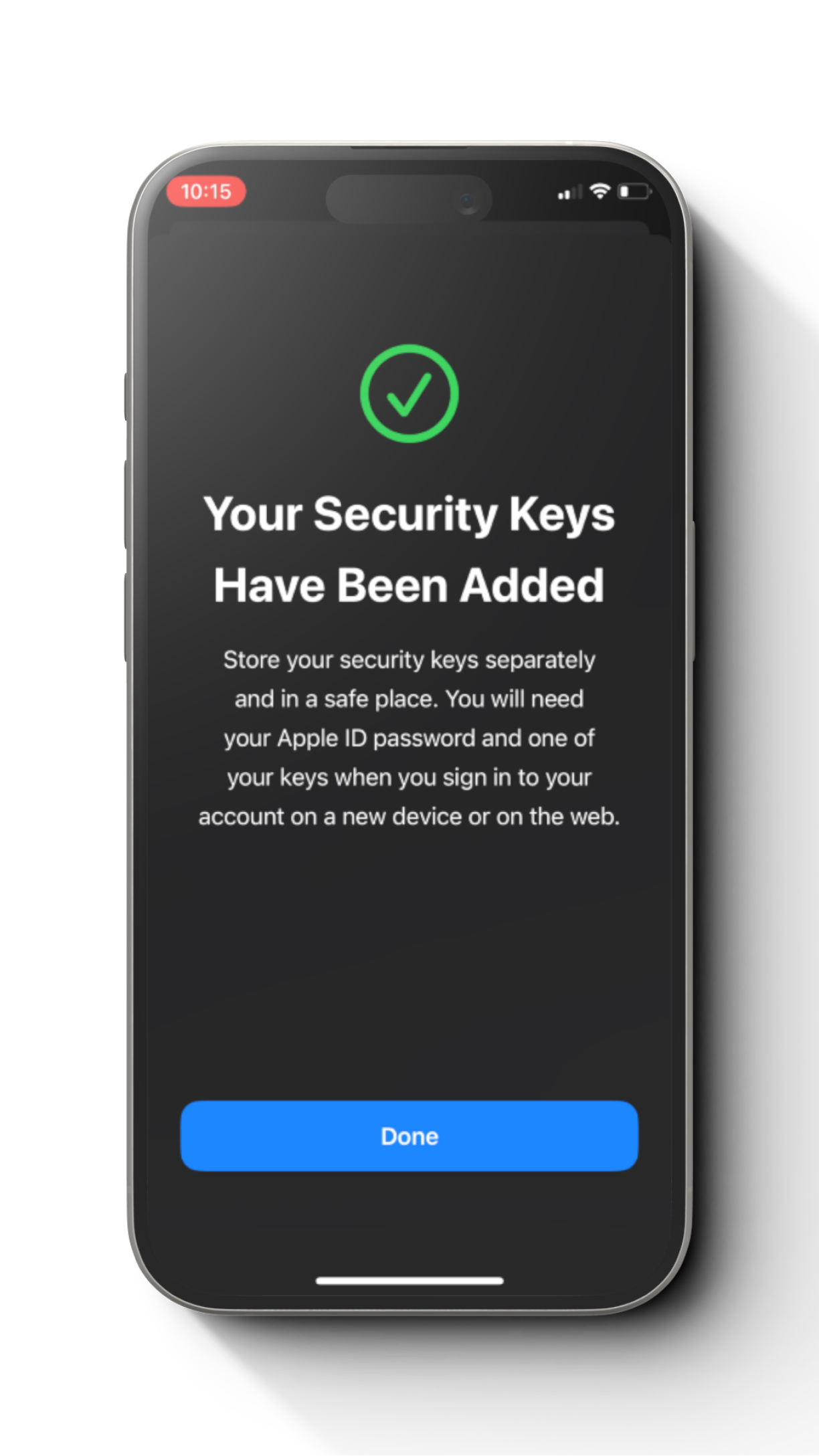
Step 7
You have successfully set up FIDO2 Card with an Apple ID.