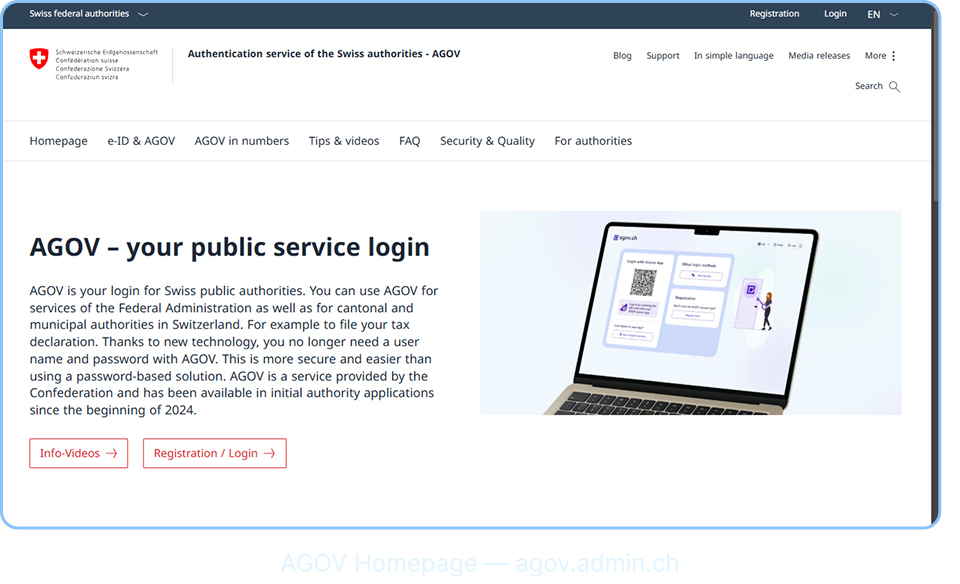
AGOV is Switzerland’s official public authority login used to access federal, cantonal,
and municipal government services. Follow this accurate step-by-step guide to
register your Cryptnox FIDO2 card as your login factor.
Your Cryptnox FIDO2 smart card ready to use.
Cryptnox USB card reader plugged into your computer before starting.
Google Chrome, Microsoft Edge, or Firefox (latest version).
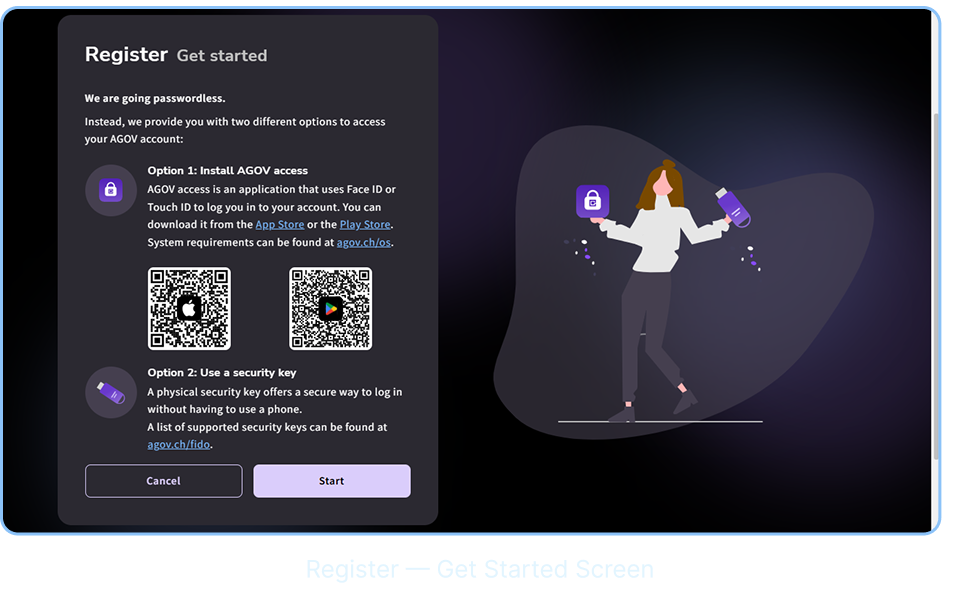
A “Register — Get started” screen appears. AGOV explains they are going passwordless and offers two options:
Option 1: Install AGOV Access app — uses Face ID or Touch ID on your phone
Option 2: Use a Security Key — a physical security key like the Cryptnox FIDO2 card
Since we are using the Cryptnox FIDO2 card, focus on Option 2. Read the information on
screen then click the “Start” button to proceed.
The Cryptnox FIDO2 card is a supported FIDO2 security key. Make sure your USB card reader is plugged in before clicking Start.
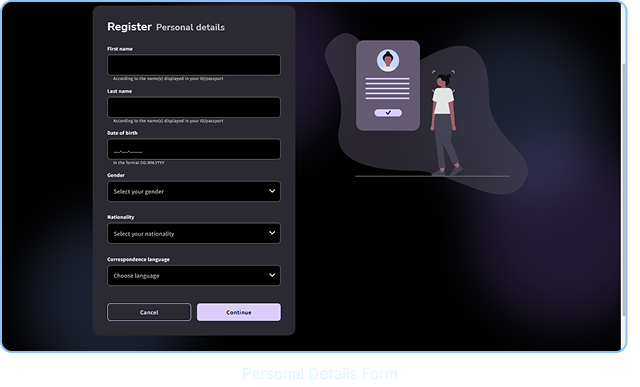
This step has multiple screens to complete. Follow each one in order:
Fill in your First name, Last name, Date of birth (in DD.MM.YYYY format), Gender, Nationality, and Correspondence language exactly as shown in your ID or passport. Click “Continue” when done.
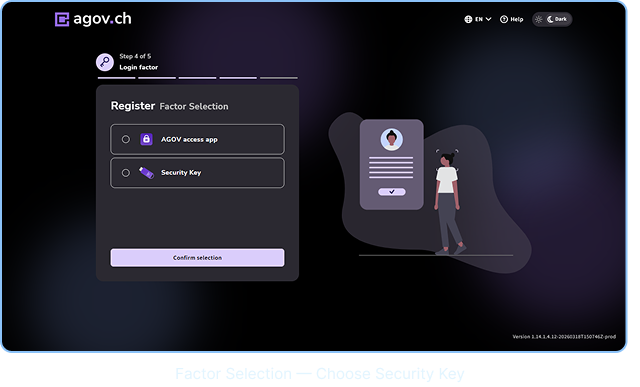
A “Register — Factor Selection” screen appears (Step 4 of 5). You will see two options: “AGOV access app” and “Security Key”. Select “Security Key” and click “Confirm selection”.
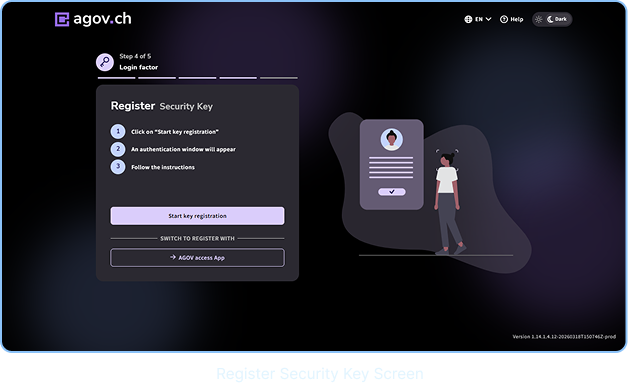
A “Register Security Key” screen appears with 3 instructions: (1) Click “Start key registration”,(2) An authentication window will appear, (3) Follow the instructions. Click the “Start key registration” button.
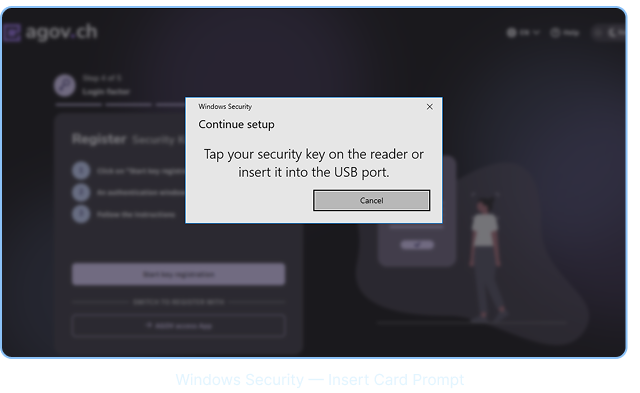
A Windows Security popup appears saying “Continue setup — Tap your security key on the
reader or insert it into the USB port.” Insert your Cryptnox FIDO2 card into the USB card
reader connected to your computer.
Make sure the Cryptnox USB card reader is already connected to your computer before this step.
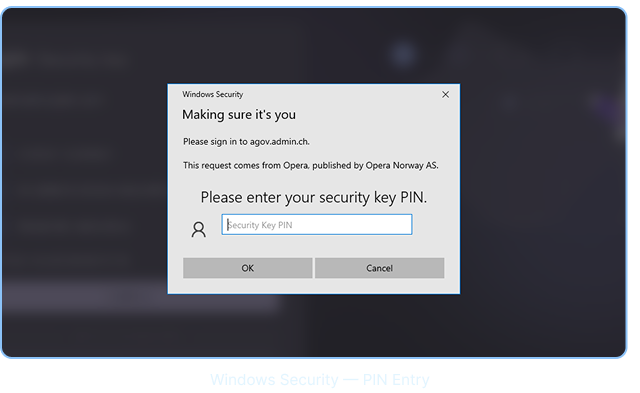
A second Windows Security pop-up appears, saying “Making sure it’s you — Please enter your security key PIN.” Type your Cryptnox card PIN and click “OK”.
If you have not set a PIN yet, do so first in the Cryptnox FIDO2 Card Manager app before starting registration.
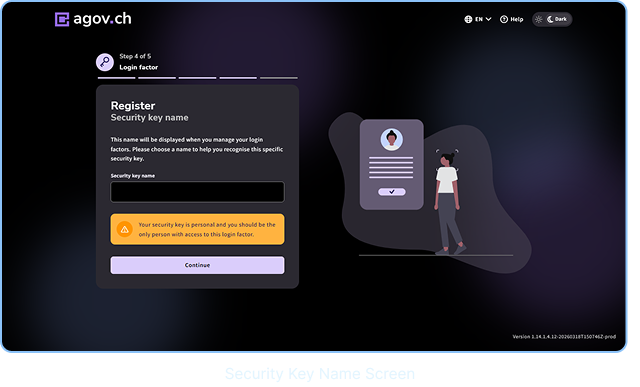
A “Register — Security key name” screen appears. Enter a name to help you recognise this specific key (for example: “My Cryptnox Card”). There is a yellow warning notice: “Your security key is personal, and you should be the only person with access to this login factor.”Click “Continue”.
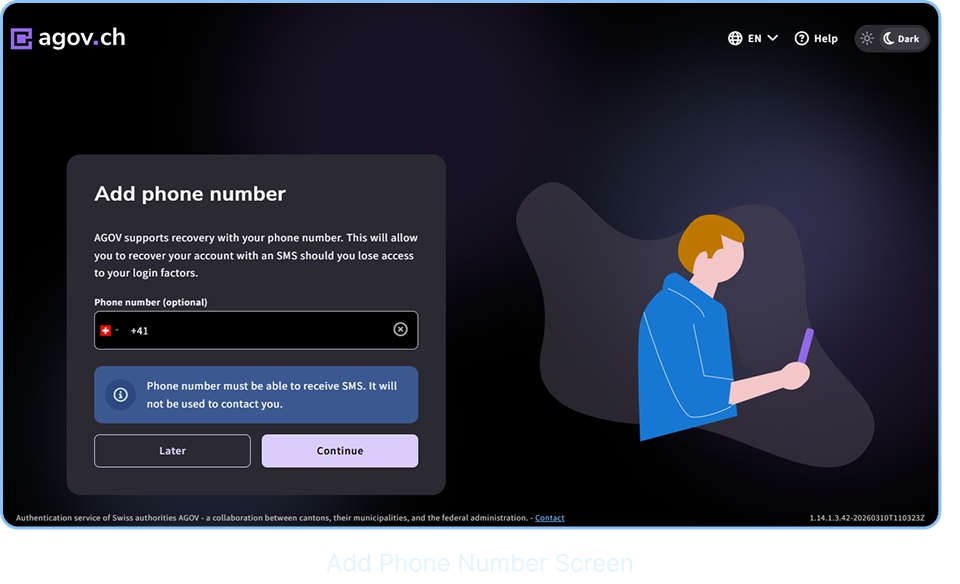
An “Add phone number” screen appears. AGOV supports account recovery via SMS if you lose access to your login factors. Enter your phone number in the field (pre-filled with Swiss +41 prefix) or skip this step. A blue info notice states: “Phone number must be able to receive SMS. It will not be used to contact you.” Click “Continue” to add your number or “Later” to skip.
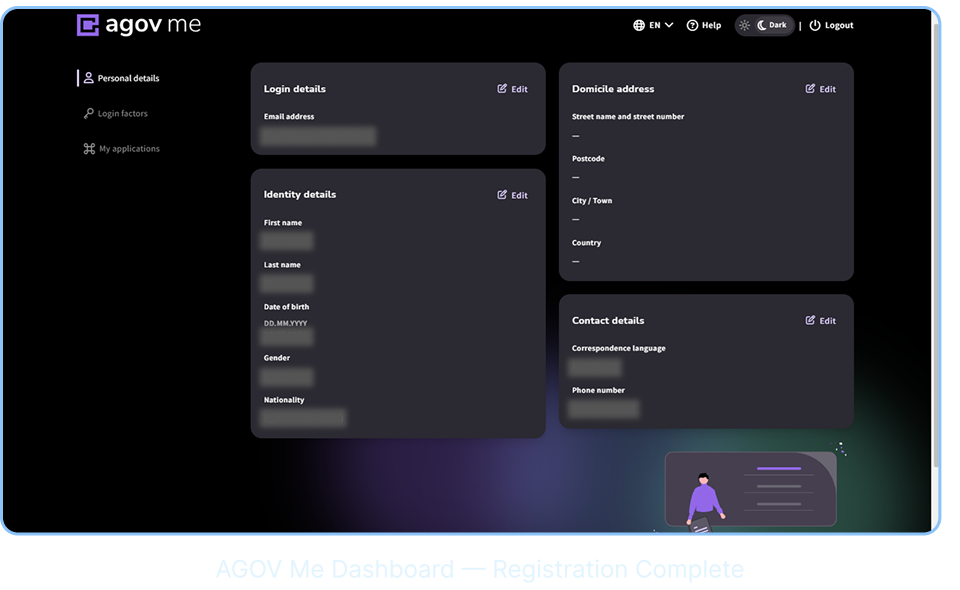
You are now redirected to the AGOV Me dashboard — this confirms your registration iscomplete and your Cryptnox FIDO2 card is successfully registered as your login factor. Thedashboard shows your Login details, Identity details, Domicile address, and Contact details.The left sidebar shows Personal details, Login factors, and My applications.
Your Cryptnox FIDO2 card is now your key to all Swiss government services that support AGOV login.
Your Cryptnox FIDO2 card is now your key to Swiss government services. Next time you log in to AGOV, simply insert your card and enter your PIN.
Next time you visit AGOV, select “Login”, insert your Cryptnox card, and enter your PIN. No password needed.
You can also use your Cryptnox FIDO2 card on your phone via NFC tap for mobile authentication.