How to Use the Click-to-Tap Virtual Button on the Cryptnox Click-to-Tap Reader
Instructions
Step 1
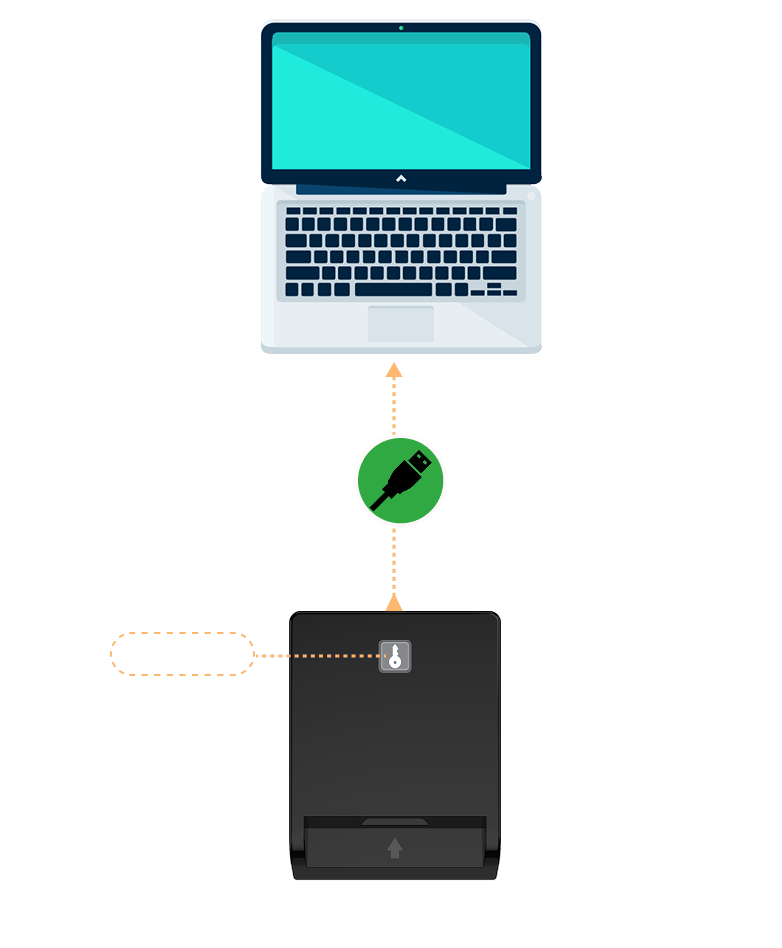
Plug the reader directly into the USB port of your computer. An LED indicator will light up to confirm that the device is powered.
Step 2
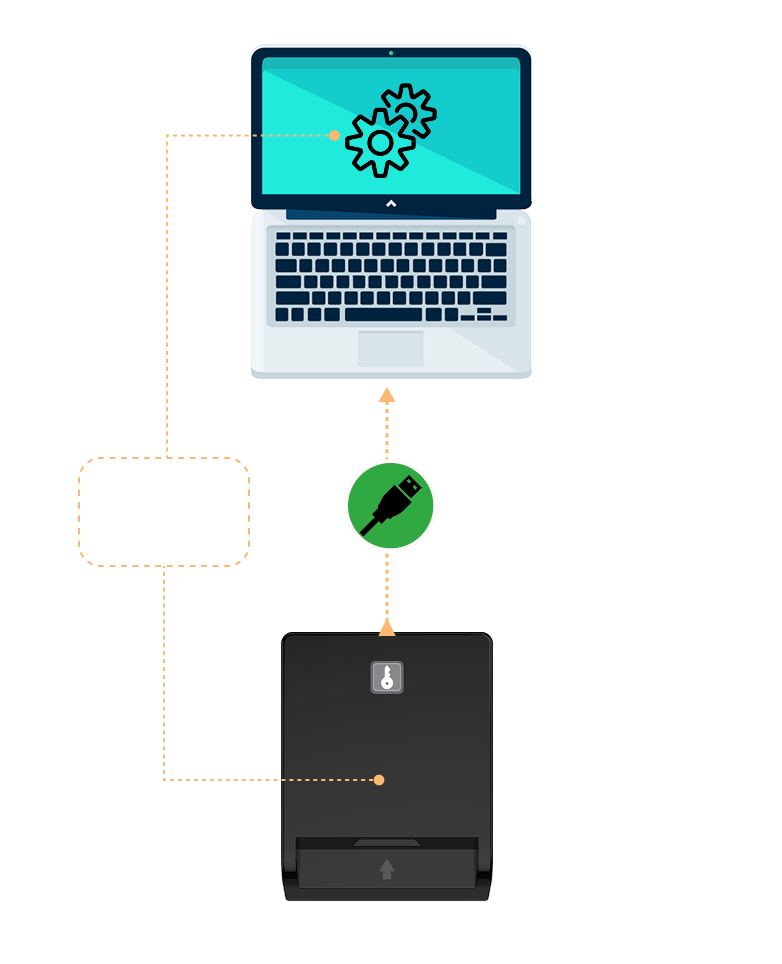
Your operating system will automatically detect and configure the device. No software installation is required for standard use, as the device is plug-and-play. Drivers are already included in major operating systems.
Step 3 — The Click-to-Tap virtual button
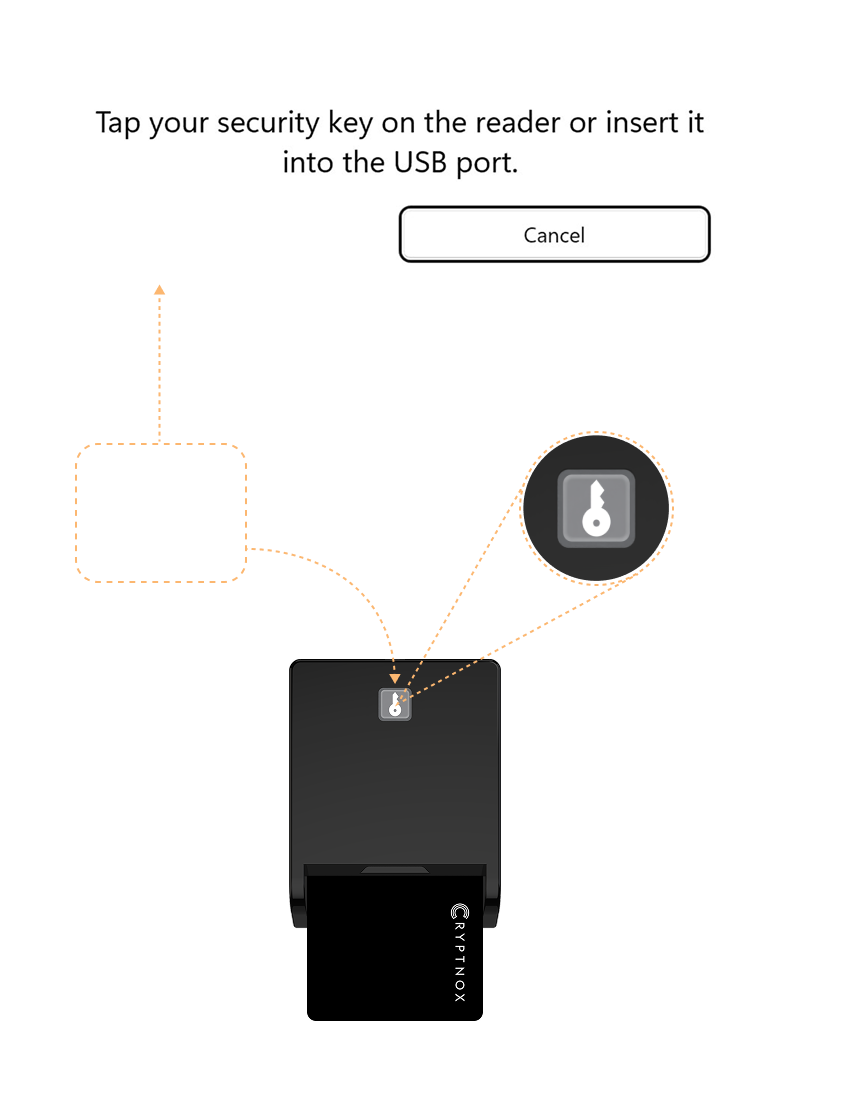
When your service prompts you to “tap your security key,” press the dedicated Click-to-Tap virtual button on the reader instead of physically removing and reinserting the card. The card stays seated in the slot, and the FIDO2 sign-in completes in seconds. This feature works only on Windows and only with Cryptnox FIDO2 smart cards — on macOS or Linux the reader still works as a standard PC/SC contact card reader for any ISO 7816 card.