How to Create a SwissID Account
and Register Your Cryptnox FIDO2
Card
SwissID is Switzerland’s secure digital identity for 200+ online services. Follow this accurate step-by-step guide to create your account and register your Cryptnox FIDO2card as your passkey on desktop.
🖥️ Desktop
🔌 USB Card Reader Required
🇨🇭 Swiss Government Portal
Before You Start
Cryptnox FIDO2 Card
Your Cryptnox FIDO2 smart card ready to use.
USB Card Reader
Cryptnox USB card reader must be plugged into your computer before starting the registration process.
Supported Browser
Use a Chromium-based browser (Chrome, Safari, Edge, or Opera version 100 or higher). Firefox is currently not supported for this process.
Registration Steps
1
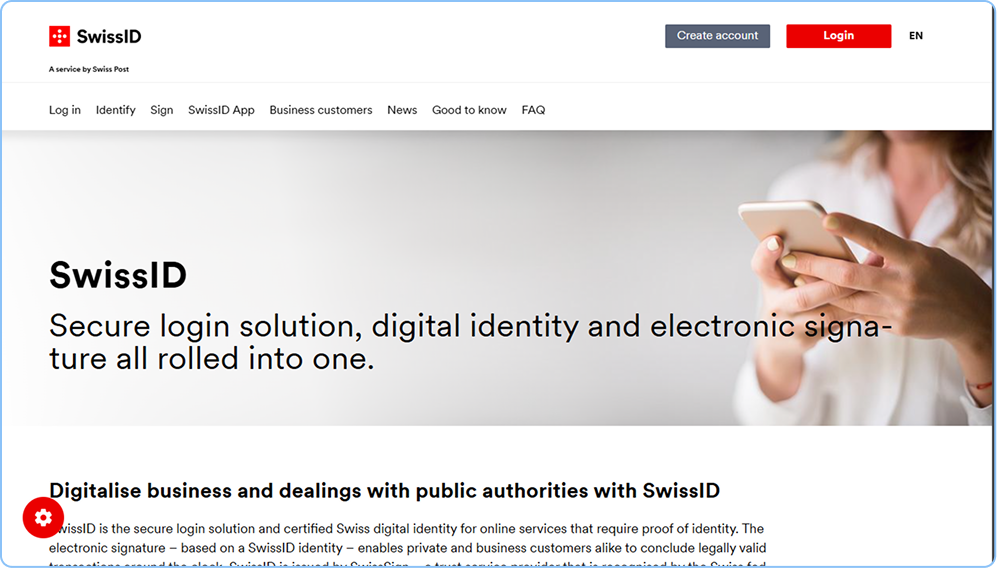
Go to the SwissID Website
Open your browser and go to https://www.swissid.ch/en. Click the “Create account” button at the top right of the page (the grey button next to the red “Login” button).
Use a Chromium-based browser such as Google Chrome, Microsoft Edge, Apple Safari, or Opera (version 100 or higher). Firefox is currently not supported for this process.
2
Create Your SwissID Account
This step has 3 screens to complete. Work through each screen in order to finish creating your account.
2a
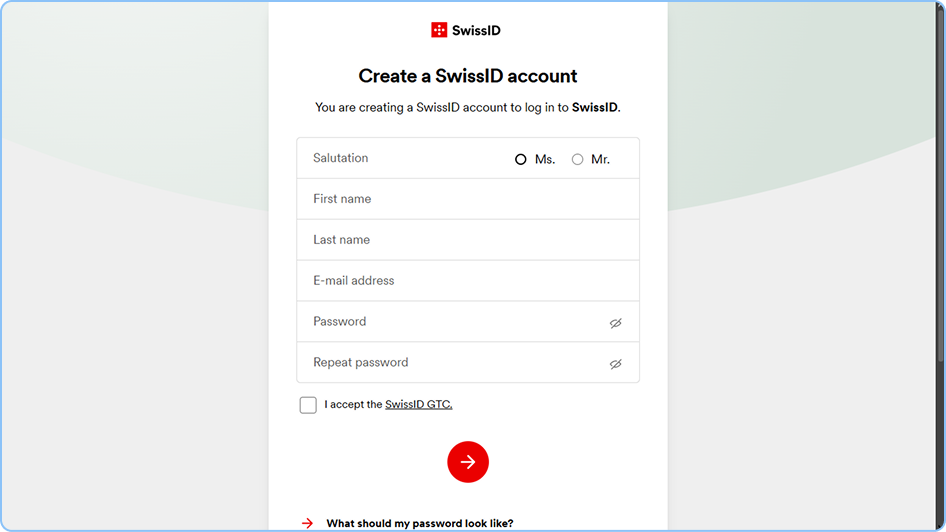
Fill in Personal Details
A “Create a SwissID account” form appears. Fill in your Salutation (Ms./Mr.), First name, Last name, E-mail address, Password, and Repeat password. Check the box “I accept the SwissID GTC” to agree to the terms and conditions. Click the red arrow button to proceed.
Create Account Form
2b
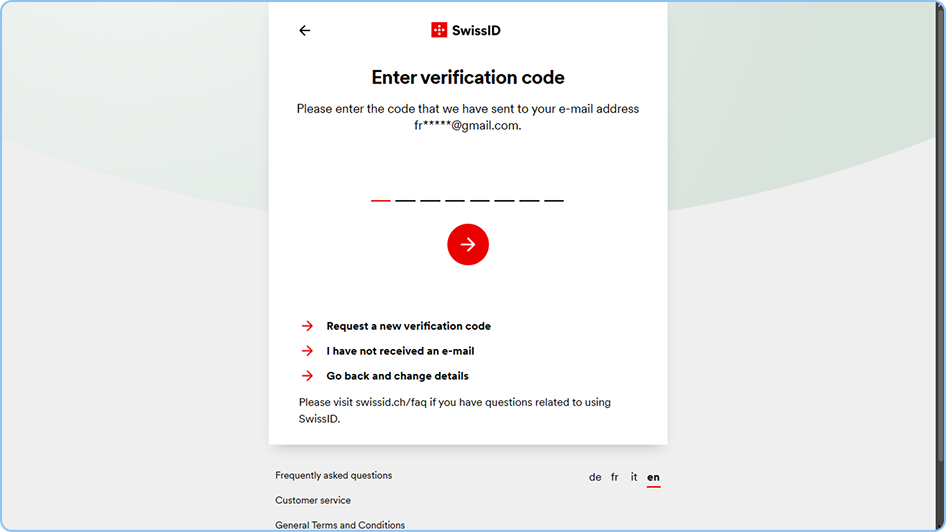
Verify Your Email
An “Enter verification code” screen appears. Check your email inbox for a verification code from SwissID and enter it in the field provided. Click the red arrow button to confirm.
If you don’t receive the email, check your spam folder or click ‘Request a new verification code’ on the page.
Email Verification Screen
2c
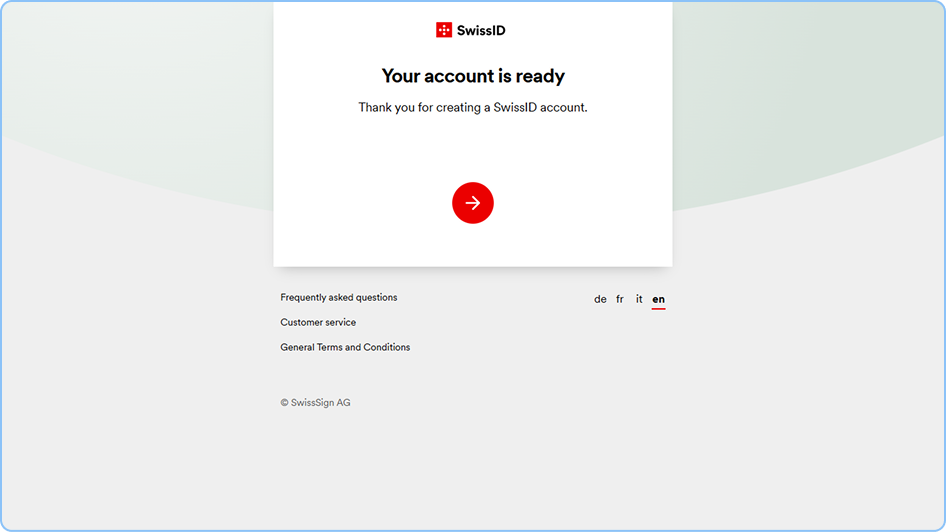
Account Created
A confirmation screen appears: “Your account is ready — Thank you for creating a SwissID account.” Click the red arrow button to continue to the next step.
Account Ready Confirmation
3
Register Your Cryptnox FIDO2 Card as a Passkey
Now that your account is created, you need to go to Settings to enable two-factor authentication and register your Cryptnox FIDO2 card. Make sure your Cryptnox USB card reader is plugged into your computer before starting the registration process.
3a
Enable Always Use Two-Factor Authentication
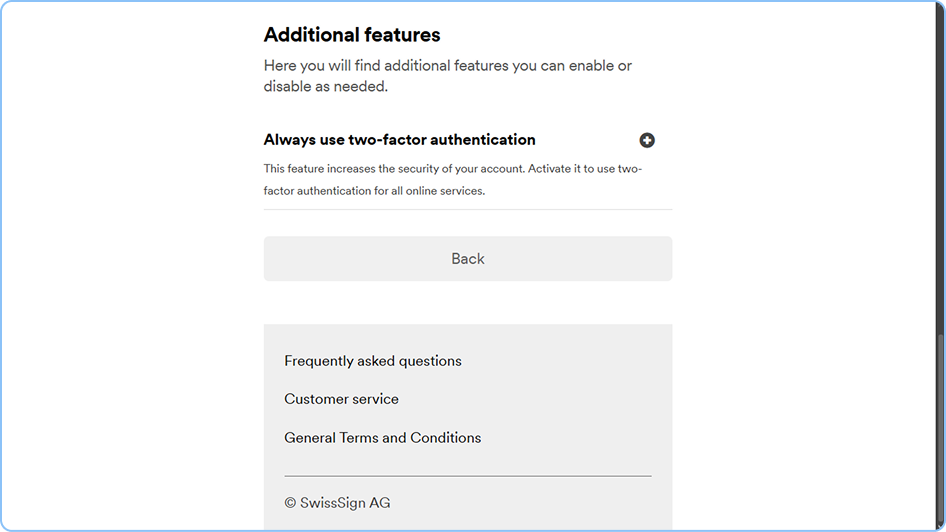
In your SwissID account Settings, scroll to the “Additional features” section. Find “Always use two-factor authentication” — this feature increases security by requiring 2FA for all online services. Click the “+” button to enable it.
Additional Features — Enable 2FA
3b
Add Your Mobile Number
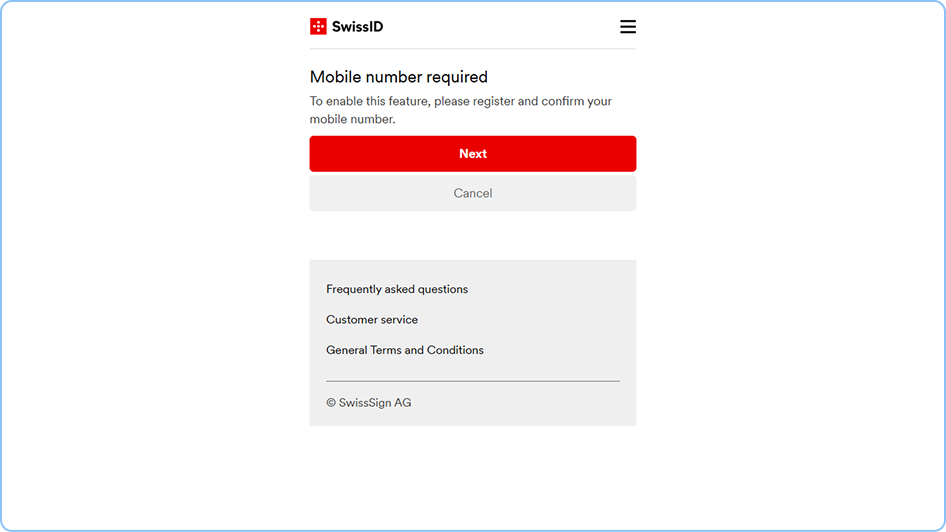
A “Mobile number required” screen appears. SwissID requires a mobile number to enable two-factor authentication for account recovery. Click “Next” and follow the instructions to add and confirm your mobile phone number via SMS.
Mobile Number Required Screen
3c
Create a Passkey
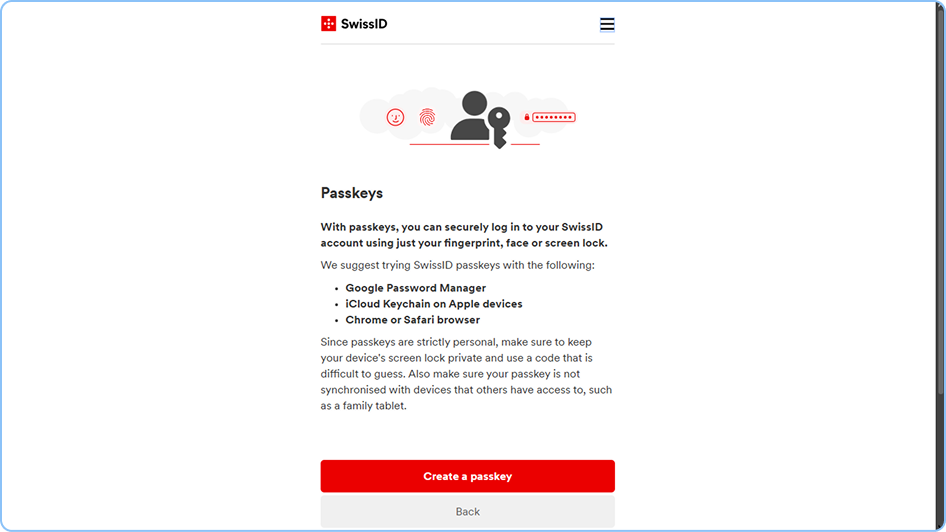
A “Passkeys” screen appears explaining that passkeys let you log in securely using your fingerprint, face, or screen lock — your Cryptnox FIDO2 card works as a hardware passkey. Click the “Create a passkey” button.
Make sure your Cryptnox USB card reader is already connected to your computer before clicking this button.
Create a Passkey Screen
3d
Allow Security Key Setup (browser popup)
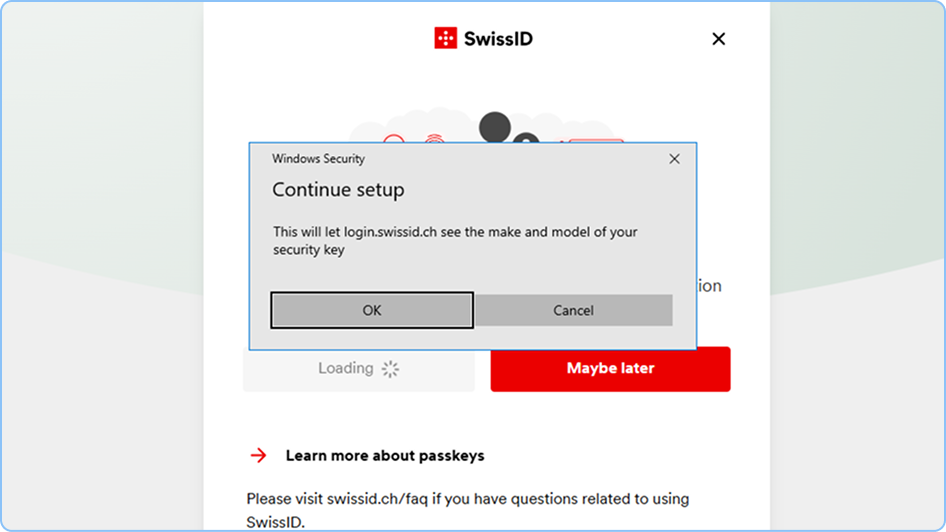
A Windows Security popup may appear saying “Continue setup — This will let login.swissid.ch see the make and model of your security key.” Click “OK” to proceed.
This pop-up may look different depending on your browser (Chrome, Edge, Opera, etc.). If a dialog appears asking you to choose between phone or security key, select the security key/desktop option and follow the on-screen instructions.
Browser Security Popup — Allow Setup
3e
Insert Your Cryptnox FIDO2 Card
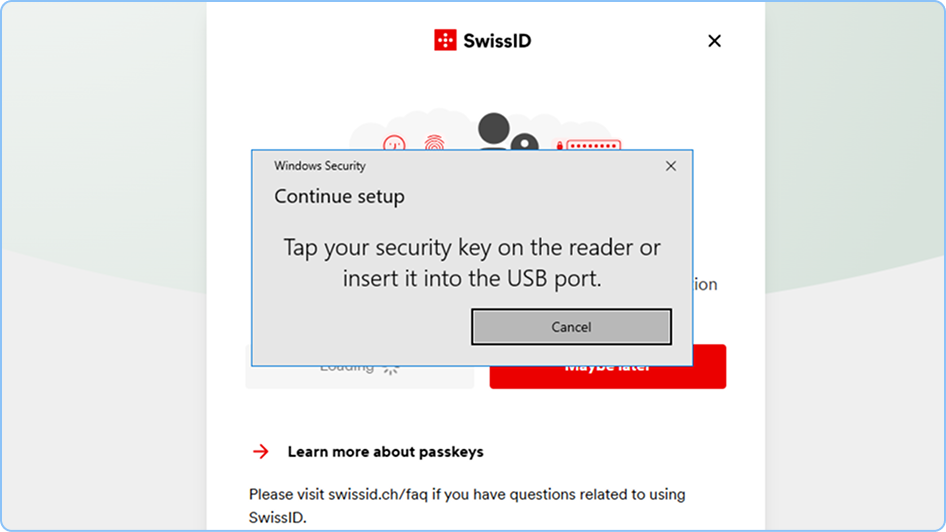
A Windows Security popup appears: “Continue setup — Tap your security key on the reader or insert it into the USB port.” Insert or tap your Cryptnox FIDO2 card on the USB card reader connected to your computer.
Windows Security — Insert Card Prompt
3f
Enter Your Security Key PIN
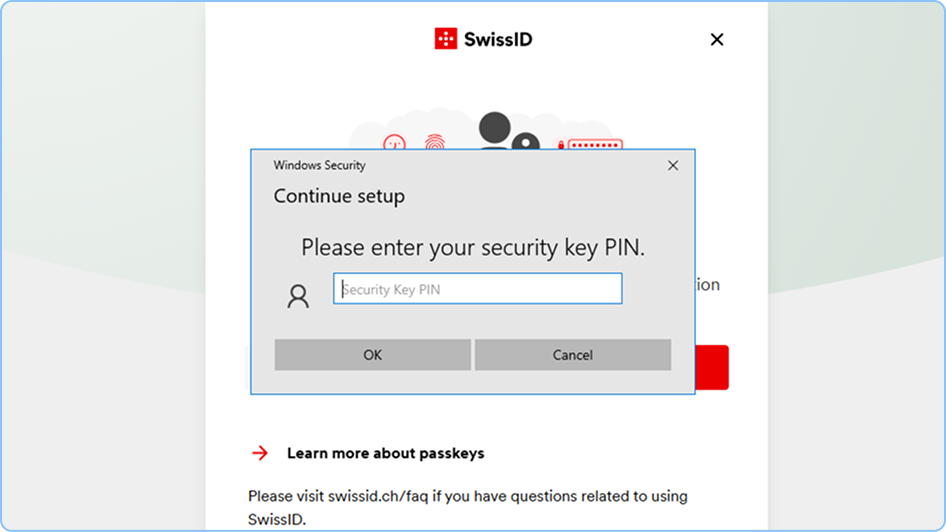
A Windows Security popup appears: “Continue setup — Please enter your security key PIN.” Type your Cryptnox card PIN and click “OK” to authorize the registration.
If you have not set a PIN yet, do so first in the Cryptnox FIDO2 Card Manager app before starting this process.
Windows Security — PIN Entry
3g
Registration Complete
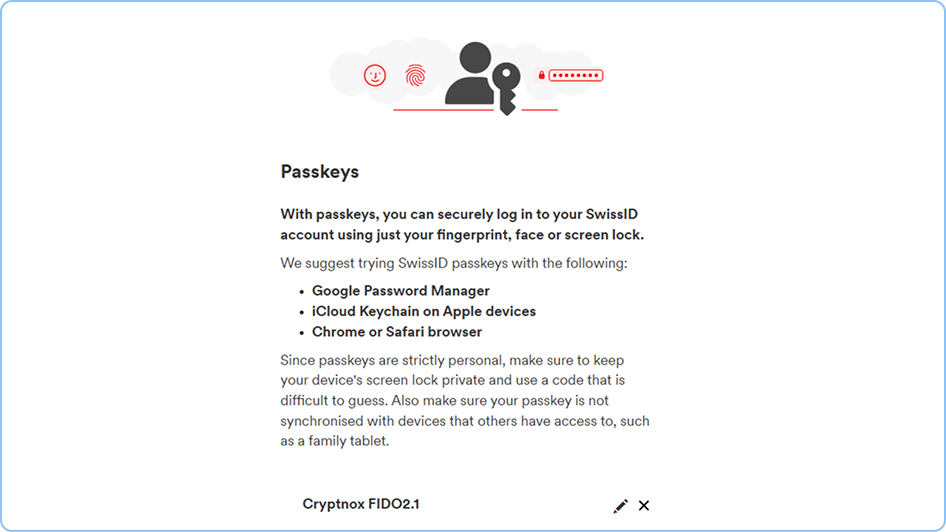
You are returned to the Passkeys page. Your Cryptnox FIDO2 card now appears in the passkeys section listed as “Cryptnox FIDO2.1” with the activation date and time. Your Cryptnox FIDO2 card is now successfully registered as your SwissID passkey! 🎉
Passkeys Page — Cryptnox Card Registered
You're All Set!
Your Cryptnox FIDO2 card is now linked to your SwissID. Next time you log in, simply insert your card and enter your PIN — no password needed.
Login with Your Card
Next time you visit SwissID, click Login, insert your Cryptnox card when prompted, and enter your PIN. No password needed.
Electronic Signatures
With a verified SwissID identity, use your account to sign legally valid documents online.
200+ Services
Use your SwissID account to access Swiss government & private services, including tax declarations, insurance, and more.
Need Help?
Visit our support page or explore more FIDO2 tutorials.