
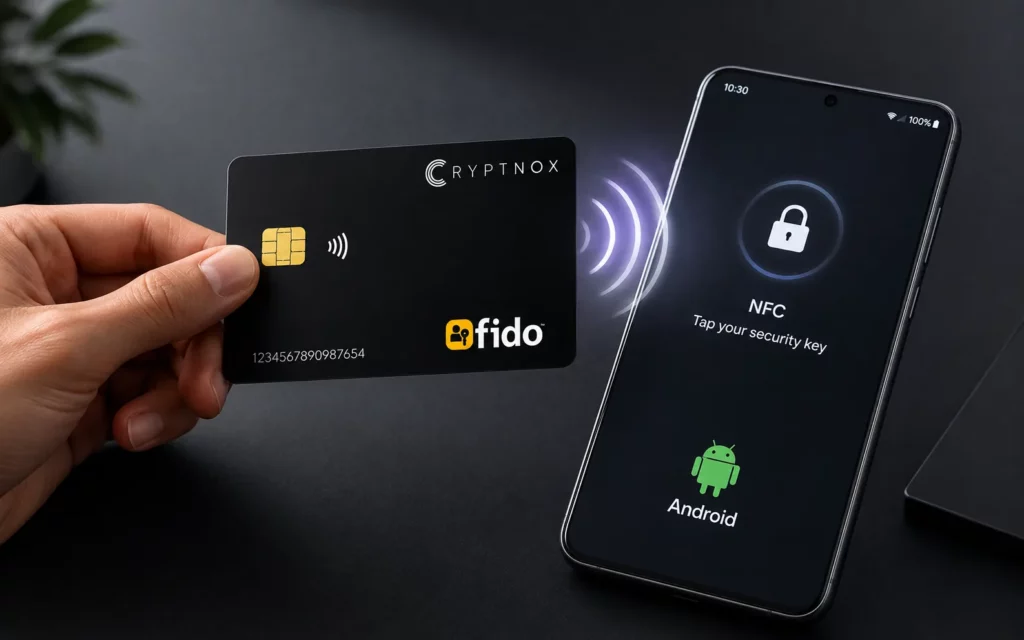
How to Use Your Cryptnox NFC FIDO Card with Android
On Android, your Cryptnox card is a phishing-resistant second factor: you enter your password, then tap the card over NFC. Passwordless sign-in is a separate credential you enrol on a desktop or an iPhone. Here is why they are two different credentials, and how to set up each one.
As of August 2026, Android supports only CTAP1 / U2F for external NFC security keys. A Cryptnox card is a CTAP2 authenticator that also answers CTAP1, so on Android it works as a second factor — password first, then tap — but not as a passwordless credential. Enrol the passwordless credential on Windows with a reader, or on an iPhone over NFC.
FIDO2 vs U2F: the actual difference
The difference is not that FIDO2 means passwordless and U2F means two-factor. FIDO2 does both, and on most services it is used as a second factor. The real difference is what the authenticator can prove and what it can store.
U2F (CTAP1) proves only user presence — that someone touched the card. It has no PIN and stores no credential the browser can look up, so it can never be more than the second half of a password login.
FIDO2 (WebAuthn plus CTAP2) can require user verification — on a Cryptnox card, a PIN — and can create discoverable credentials held on the card itself. Those two capabilities are what make passwordless sign-in possible. Neither is mandatory: FIDO2 also creates ordinary non-discoverable second-factor credentials, which is how most services use it.
| Capability | U2F / CTAP1 | FIDO2 / CTAP2 |
|---|---|---|
| Proves someone touched the card (user presence) | Yes | Yes |
| Performs local user verification (card PIN) | No | Yes |
| Can create a discoverable credential on the card | No | Yes, when the service requests one |
| Intended for passwordless sign-in | No — designed as a second factor | Yes, on services that enable it |
| Works as a second factor after a password | Yes | Yes |
| How browsers reach it | W3C WebAuthn (legacy U2F API only on older implementations) | W3C WebAuthn |
| Usable on Android over NFC (August 2026) | Yes | No |
Protocol behaviour above follows the FIDO CTAP 2.1 and W3C WebAuthn Level 2 specifications.
U2F and CTAP are published by the FIDO Alliance; Web Authentication (WebAuthn) is published by the W3C. FIDO2 is the combination of WebAuthn and CTAP2.
So: a Cryptnox FIDO2 card does not need a PIN for a CTAP1 / U2F second-factor tap, which only tests user presence. The PIN is needed when a registration or sign-in asks for user verification, as passkey and passwordless deployments normally do.
Why one card ends up with two registrations
A FIDO credential is not a setting you toggle. It is a key pair the card generates during registration and binds to one service:
- Enrol the card in a service's passkey section and it creates a discoverable credential, which requires CTAP2. A passkey is discoverable by definition; some username-first passwordless flows can instead use a non-discoverable credential with user verification.
- Enrol it in the security key or two-step section and it typically creates a non-discoverable second-factor credential. Registered from an Android phone over NFC, that credential is created through the CTAP1 / U2F flow. The service, not the menu label, decides which credential type it asks for.
Two registration ceremonies produce two key pairs, so the account lists two entries for one physical card. That is not an Android quirk — enrolling in both places produces two credentials on any platform. Which protocol gets used is decided by the client, the authenticator and the service's options, not by the label on the settings page, so register the second-factor credential from the Android phone you intend to sign in with.
The card is a CTAP2 authenticator that also answers the older CTAP1 protocol. That backward compatibility is the reason Android can use it: the phone negotiates the protocol it supports, and the card replies in kind.
Platform support for the Cryptnox FIDO2 card
| Platform | What the Cryptnox card does | What you need |
|---|---|---|
| Android (NFC) | CTAP1 / U2F second factor | Nothing to install. No FIDO2 passwordless over NFC. |
| iPhone, iOS 13.3+ (NFC) | Full FIDO2 | iPhone 7 or later. Nothing to install. |
| Windows 10 / 11 | Full FIDO2, all major browsers | A contact (ISO 7816) or NFC (ISO 14443) reader. |
| macOS | Varies by macOS version and browser | A reader. Test before relying on it. |
| Linux | Full FIDO2 through a bridge | A reader plus the Cryptnox FIDO2 HID bridge. |
The card is dual-interface — contact and NFC — so on a desktop it works through either a contact smart card reader (ISO 7816) or an NFC reader (ISO 14443, 13.56 MHz). On a phone the NFC interface is used directly.
Set up your card for Android two-factor sign-in
Step 1 — Add the card as a security key
- On the Android phone you will sign in with, open the service and go to its two-step or two-factor verification settings.
- Choose Add security key rather than Add passkey. The wording differs between services and does not map exactly onto the protocol, but the security-key route is the one that normally creates the second-factor credential.
- When prompted, tap the card to the back of the phone. Registering through the Android flow produces a CTAP1 / U2F-compatible credential, which is the kind the phone can use later.
- A CTAP1 registration normally asks only for a tap, not a PIN.
- Name the credential something like "Cryptnox card (security key)" so you can tell it apart from a passwordless one.
Step 2 — Sign in from Android
- Enter your username and password as usual.
- Choose the security-key option when the service asks for your second factor.
- Hold the card flat against the back of the phone and move it slowly — NFC antenna placement varies by handset.
- Keep the card still until the phone confirms; the tap takes about a second.
Step 3 — Optional: add passwordless on a desktop or iPhone
- Use a Windows 10 or 11 PC with a contact or NFC reader, or an iPhone on iOS 13.3+ over NFC.
- Set a card PIN with the Cryptnox FIDO2 app if you have not already. The PIN is this card's user-verification method, and passkey deployments normally require user verification.
- In the service's passkey or passwordless section, add the card.
- Expect a second entry in the account's credential list. That is the discoverable credential.
Which services support this?
Most mainstream services still accept WebAuthn registrations from CTAP1 / U2F authenticators, so the card works as a second factor on Google, GitHub and similar sites. Passwordless sign-in is enabled by a smaller set, including Microsoft Entra ID, Google Workspace and AGOV.
Microsoft Entra ID requires user verification for every FIDO2 attempt and does not accept CTAP1 / U2F credentials. That means the Android NFC path will not work with Microsoft accounts: use the card with a reader on Windows, or over NFC on an iPhone. Both Cryptnox FIDO2 and Cryptnox FIDO2.1 are listed in the FIDO Alliance Metadata Service as eligible for Entra ID attestation.
CTAP1 is spoken between the browser and the card, not by the server — what varies is how each browser, handset and service implements the U2F flow. Test your specific combination before you rely on it, particularly before rolling the card out to a team.
Set up your Cryptnox card for both flows
Review the FIDO2 card range and compatible readers, or get in touch if you are rolling this out across a team.