How to setup Cryptnox FIDO2 card for Windows Sign-in
Step by step tutorial
You need a Microsoft 365 Business Premium subscription for Microsoft desktop login, otherwise only web login will be enabled.
Before you start
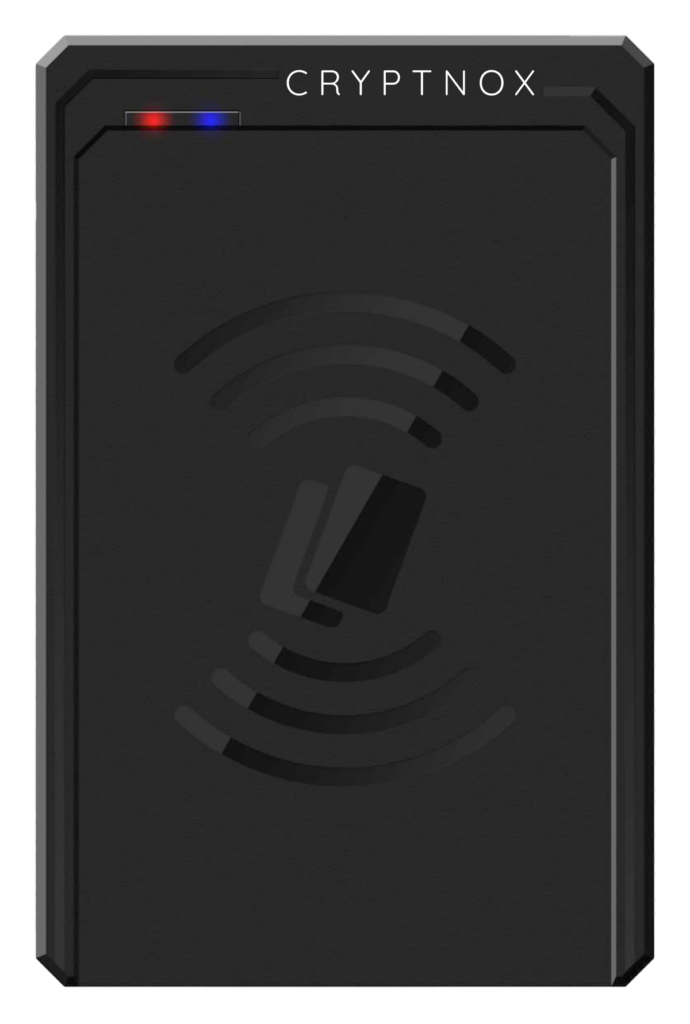
Before you start, make sure you have a contactless reader that is compatible with ISO 14443 for contactless or ISO 7816 for contact reader.
Step 1
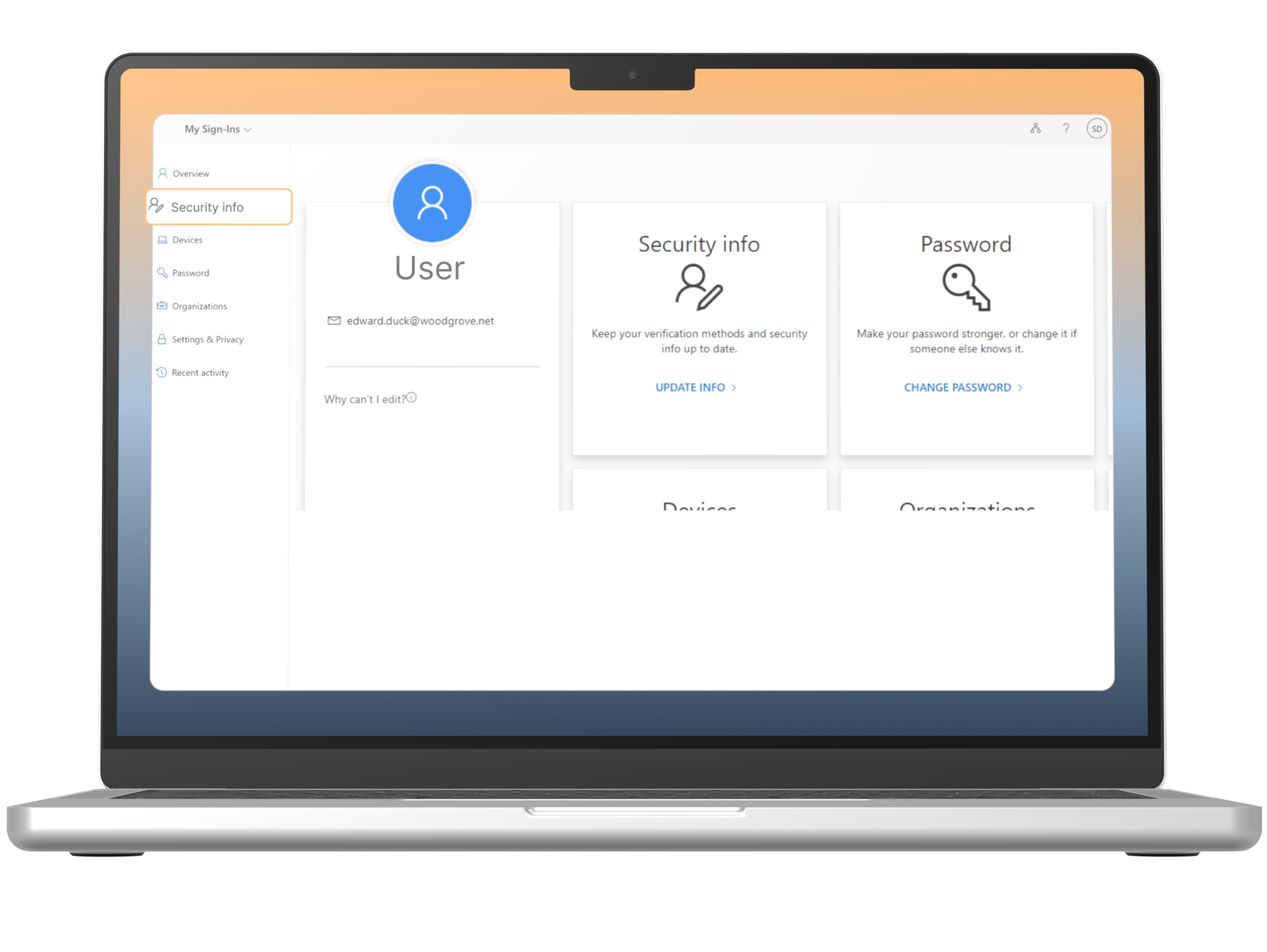
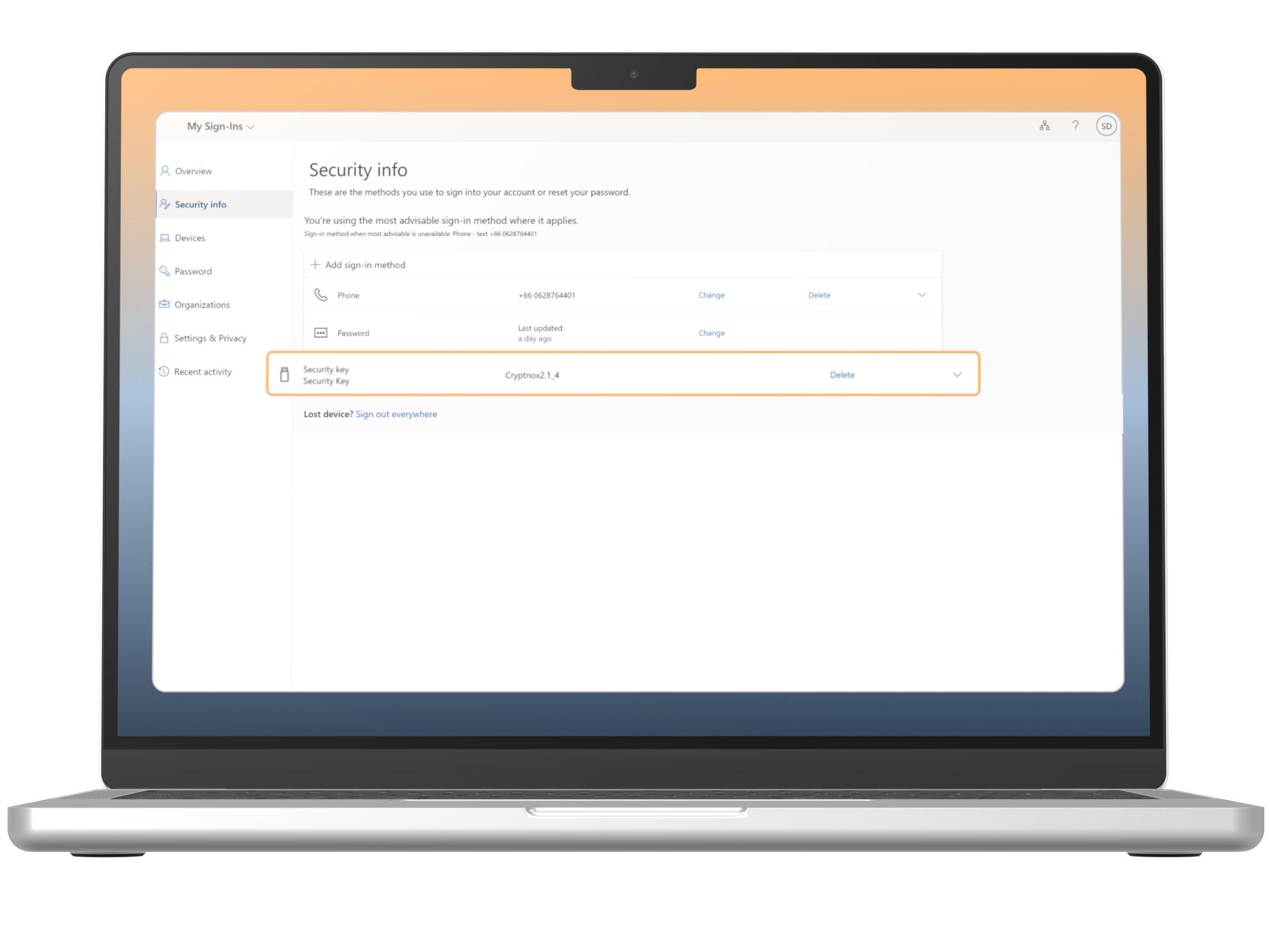
Log in to your Microsoft account first to initiate Windows Setup, then go to “Security info”.
Step 2
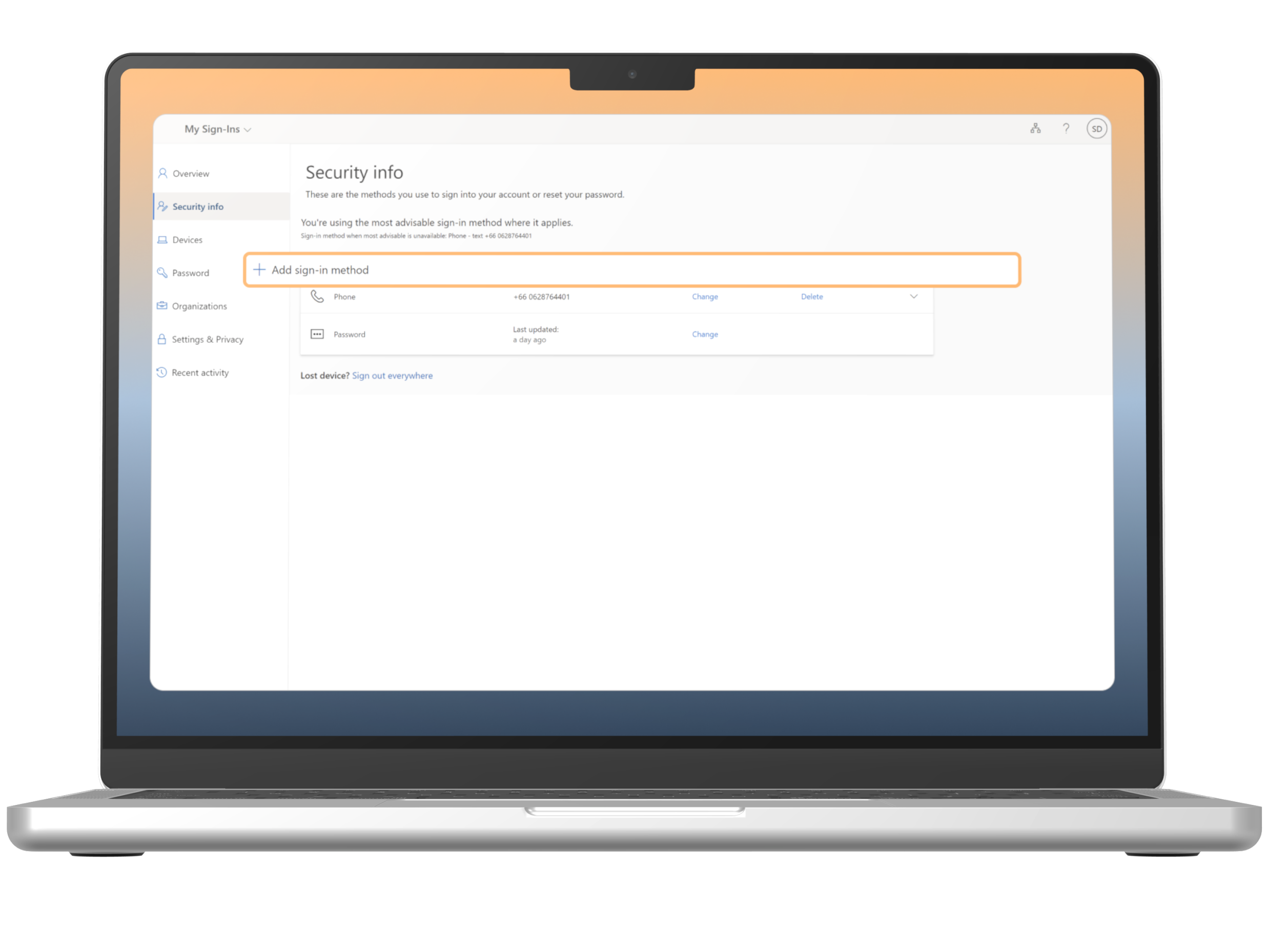
In the Security info, select “Add sign-in method”.
Step 3
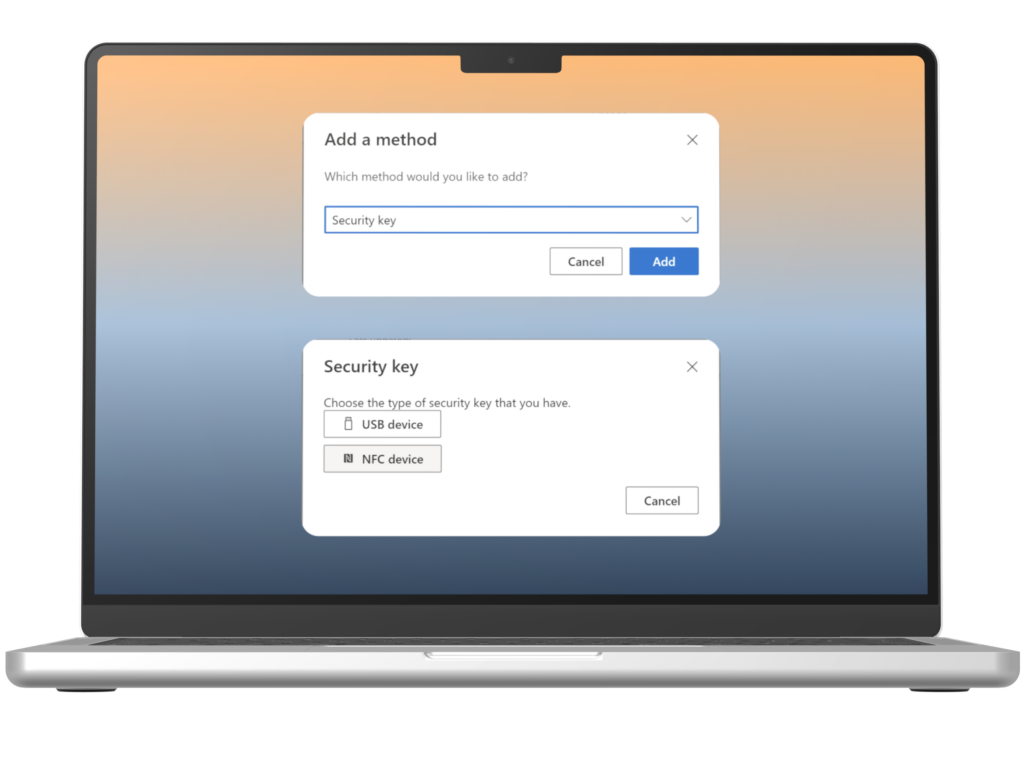
The system will prompt to select a method. Choose “Security Key” and select “Add”. In the next pop up, select “NFC device”.
Step 4
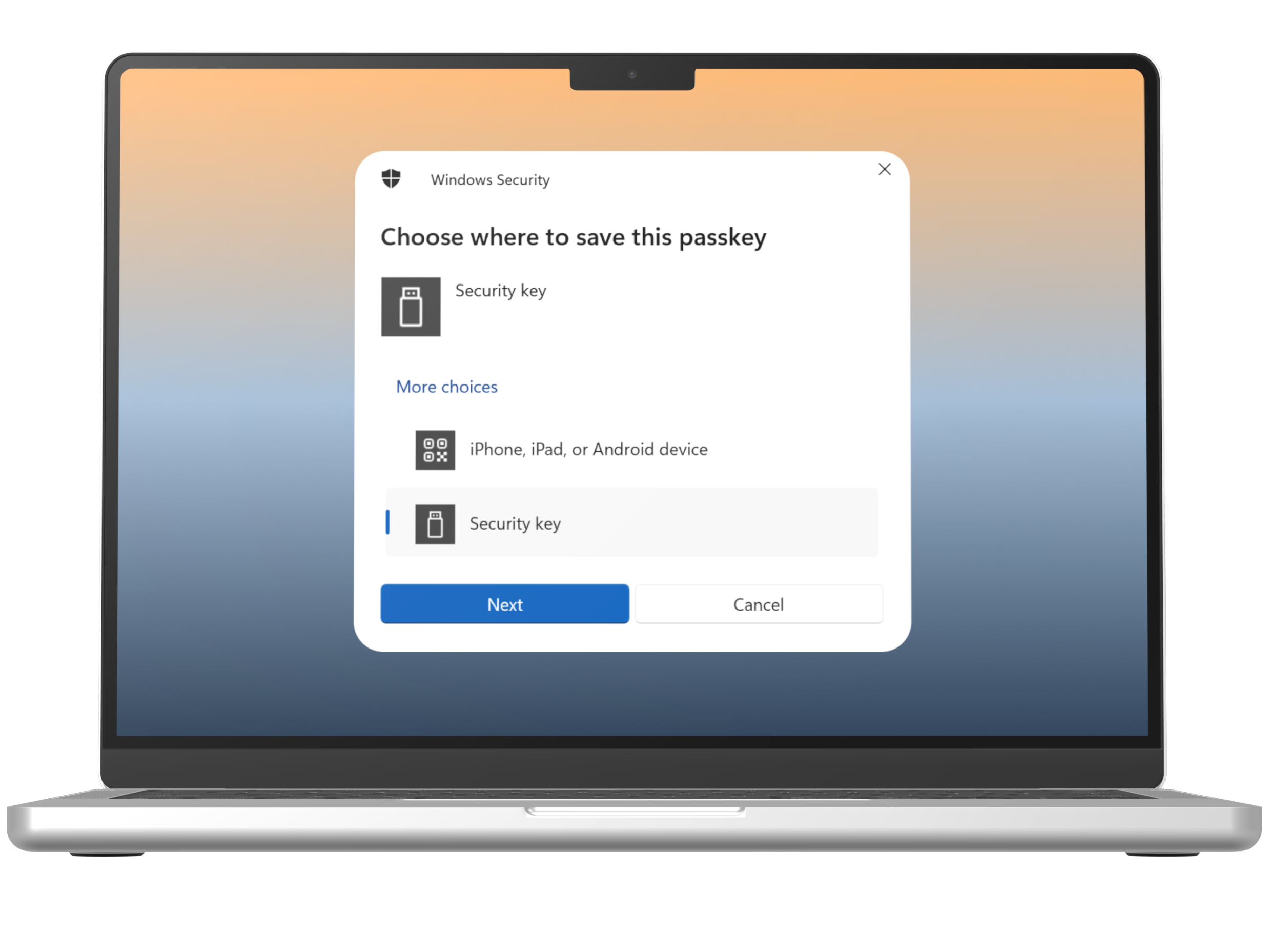
The system will prompt the available options to setup a passkey. Ensure to select the “Security key” and select “Next”.
Step 5
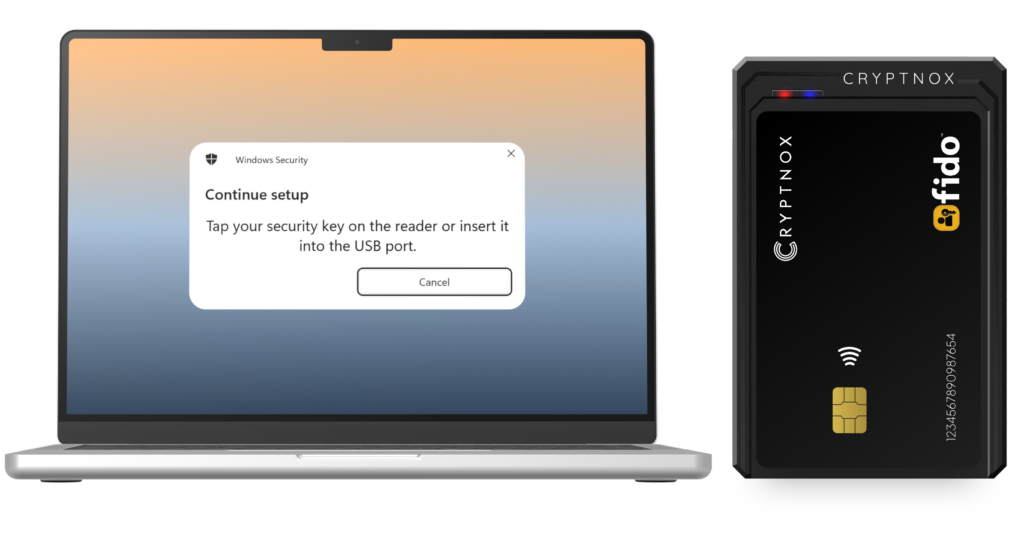
The system will prompt the message to set up the Security Key. While the prompt is opening, place the card on the contactless reader..
Step 6
Before the card is properly registered, the system will ask for the PIN. After, select “OK” and in the next pop up, select “OK” again.
Important: Ensure you remember your PIN. It is advisable to save it securely or write it down in a safe place. You will need this PIN the next time you log in to a site where you have set up passkey authentication.
Step 7
Security key setup successfully.
Step 8
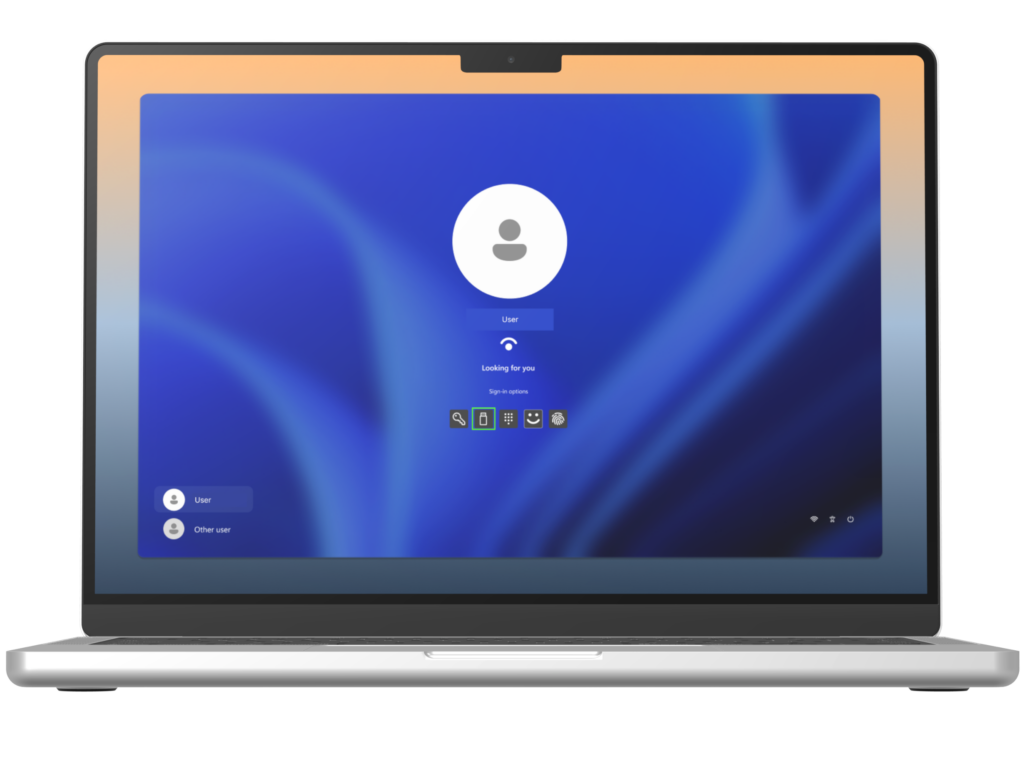
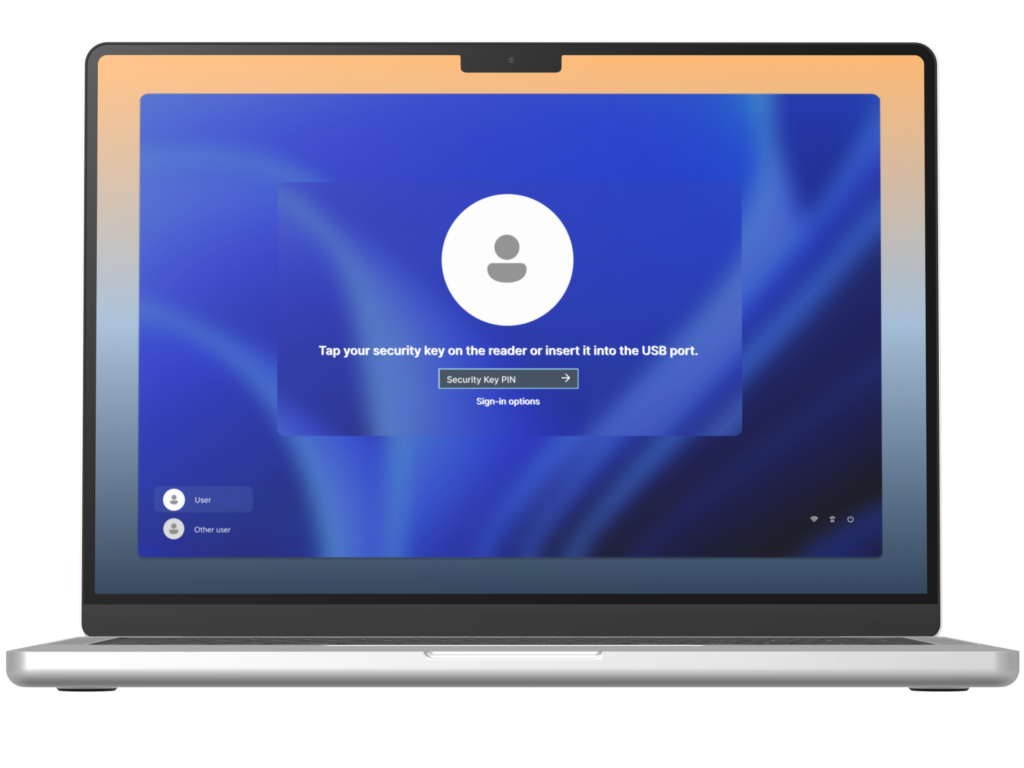
You can now use your Cryptnox card for passwordless login to your online account. The process is similar to that of other websites. If you are using a work or school account, you can also use the card to log in to your desktop. To do this, restart your computer and, on the login screen, select the “Security key” icon.
Step 9
Place the card on the reader and enter the passkey you set for the card to log in.