How to Setup Cryptnox FIDO2 Card for Facebook account
Step by step tutorial to Setup Cryptnox FIDO2 Card
Security Key Support Across Operating Systems and Web Browsers:
The availability of security key support can vary based on the operating system and web browser being used. MacOS: Security Key support is provided by browsers such as Safari and Firefox. Windows: Most web browsers offer security key support. On mobile: It’s recommended to use the mobile web version of the service, as almost every application directs users to the web version within a mobile browser for the setup process.
Step 1
Log in to your Facebook account and go to Settings.
Step 2
Go to “Password and security“ under Accounts Center.
Step 3
Then select “Password and security” under Account settings.
Step 4
Select “Two-factor authentication”.
Step 5
Select “Security keys”.
Step 6
Select “Register security key”.
Step 7
The app will take the user to the web version and then select “Register Security Key”.
Step 8
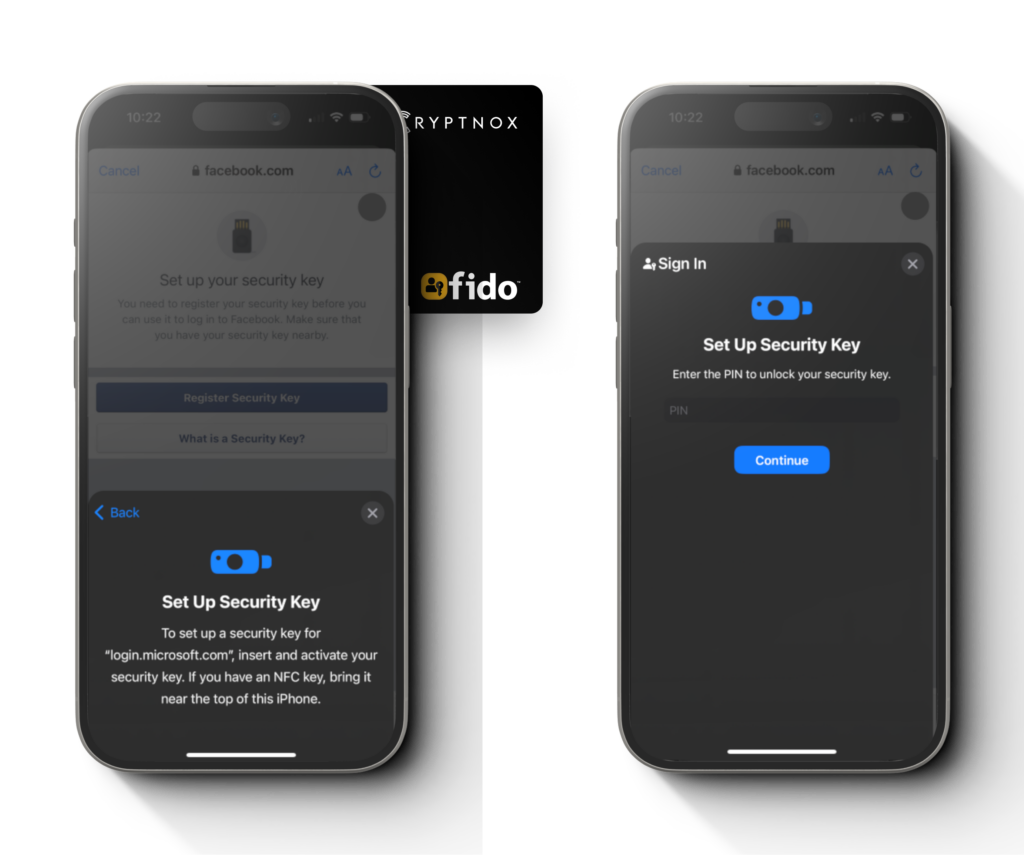
The system will prompt the message to setup the security key. While the prompt is opening, tap the card at the back of the phone.
Once the card is registered properly, the system will ask you to put the PIN. Once you put in the PIN, select “Continue”.
Important: Ensure you remember your PIN. It is advisable to save it securely or write it down in a safe place. You will need this PIN the next time you log in to a site where you have set up security key authentication.
Step 9
The system will prompt the message tap the card again to activate it. Once it is done, it will automatically proceed to next step.
Step 7
Make sure you backup the code for the recovery purpose in case you forgot or lost the security key and then select “Done”. You have successfully setup the Cryptnox FIDO2 security key on Facebook.