How to Use a Smart Card Reader on Android with the Cryptnox Wallet App
This guide shows how to use a smart card reader on Android with the Cryptnox Wallet app to manage your Cryptnox card.
A Cryptnox USB-C reader is compatible with the Cryptnox Wallet app on Android via USB OTG, as an alternative to the phone’s built-in NFC — handy when your phone’s NFC is weak, hard to position, or unavailable. It works with the Cryptnox USB-C readers listed below. iOS is not supported.
Before you start
Make sure you have everything below before you enable USB mode:
An Android phone with a USB-C port and USB OTG support.
A Cryptnox USB-C reader — the Click-to-Tap USB-C Smart Card Reader or the NFC USB-C Contactless Smart Card Reader.
The Cryptnox Wallet app installed on your phone.
Your Cryptnox card.
Instructions
1
Enable "Allow USB Mode" In Settings
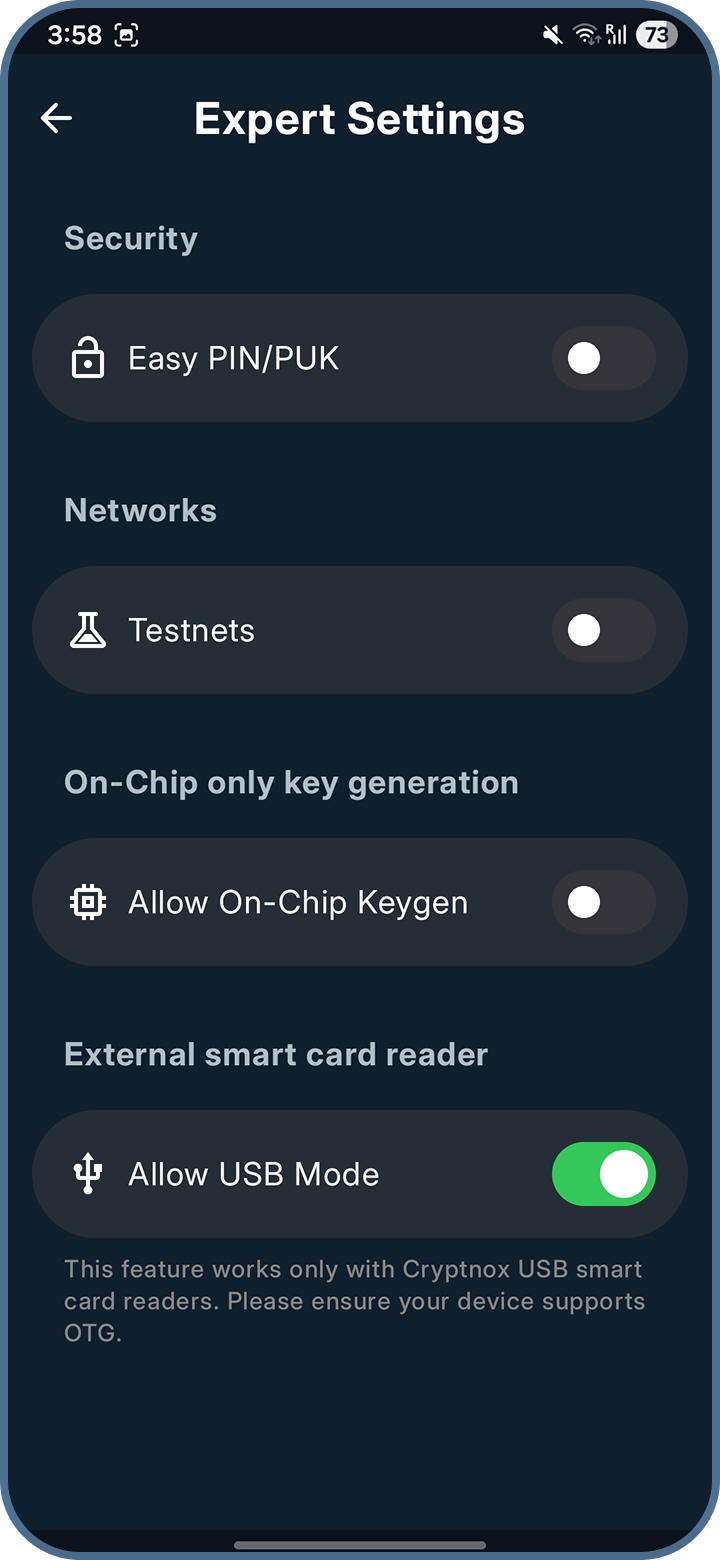
Open the Cryptnox Wallet app and go to Settings → Expert Settings. Under External smart card reader, turn on Allow USB Mode before you connect the reader.
Note
This feature works only with Cryptnox USB smart card readers. Please ensure your device supports OTG.
2
Plug in the Cryptnox USB Smartcard Reader
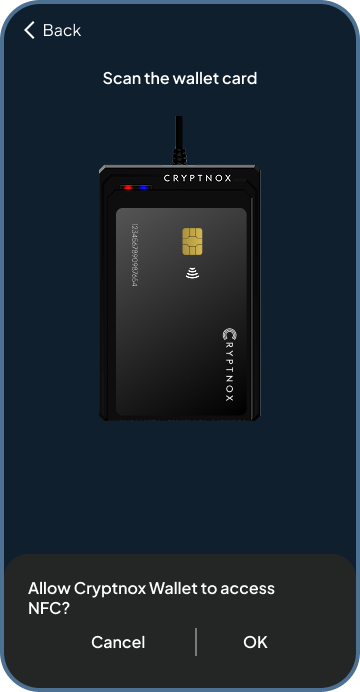
Connect the Cryptnox USB-C smart card reader to your phone’s USB-C port using USB OTG. When Android shows the access request, tap OK to let the Cryptnox Wallet app use the reader.
Allow Access Dialog
3
Place or Insert the Cryptnox Card
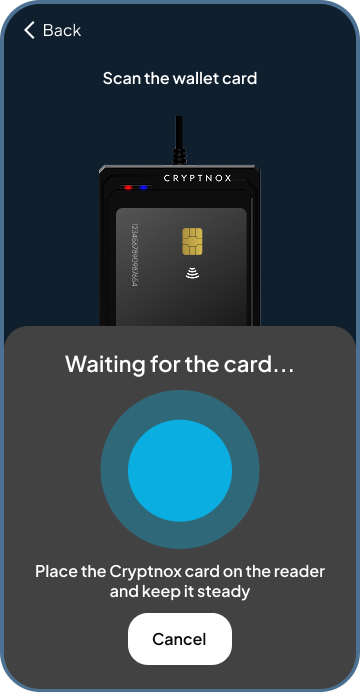
When the app prompts you to scan a card, place the Cryptnox card on the contactless reader or insert it into the Click-to-Tap reader, and hold it steady until the operation completes.
Card Scan Screen
Troubleshooting
Reader not detected: confirm your phone supports USB OTG, re-seat the reader in the USB-C port, and make sure Allow USB Mode is on.
Nothing happens on iOS: iOS is not supported. Use an Android phone for the USB reader, or use your phone’s built-in NFC on Android.
Card not read: re-place the card on the contactless reader or re-insert it into the Click-to-Tap reader, and hold it steady until the app finishes.