Step by step tutorial to connect MetaMask browser extension to your card via the QR Wallet functionality (EIP 4527)
Download the Cryptnox application to Connect MetaMask with Cryptnox App and Card
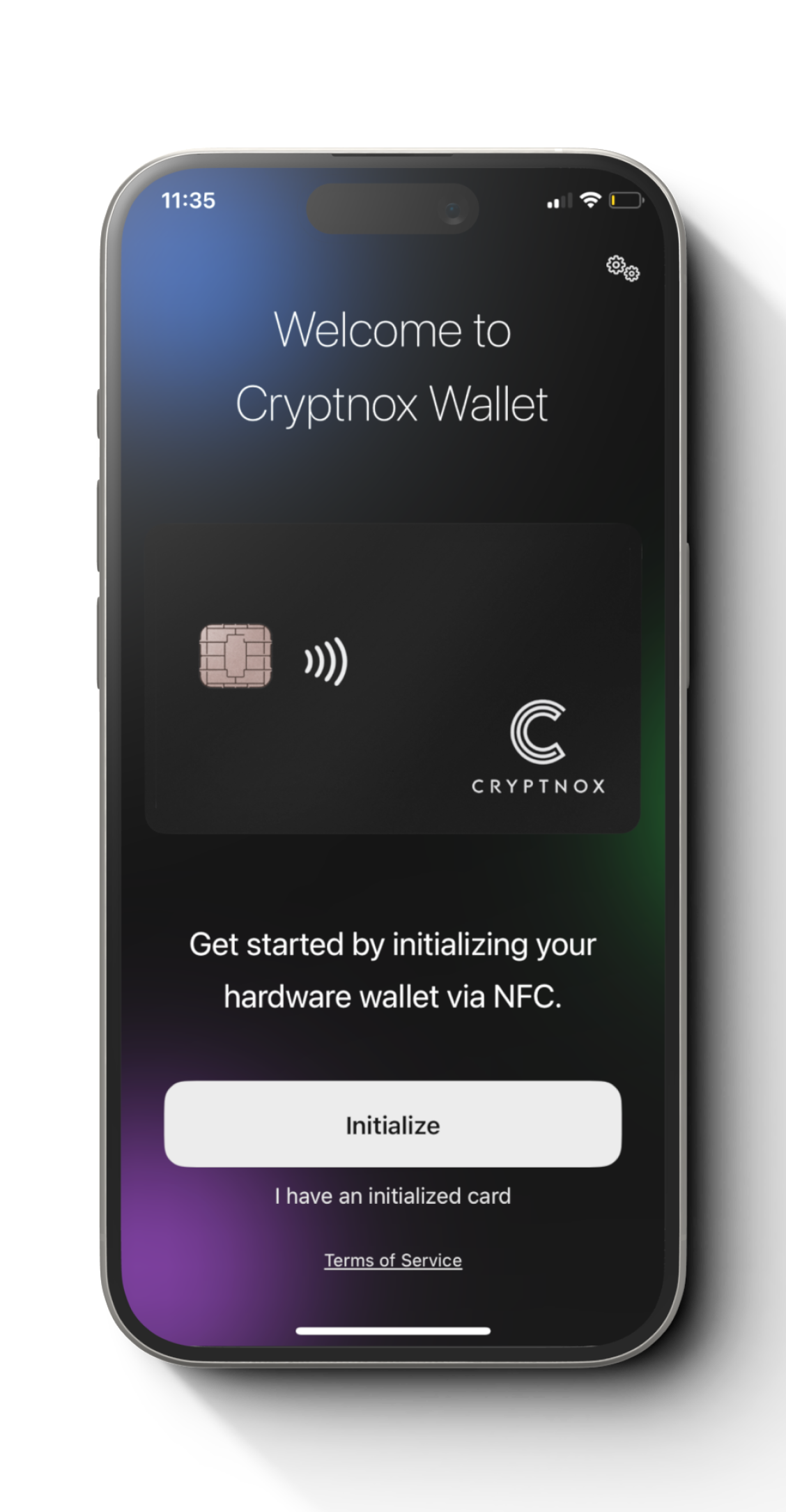
Ensure that you have downloaded and installed the Cryptnox App on your device. Launch the app to begin the initialization process.
Ready a computer and Metamask account
For this tutorial to Connect MetaMask with Cryptnox App and Card, you need a computer with a webcam enable in order to complete the scanning QR code process.
You must already have a Metamask account and logged in to a web browser. Recommend to enable a browser extension for Metamask if possible.
Step 1
If not already done, you will need to setup the hardware wallet card first. Refer to the corresponding tutorials if necessary.
Note: The following steps are going to take place after setting up the hardware wallet card.
Step 2
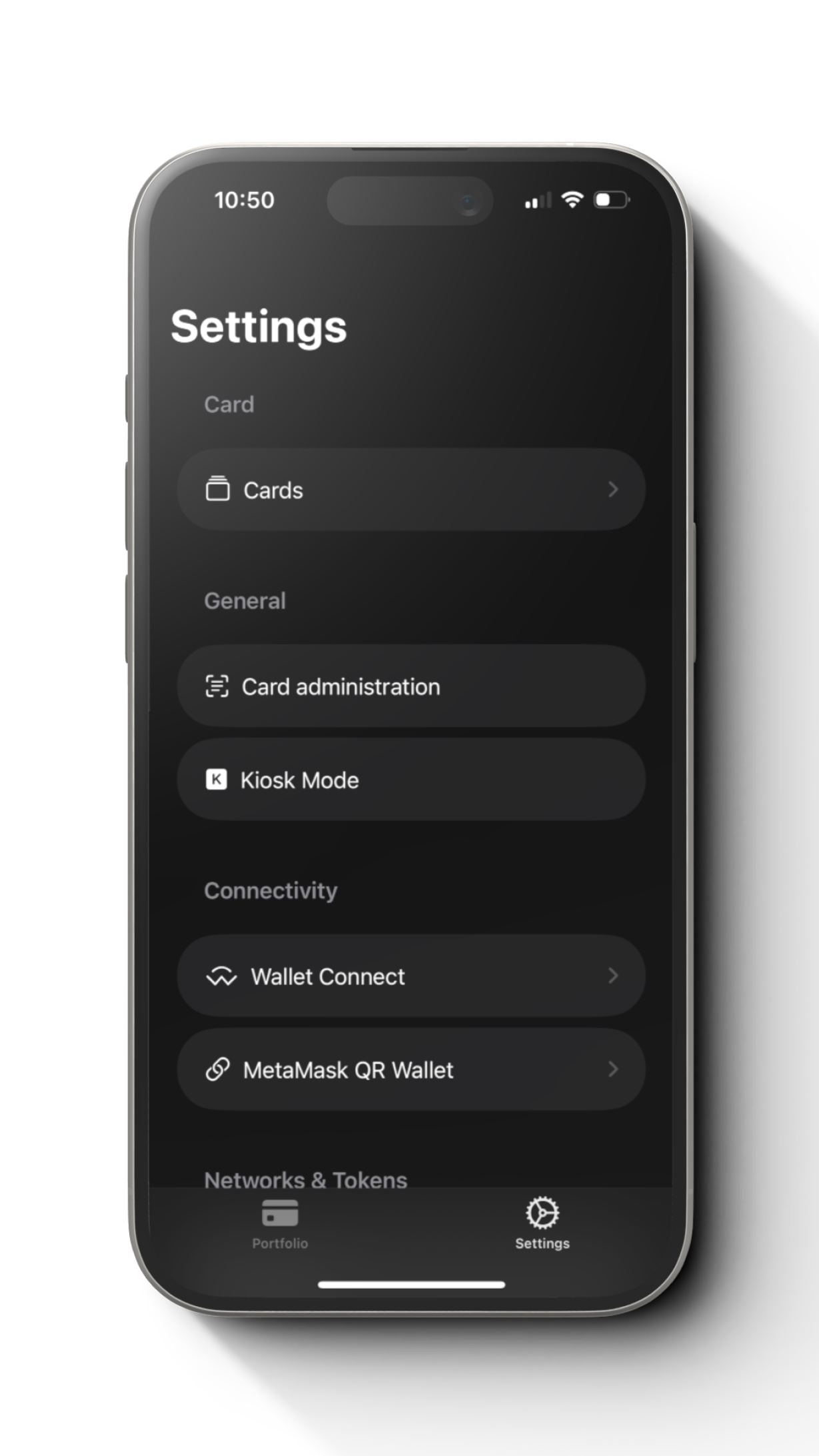
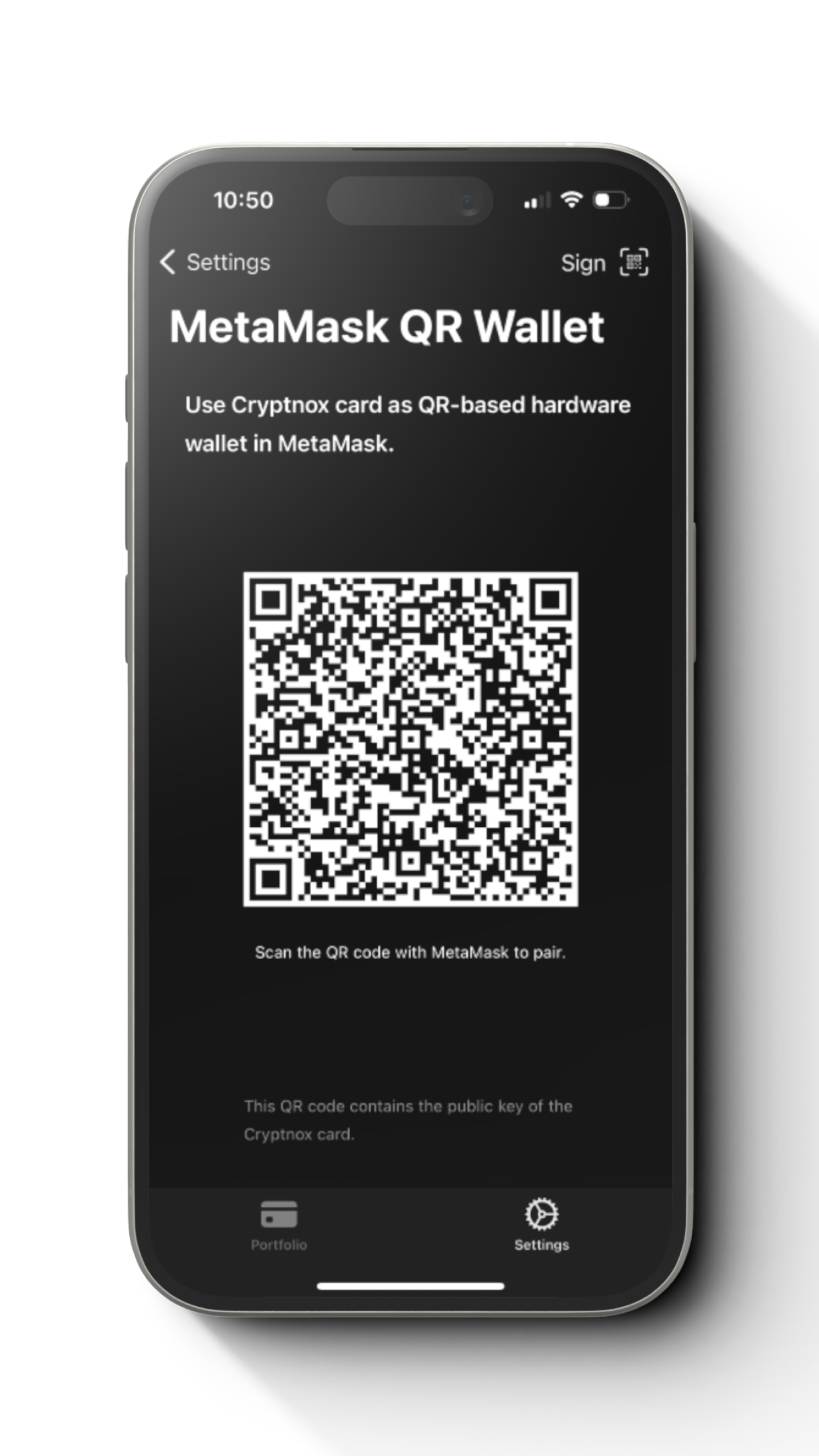
Go to settings and select “MetaMask QR Wallet”.
Step 3
You will see a QR code to scan. You can leave it for awhile and move onto your computer.
Step 4
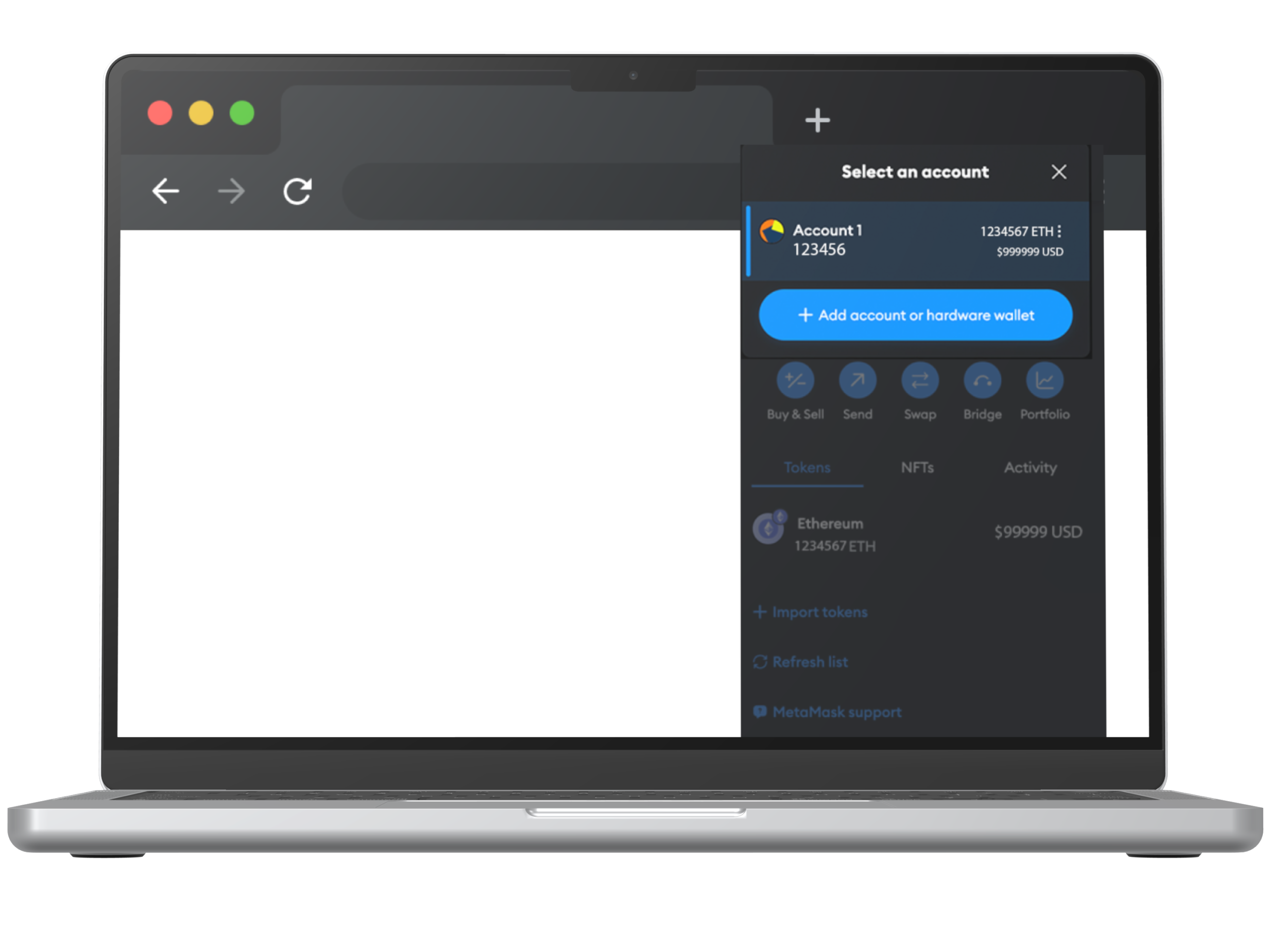
Open a Metamask logged in browser and select the dropdown from above where the account name is shown.
Step 5
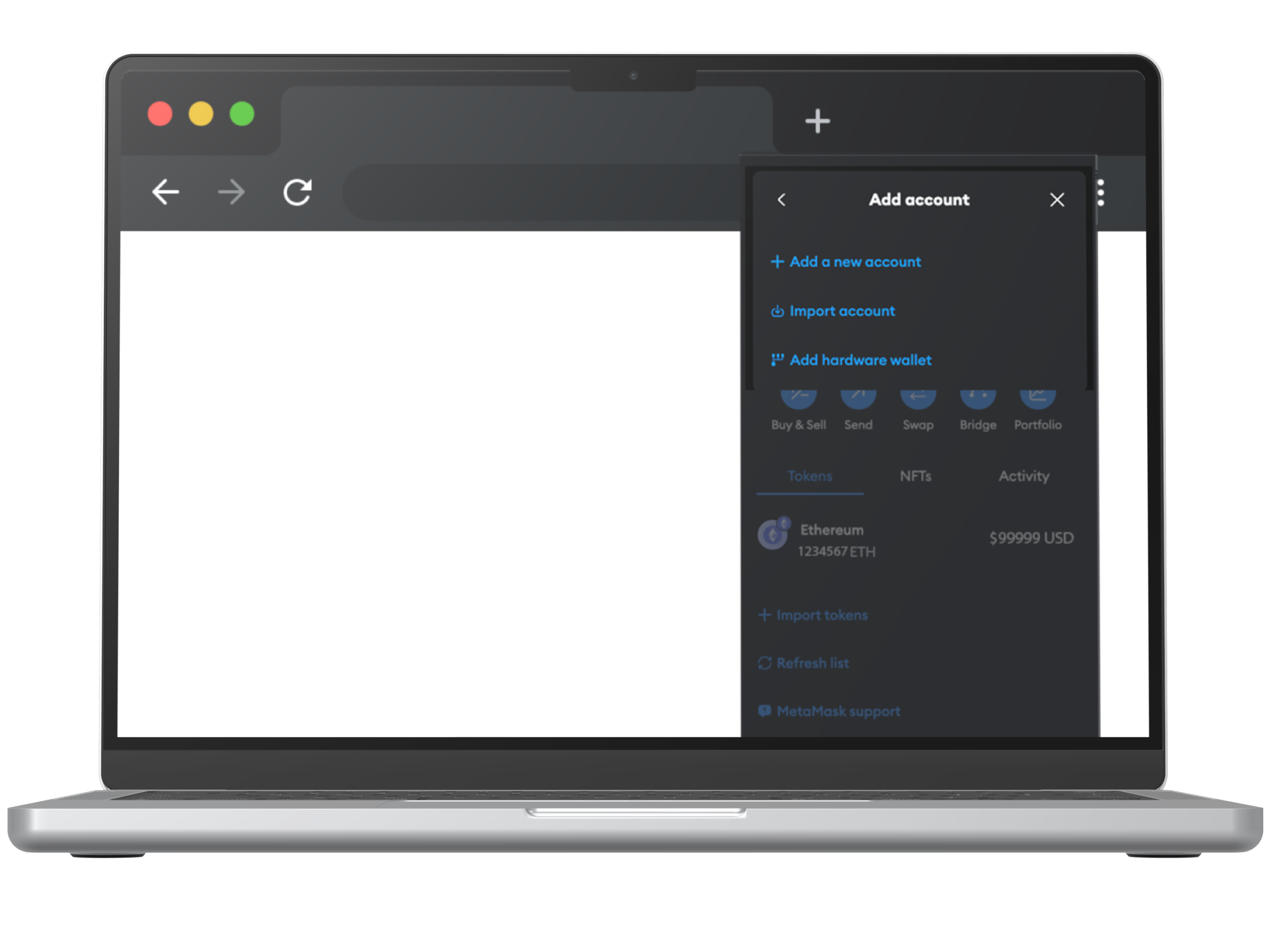
Select “+Add account or hardware wallet”.
Step 6
Select “Add hardware wallet”.
Step 7
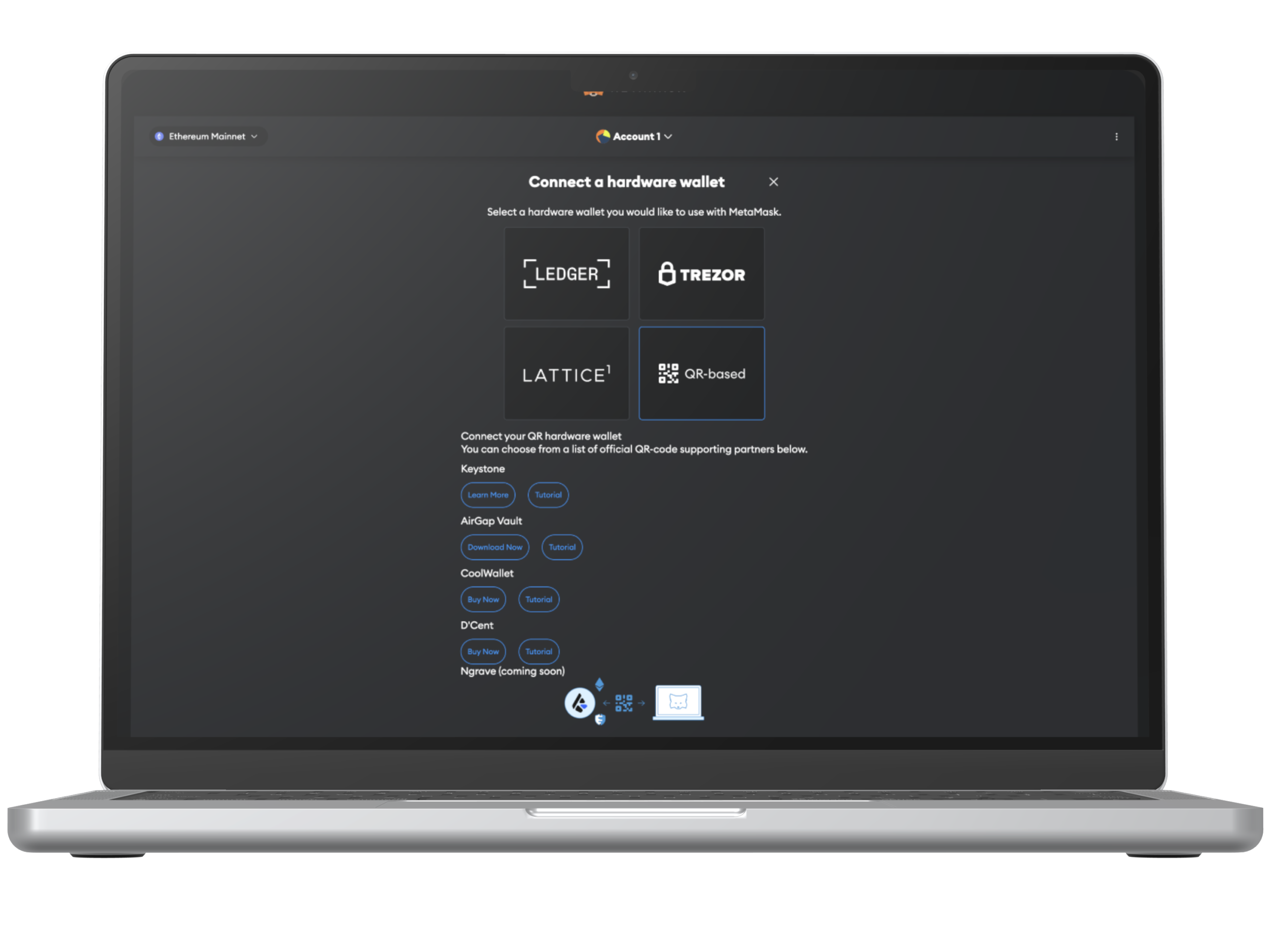
Select “QR-based” card and then select “Continue” to scan a QR code.
Step 8
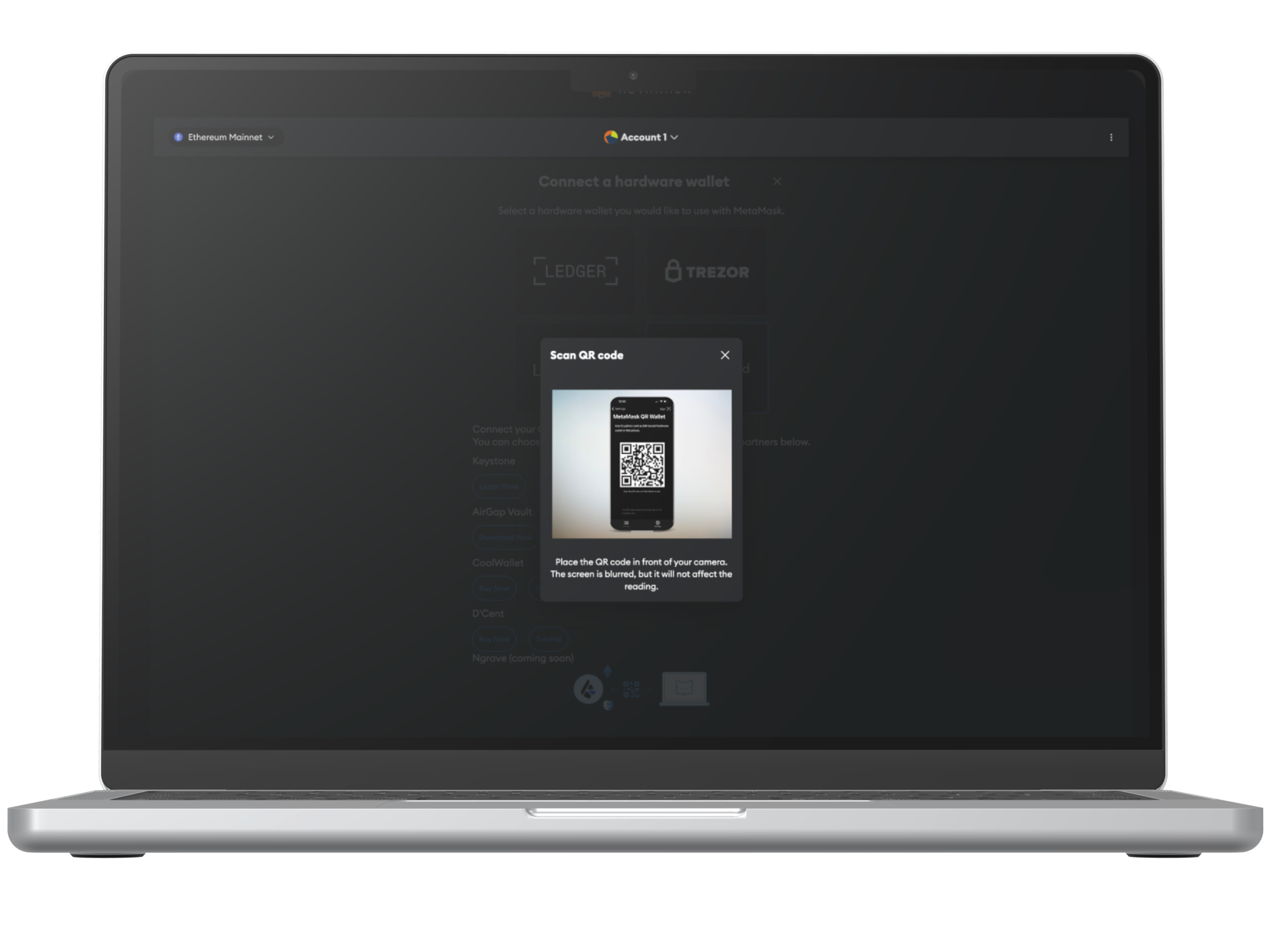
Scan the generated QR code from the Cryptnox application by facing it towards the computer’s webcam (Allow access to camera if asks).
Step 9
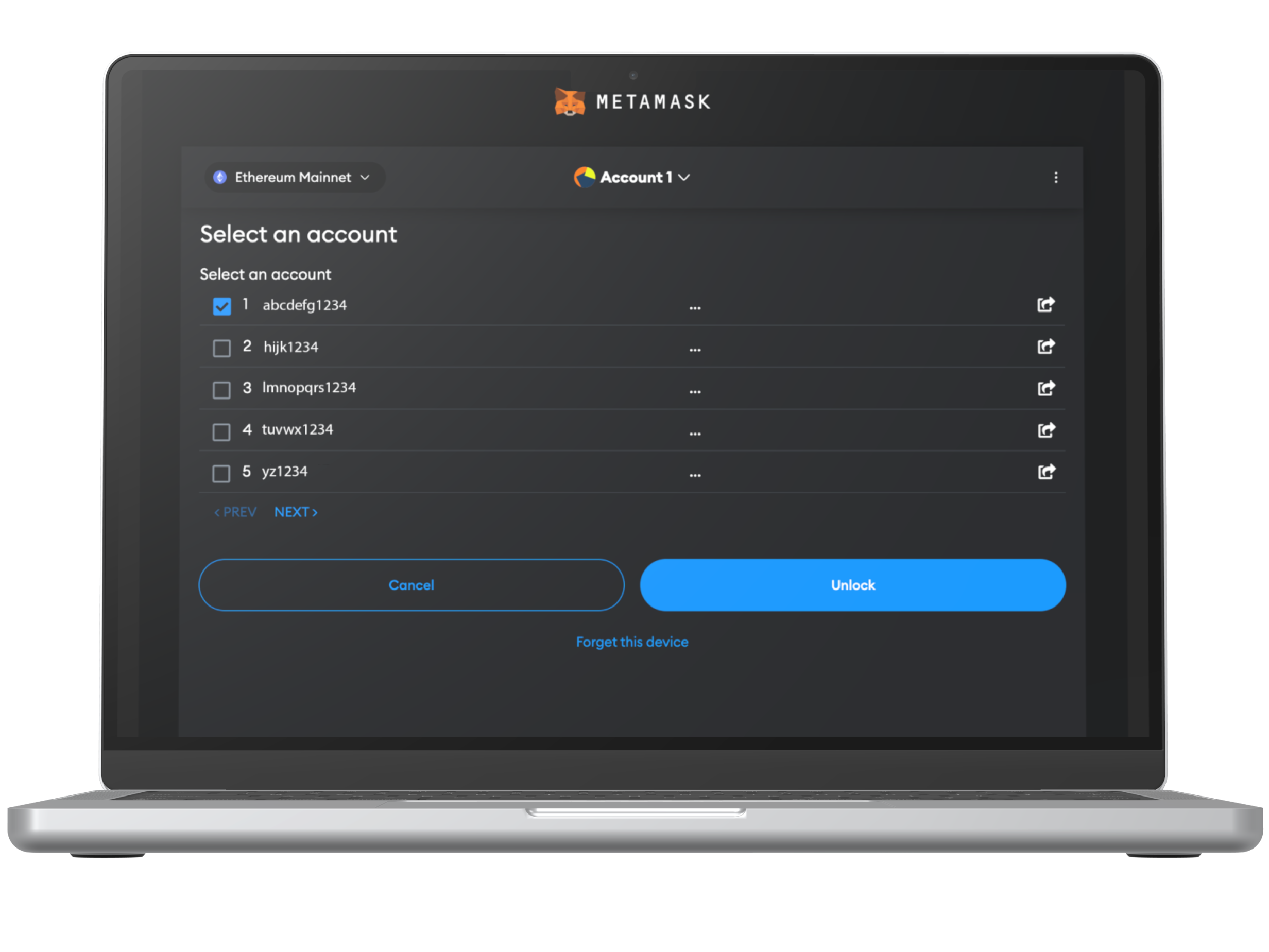
Scanning will be successful and you will reach to a page to select an account to unlock. Choose your desired account(s) and select “Unlock”.
Step 10
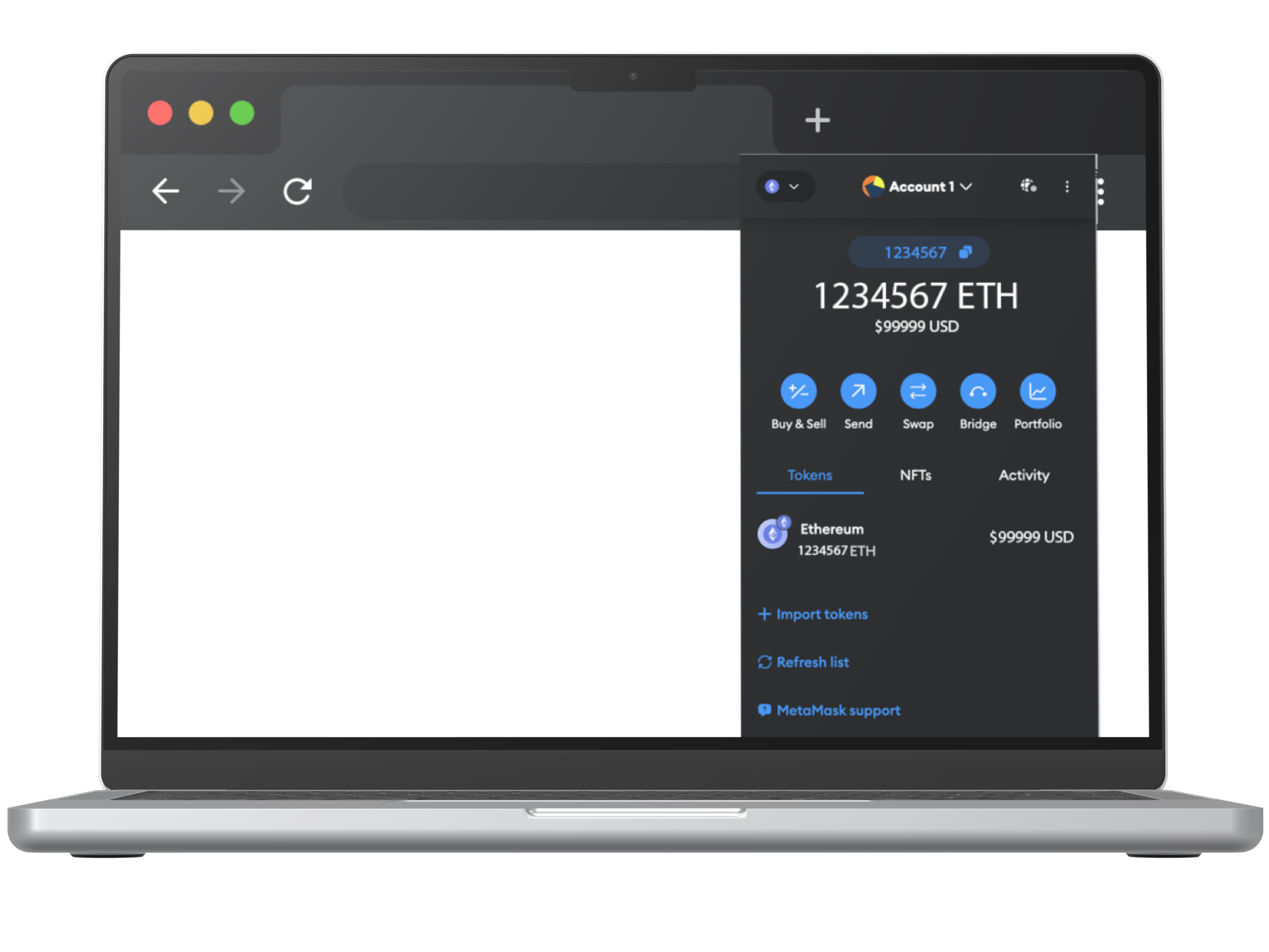
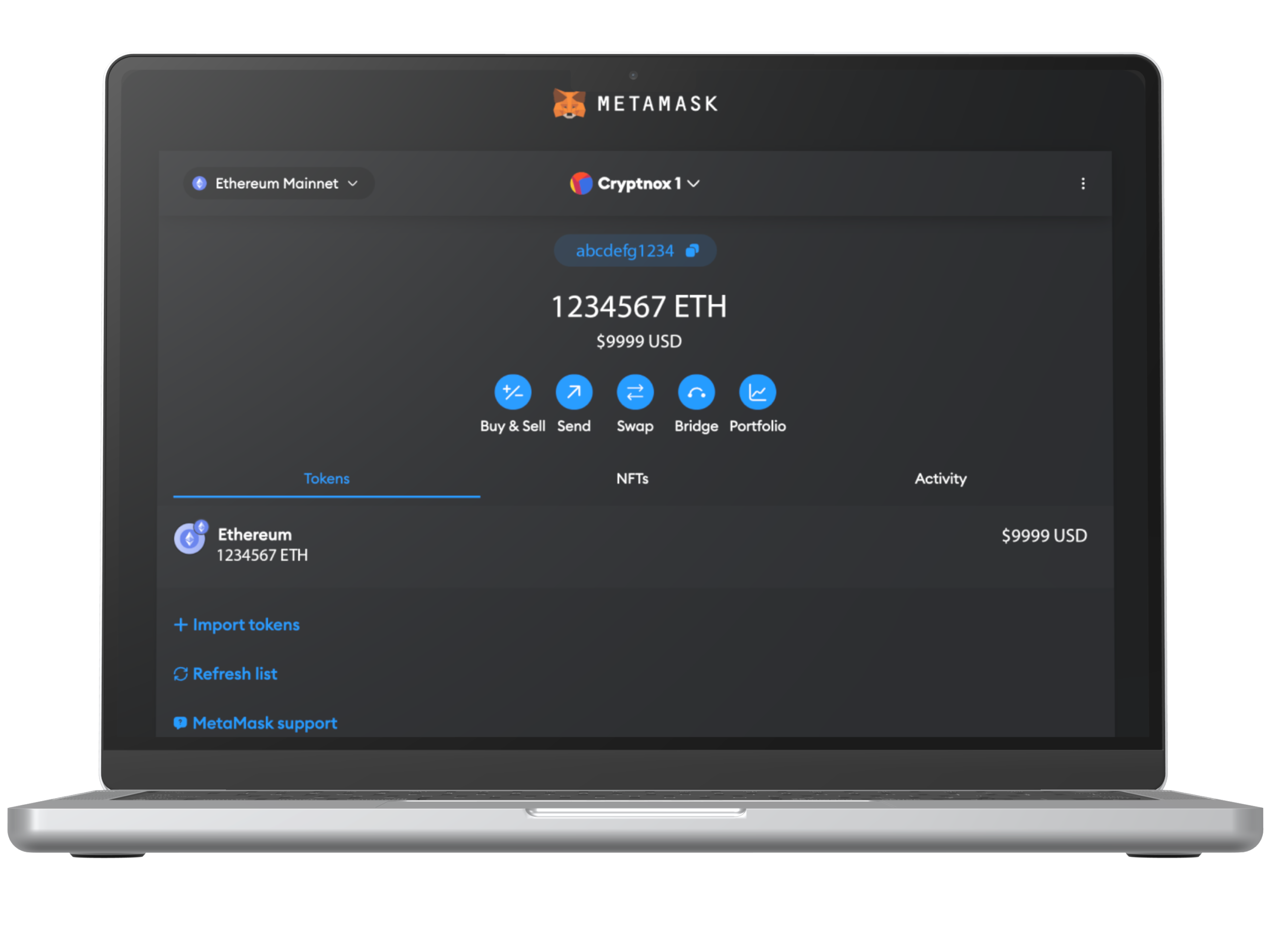
You have successfully connected Cryptnox wallet with Metamask.