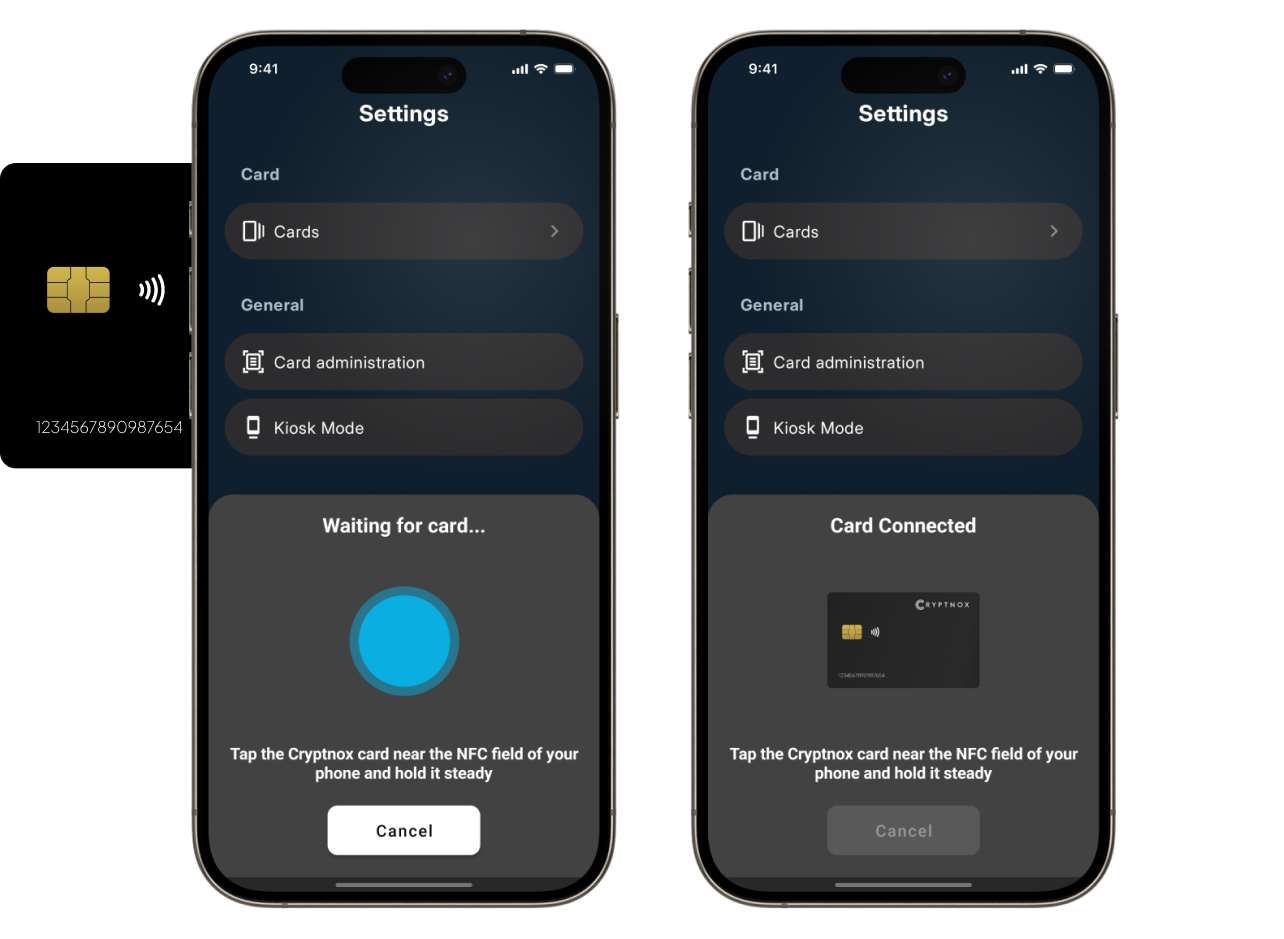
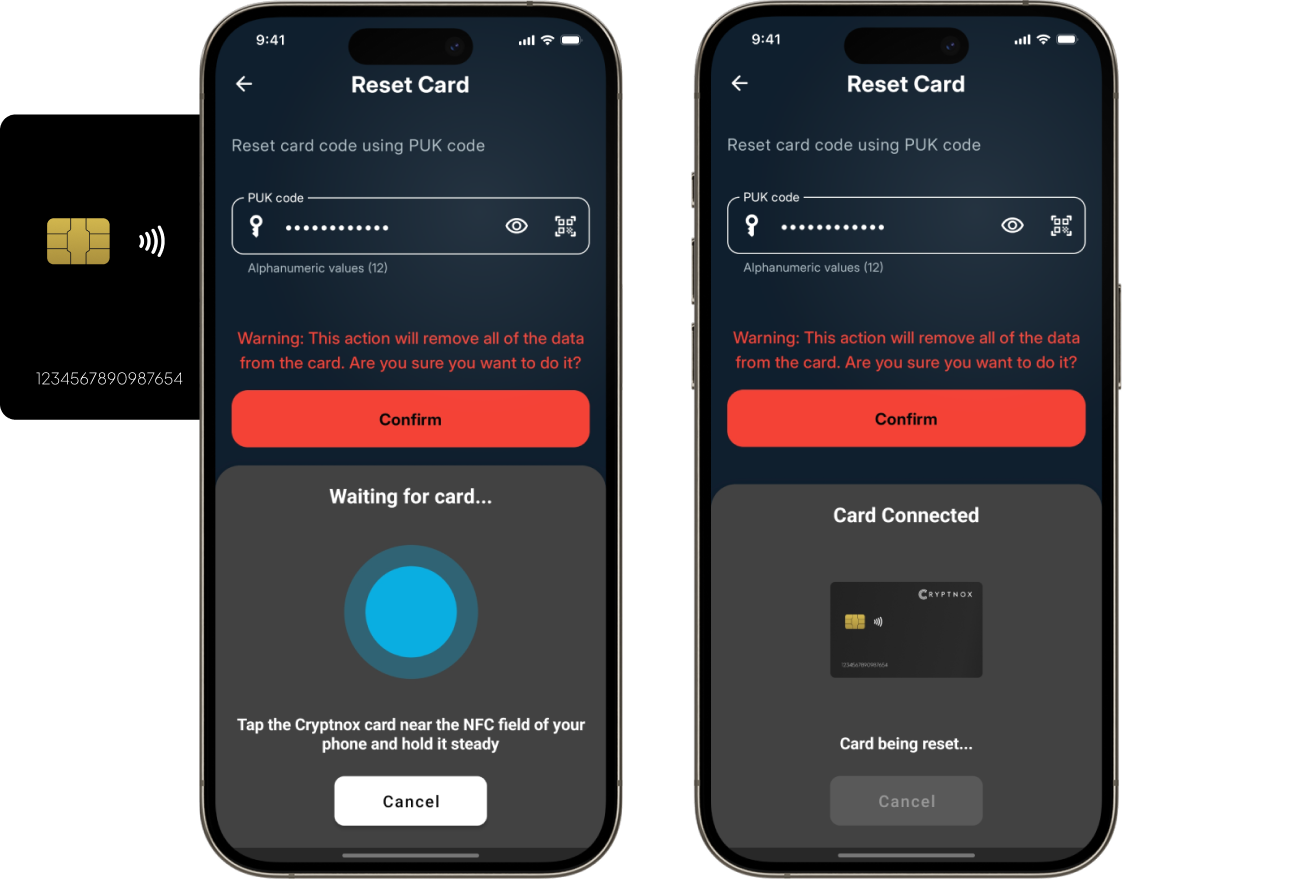
When the “Waiting for card…” message appears, tap and hold the Cryptnox Card on the NFC area of your device Hold it steady for a few seconds until the “Card Connected” message appears
Step 4
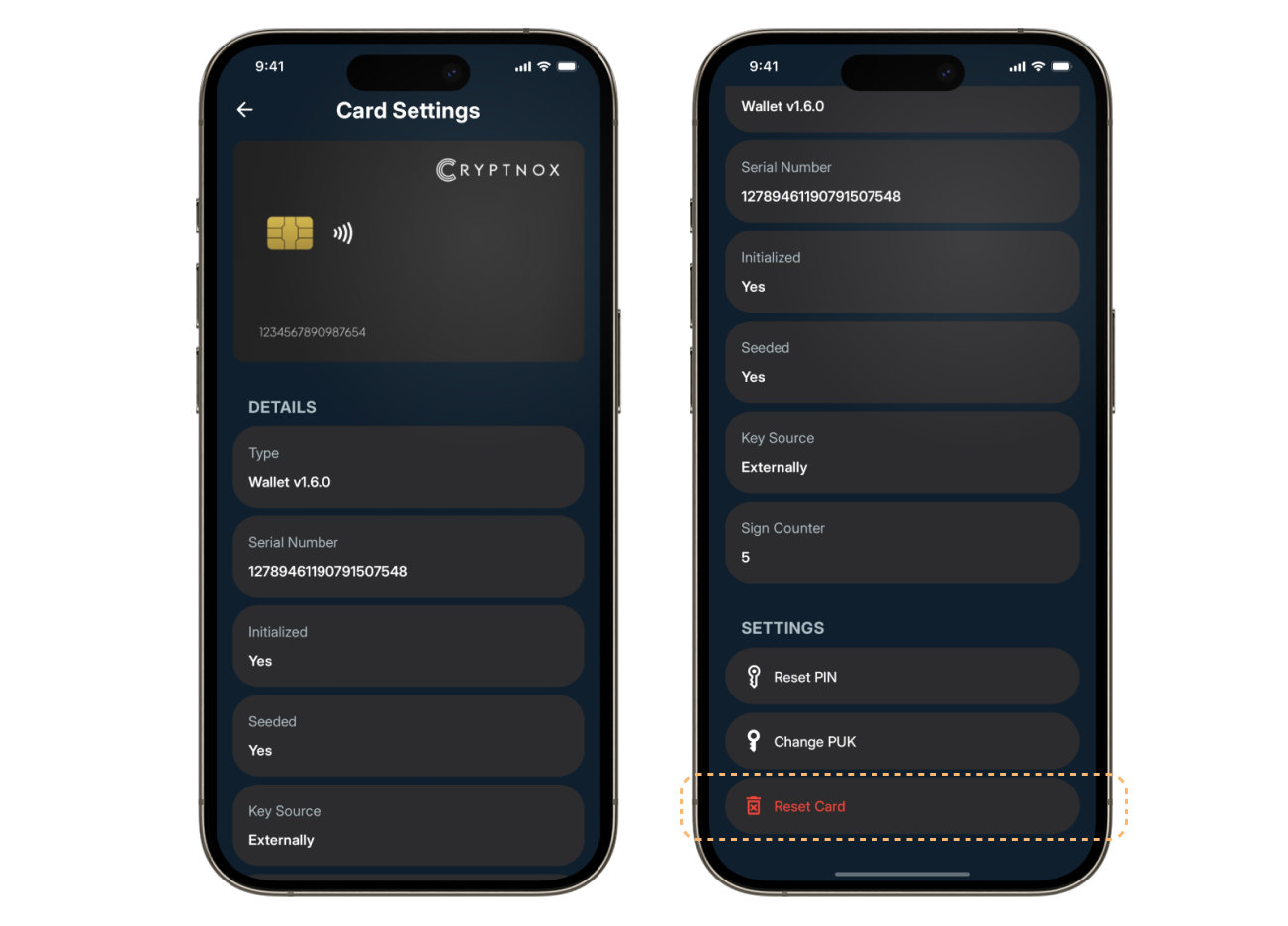
Scroll down to the bottom of “Card Settings” Select “Reset Card”
Step 5
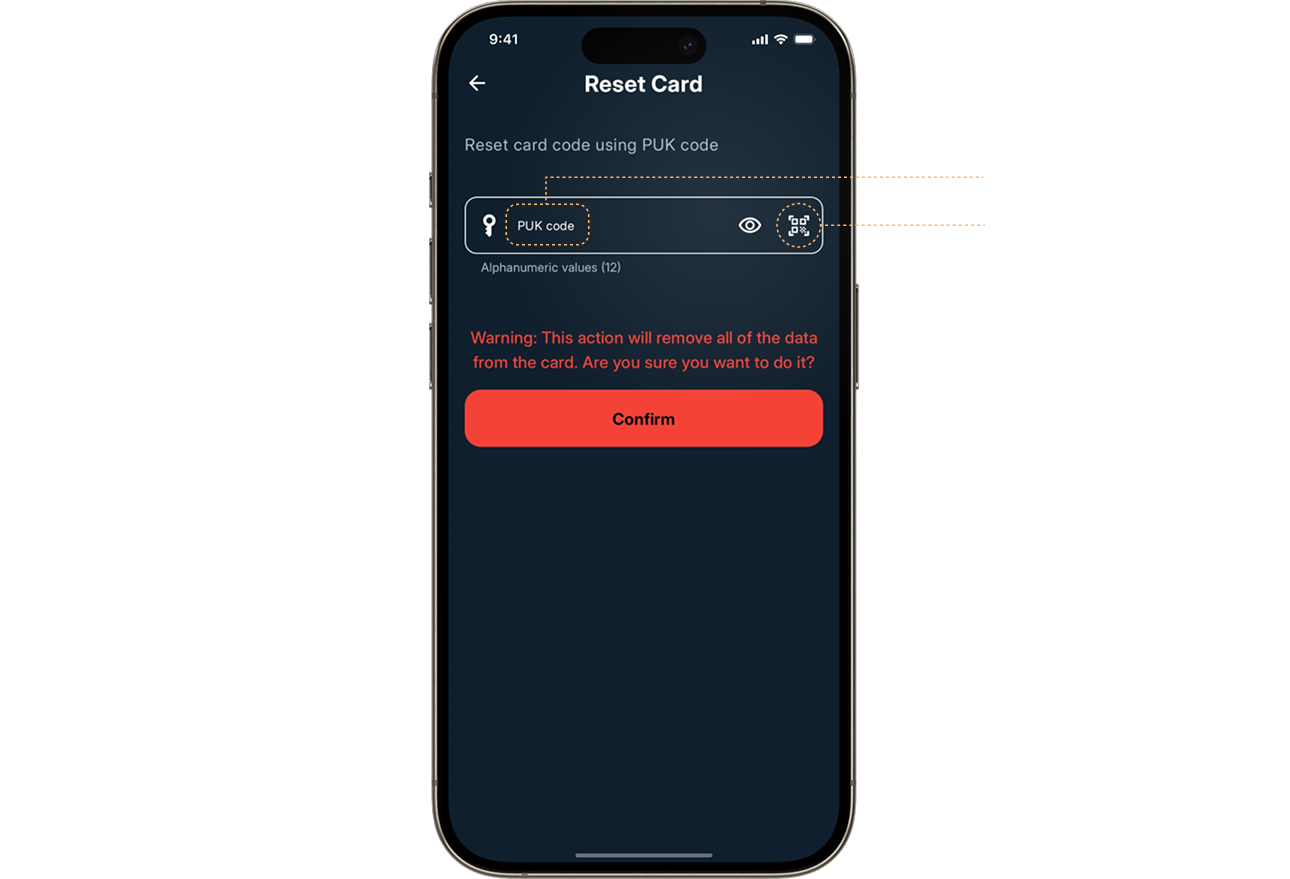
Enter the PUK code manually in the field, or tap the QR scan icon to scan the QR code from the access card
Step 6
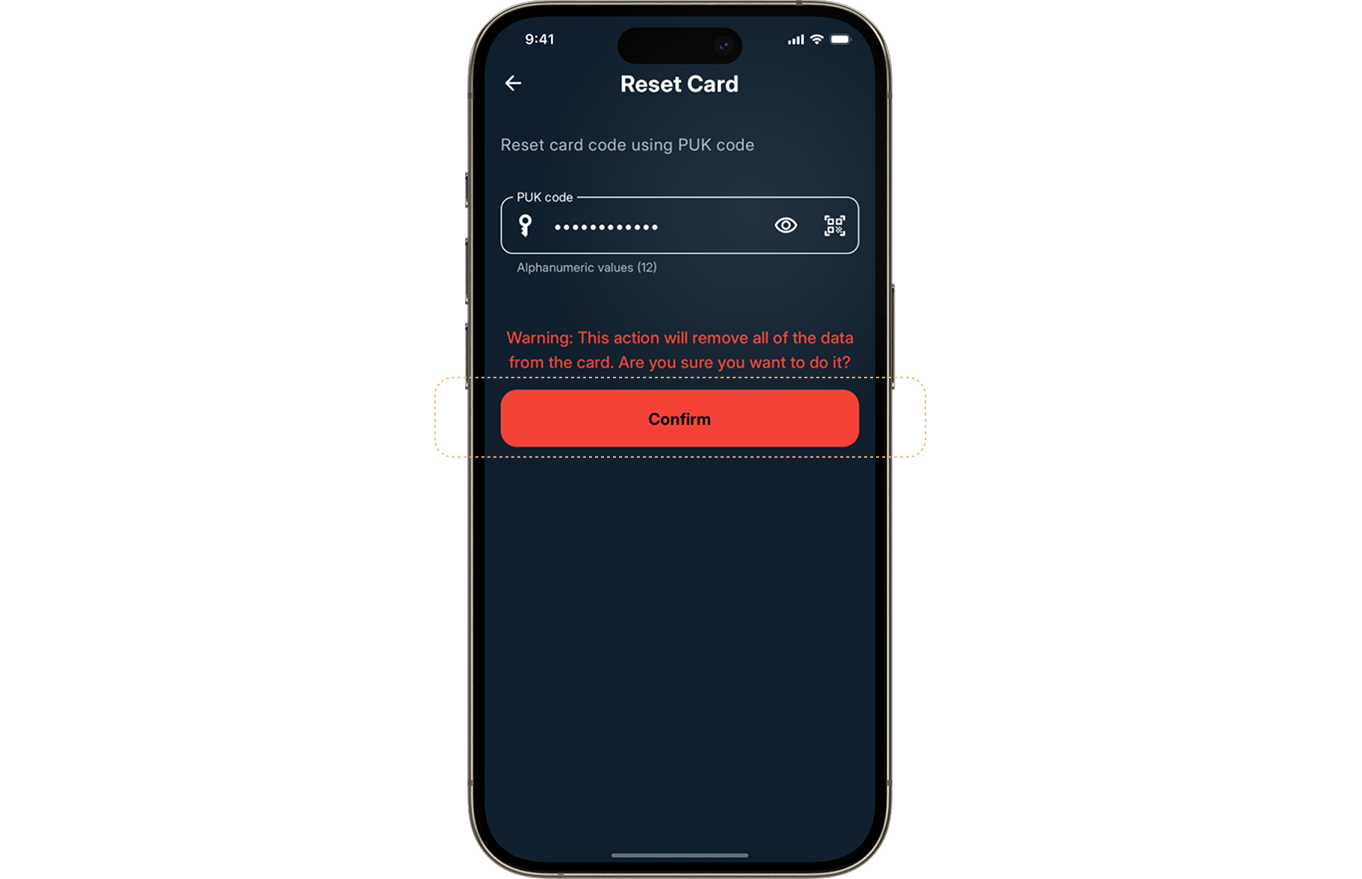
Once the PUK code is entered, tap “Confirm”
Step 7
Tap and hold the card on the NFC area of your device again Wait a few minutes while the “Card being reset…” message is displayed Once the process is complete, your card will be successfully reset