
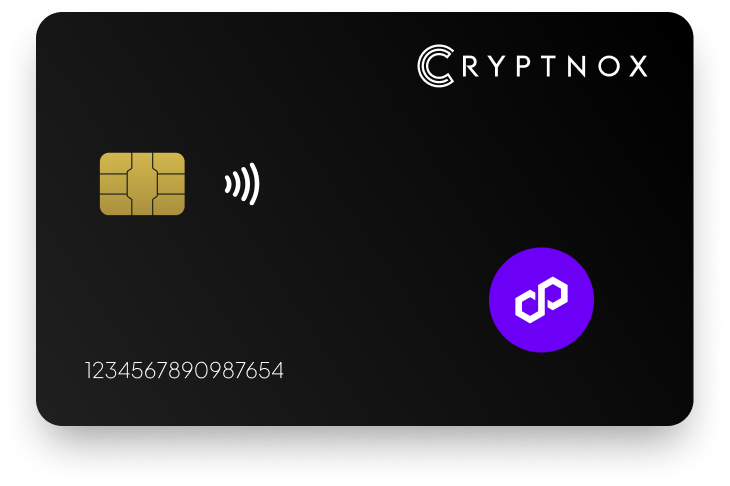
Yes. Polygon is a pre-programmed network in the Cryptnox app, so you do not need to add it manually before using it. The app list may still show MATIC because the Polygon ticker migrated from MATIC to POL in September 2024. With the Cryptnox Crypto Hardware Wallet – Dual-Card Set, Polygon activity runs through the free iOS and Android app while private keys are generated inside the secure element and never leave it.

CRYPTNOX products are also available worldwide through our official Amazon stores.

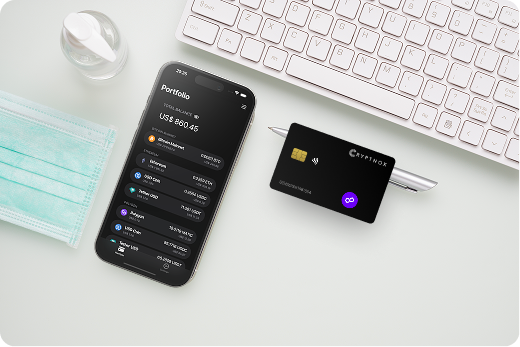
Polygon has a direct support route in the Cryptnox app. It is already pre-programmed as a network, so a Polygon buyer does not begin by entering custom EVM network details. The network entry may still appear as MATIC in the app list, but that entry is the Polygon route.
This matters when comparing Polygon with chains that are added manually. For Polygon, the app already provides the network entry. For another EVM network that is not already listed, Add a Network is the route; once that network is added, its native coin and ERC-20 tokens deployed on that chain can be managed. Polygon does not need that first network-addition step.
If you are checking Polygon before buying, compare its route with the wider asset list on the Cryptnox coin and blockchain support page. That comparison is useful when Polygon is only one network in the wallet decision and you want to understand which assets are listed directly and which routes use manual EVM network addition.
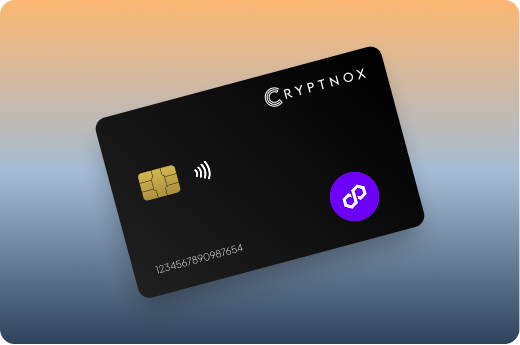
Polygon’s ticker migrated from MATIC to POL in September 2024. The Cryptnox app list still says MATIC for the pre-programmed Polygon network. For a buyer setting up Polygon, the key point is the network entry rather than the displayed ticker text: the MATIC label is the existing Polygon network entry in the app.
You do not need to create a second Polygon entry through Add a Network because the label has not moved to POL. Using the pre-programmed entry keeps the Polygon workflow simple: select the existing Polygon route, add any Polygon ERC-20 token entries you need, and use WalletConnect or MetaMask when a Polygon Web3 connection is required.
If you search for POL and see MATIC instead, treat that MATIC entry as the Polygon network route. The label reflects the app list, not a separate network requirement. A manual Add a Network step belongs to other EVM networks that are not already listed; it is not the starting point for Polygon in Cryptnox.
The label also affects token setup. A Polygon ERC-20 token should be added under the Polygon route, even if the app’s network label still says MATIC. This separates the network you are using from the individual token entries you choose to display and manage in the Cryptnox app.
Polygon token setup has two parts in Cryptnox: the network and the token entry. The Polygon network is already pre-programmed. Individual Polygon ERC-20 tokens are added manually with Add a Token when you want those token entries shown and managed in the app.
That distinction is important because ERC-20 tokens can exist on more than one EVM network. For Polygon holdings, start from the Polygon network route in the app, even if it is displayed as MATIC. Then add the specific Polygon ERC-20 token entry through Add a Token. Add a Network is reserved for an EVM network that is not already listed.
Buyers who use Polygon alongside stablecoins can compare the dedicated Cryptnox hardware wallet page for USD Coin before deciding how to organise token entries. Polygon’s support route remains the same: the network is already in the app, and ERC-20 token entries on Polygon are added manually.
Polygon buyers often want access beyond holding a balance in the app. The free Cryptnox app on iOS and Android connects to Web3 through WalletConnect and works with MetaMask. For Polygon, those connection routes sit on top of the same card-based key model: the private key is generated inside the secure element and never leaves it.
With WalletConnect, the Cryptnox app provides the connection path between the Web3 request and the card-based wallet flow. With MetaMask, Cryptnox works with MetaMask while the private key is not created in the browser wallet. For a Polygon user, that means the familiar Web3 connection route can be used while the Polygon key remains in the card secure element.
Complete the card and app setup before using Polygon through WalletConnect or MetaMask. The Cryptnox startup guide is the practical starting point for that setup, especially if the Polygon entry appears as MATIC and you want to confirm the route before connecting to Web3.
When a Polygon request appears, review the network context in the app. The app is where you select Polygon, add Polygon ERC-20 tokens, and use WalletConnect or MetaMask; the card is where the Polygon private key was generated and is kept.
If you move value between Polygon and other networks through a bridge aggregator, the DeFi and bridge aggregator guide shows the WalletConnect connection and the risks to check before signing a route.
The Cryptnox Crypto Hardware Wallet – Dual-Card Set ships uninitialised. During setup, the seed is generated inside both secure elements, so the second card is the backup. For Polygon buyers, the backup card is created as part of the initial wallet setup rather than as a separate written recovery step by default.
This model is relevant for both the pre-programmed Polygon network entry and Polygon ERC-20 token entries added later. The same wallet setup protects access to the Polygon assets managed through the app, and the second card backs up that setup. There is no recovery phrase to write down by default. Importing a 12- or 24-word BIP39 recovery phrase is available as an advanced option.
Buyers who want this setup for Polygon can order the Cryptnox Crypto Hardware Wallet – Dual-Card Set from the product page. The product is sold as a pair because the second card is part of how the wallet backup is created.
Polygon access in Cryptnox starts with the secure element. The private keys are generated inside the secure element and never leave it. For Polygon, the key used with the pre-programmed network entry is not exported to the phone app, even though the app is where you select Polygon, add Polygon ERC-20 tokens, and connect through WalletConnect or MetaMask.
The secure element uses an EAL6+-certified chip. That rating belongs to the chip platform. The finished product is the Cryptnox Crypto Hardware Wallet – Dual-Card Set, a contact and NFC smart card used with the Cryptnox app for assets such as Polygon.
Unlocking uses the phone’s face or fingerprint check through the Cryptnox app. The card itself has no biometric sensor. For Polygon use, the phone provides the app unlock flow, while the Polygon private key remains in the card secure element.
The card is dual-interface: tap it to a phone with NFC, or insert it into a reader when using the contact interface. That gives a Polygon buyer two physical ways to use the card while keeping the same app route for the pre-programmed Polygon network. Cryptnox cards are Swiss-engineered.
Cryptnox is a practical Polygon choice when the buyer wants a pre-programmed Polygon network entry, manual Add a Token support for Polygon ERC-20 tokens, Web3 connection through WalletConnect and MetaMask, and a two-card backup created during setup. Those points define the Polygon route inside the Cryptnox app.
If Polygon is only one part of your buying decision, compare the asset routes before setup. The Cryptnox best crypto hardware wallet hub is useful when you are comparing Polygon with other networks and assets. For Tron, use the dedicated Cryptnox hardware wallet page for Tron rather than applying Polygon’s EVM token steps to a different network. If Ronin is also in your portfolio, the Ronin hardware wallet page gives that asset its own route. Buyers who keep Bitcoin separately can also compare the Cryptnox hardware wallet for Bitcoin page.
For Polygon alone, the route is direct: use the pre-programmed Polygon entry, recognise that it may still display MATIC, add Polygon ERC-20 tokens only when needed, and use WalletConnect or MetaMask when you need a Polygon Web3 connection.
Yes. Polygon is pre-programmed in the Cryptnox app, so you do not need to add the network manually. The app list may still display MATIC because Polygon’s ticker migrated from MATIC to POL in September 2024. That MATIC label is the existing Polygon network entry.
The Polygon ticker migrated from MATIC to POL in September 2024, and the Cryptnox app list still says MATIC. For Cryptnox users, that label refers to the pre-programmed Polygon network. It does not mean you need to add Polygon again through Add a Network.
Yes. Polygon ERC-20 tokens can be added manually in the Cryptnox app with Add a Token. Start from the pre-programmed Polygon network entry, then add the specific ERC-20 token deployed on Polygon. Add a Network is for other EVM networks that are not already listed.
Yes. The free Cryptnox app works with MetaMask and connects to Web3 through WalletConnect. Polygon can be used through those connection routes while the private keys are generated inside the card secure element and never leave it.
Yes. Cryptnox ships worldwide from the official CRYPTNOX store. Orders to Switzerland, the European Union and the United States are dispatched from stock already held in each of those regions, so the parcel does not cross a customs border into your country and there are no import duties to pay. Orders to other destinations are shipped internationally, and any import duties or local taxes are set by the destination country and are the recipient’s responsibility. Current shipping rates are shown at checkout.
The Dual-Card Set ships uninitialised. During setup, the seed is generated inside both secure elements, so the second card is the backup. There is no recovery phrase to write down by default. Importing a 12- or 24-word BIP39 recovery phrase is an advanced option.
No. Unlocking uses the phone’s face or fingerprint check through the Cryptnox app. The card itself has no biometric sensor. For Polygon use, the app provides the interface, while the card’s secure element is where the private key is generated and kept.
Yes. The Cryptnox wallet is a contact and NFC smart card. You can tap it to a phone for mobile use, or insert it into a reader when using the contact interface. Polygon remains available through the Cryptnox app’s pre-programmed network entry.
No, and on this network that is not a limitation. The Cryptnox wallet uses one address per chain. HD address rotation comes from Bitcoin’s UTXO model and the BIP32/BIP44/BIP49/BIP84 derivation scheme; on account-model networks each account is a single fixed address by design, so the question does not apply in the same way. Cryptnox’s single-address-per-chain behaviour matches how these networks work.
At the cryptography layer the card derives keys along BIP32 and SLIP-10 paths, one path per supported chain, though that is not exposed in the app as multi-address management.