
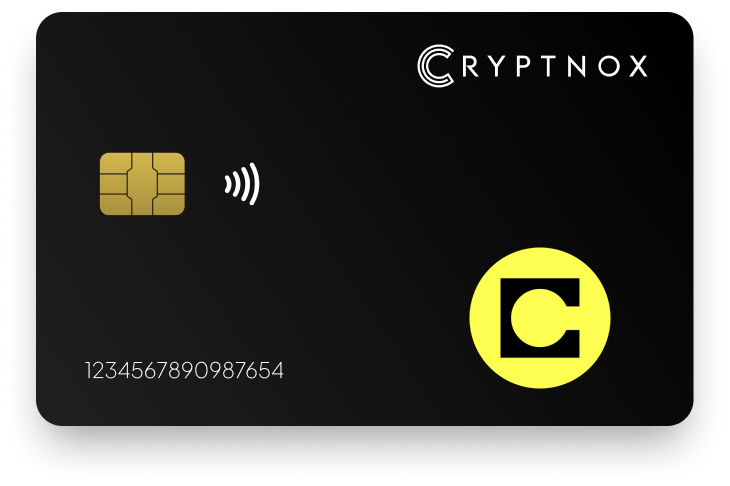
Yes. The Cryptnox Crypto Hardware Wallet – Dual-Card Set can hold native CELO after you manually add the Celo network once through Add a Network or Add a Token. Celo is not pre-programmed on the cards. After setup, CELO uses the Celo EVM network and a 0x-prefixed 20-byte EVM address. The private key for that Celo account is generated inside the secure element and never leaves it.

CRYPTNOX products are also available worldwide through our official Amazon stores.

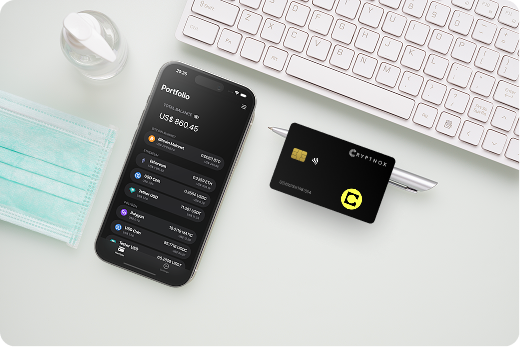
The Cryptnox Crypto Hardware Wallet – Dual-Card Set supports native CELO as a manually added asset on the Celo EVM network. The cards do not arrive with Celo already enabled, so a CELO buyer adds the Celo network once through Add a Network or Add a Token before using that account for native CELO.
This matters if you are buying specifically for Celo rather than for a preloaded asset list. You initialise the Dual-Card Set, add Celo as its own EVM route, and then use the 0x-prefixed 20-byte address assigned to that Celo account. Celo documentation identifies CELO as the network’s native currency, which is the asset route described here.
If you plan to hold CELO alongside other assets, the Cryptnox coin and blockchain support page helps you check the networks you may want to add after card setup. For CELO, the important distinction is simple: Celo is added by the user, and native CELO is then held on the Celo EVM network.
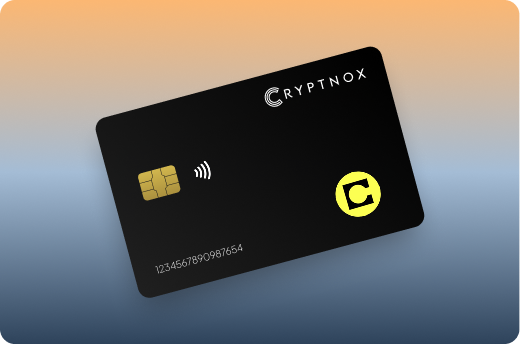
Celo is an EVM-compatible Ethereum Layer 2 built on the OP Stack. For a hardware wallet buyer, the practical result is an EVM-style Celo account with a 0x-prefixed 20-byte address. Celo’s L2 mainnet announcement describes Celo as an Ethereum Layer 2 built on the OP Stack.
The Celo route remains separate from other EVM routes. A Polygon account, a Ronin account, and a Celo account can all use 0x-prefixed EVM-style addresses, but each network is still handled as its own route. For native CELO, the network to add is Celo, and the asset to hold is CELO as the native coin on that network.
Do not treat an existing EVM address on another network as proof that Celo is already active. The Celo network is the route that must be added once. After that, the Celo account uses the 0x-prefixed 20-byte address format associated with native CELO on the Celo EVM network.
The Dual-Card Set ships uninitialised. A CELO setup starts by initialising the cards, then adding the Celo network manually. Celo is not a hidden default profile or a factory-enabled account; it is a one-time network addition made by the user after the card setup is complete.
The free Cryptnox app is available on iOS and Android and is the phone-side interface used with the card. For CELO, the app route is Add a Network or Add a Token. Once Celo has been added, the account uses the Celo EVM network and its 0x-prefixed 20-byte address format for native CELO.
If you want to review the product workflow before buying for Celo, the Cryptnox hardware wallet tutorials are a practical starting point. When you are ready to buy the two-card model used for this CELO route, the Cryptnox Crypto Hardware Wallet – Dual-Card Set shop page is the purchase page for this product.
For a Celo account on the Cryptnox Dual-Card Set, the private key is generated inside the secure element and never leaves it. The Celo network is added manually, but the key protection model is still card-based rather than a software-only account.
The card uses an EAL6+-certified chip. That certification belongs to the chip and platform, not to the finished card. For a CELO buyer, the important point is that the private key for the Celo account is created inside the secure element and remains inside the secure element.
Unlock is handled through the phone using the Cryptnox app and the phone’s own face or fingerprint unlock method. The card itself has no fingerprint reader or face sensor. The phone provides the user unlock step in the app, while the card protects the Celo private key inside its secure element.
The Dual-Card Set backup model is relevant for a buyer who wants to hold native CELO and have a second physical card from the start. The set ships uninitialised, and the seed is generated inside both secure elements during setup. The second card is therefore the backup for the same wallet model.
By default, there is no recovery phrase to write down for this CELO setup. The backup is the second card in the Dual-Card Set. That is different from a setup where the buyer must first copy a recovery phrase before using the wallet. For the Cryptnox CELO route, the default backup method is physical: two cards initialised as part of the same setup model.
Importing an existing BIP39 recovery phrase is available as an advanced option. It is not the default starting path for a new CELO buyer using the Dual-Card Set as shipped. If you are setting up native CELO from scratch, the default path is to initialise both secure elements so the second card acts as the backup.
The Cryptnox card is a contact and NFC smart card. For a Celo user, that means you can tap the card to a phone or insert it into a reader, depending on the setup you are using. It is a dual-interface smart card, so the physical interaction is not limited to one contact method.
The card interface does not change the Celo asset route. Native CELO becomes available only after the Celo network is added through Add a Network or Add a Token. The same Celo account then uses the 0x-prefixed 20-byte EVM address format.
The free Cryptnox app runs on iOS and Android. For Web3 use, it connects through WalletConnect and works with MetaMask. For a CELO buyer, that gives a clear division of roles: the app handles the phone-side workflow and Celo network addition, while the card protects the private key generated inside the secure element.
Celo should be considered as its own manually added EVM route. If you compare several hardware wallet pages, do not assume that one EVM network being available means another network arrives enabled. For native CELO, the buyer adds Celo once, then uses the Celo EVM network and its 0x-prefixed address format.
The Cryptnox hardware wallet collection hub gives a broader view of the product family, while asset-specific pages explain how each route is handled. For another 0x-address EVM comparison, the Polygon hardware wallet page is useful beside Celo. The Ronin hardware wallet page is another EVM-style comparison where the network route is not the same as Celo.
Other assets can be very different from CELO. The Tron hardware wallet page is a useful contrast because it is not the same Celo EVM route, and the Bitcoin hardware wallet page shows a non-EVM comparison. If your priority is native CELO, the key point remains unchanged: add Celo manually, then use the Celo network for native CELO.
The Cryptnox Crypto Hardware Wallet – Dual-Card Set is a good fit for a buyer who wants to hold native CELO after adding the Celo network manually and who wants the second card to serve as the backup from the beginning. The product is not aimed at someone expecting a Celo account to be installed before setup.
It is also a fit for a buyer who wants a card form factor for Celo. The card is a contact and NFC smart card: tap it to a phone, or insert it into a reader. The Celo account itself remains tied to the manually added Celo EVM network and its 0x-prefixed 20-byte address format.
The cards are made in Switzerland. Choose this route if your CELO requirements are clear: native CELO after manual network addition, private keys generated inside the secure element, a second card as the default backup, and app access through iOS or Android. If those points match how you want to manage CELO, the Cryptnox Crypto Hardware Wallet – Dual-Card Set shop page is the purchase page for the two-card model described here.
No. Celo is not pre-programmed on the cards. The Cryptnox Crypto Hardware Wallet – Dual-Card Set can hold native CELO only after you manually add the Celo network once through Add a Network or Add a Token. After that, the Celo account uses the Celo EVM network.
The supported route is native CELO on the Celo EVM network. CELO is treated as a native coin on an EVM-compatible Ethereum Layer 2 built on the OP Stack. The Celo account uses a 0x-prefixed 20-byte EVM address after the network has been added.
No. For the Celo account, the private key is generated inside the secure element and never leaves it. The card uses an EAL6+-certified chip, and that certification applies to the chip and platform. The phone-side Cryptnox app handles interaction with the card.
The Dual-Card Set ships uninitialised, and the seed is generated inside both secure elements during setup. That makes the second card the backup for your CELO wallet by default. There is no written recovery phrase to create by default, although importing a BIP39 recovery phrase is an advanced option.
No. The card itself has no fingerprint reader or face sensor. Unlock uses the phone's own face or fingerprint method through the Cryptnox app. The card's role is to protect the Celo private key inside the secure element while the app handles the phone-side user flow.
Yes. The free Cryptnox app is available on iOS and Android, connects to Web3 through WalletConnect, and works with MetaMask. For CELO, you still need to add the Celo network manually first, because the Celo route is not installed before you receive the cards.
The card is a contact and NFC smart card. For a Celo setup, you can tap it to a phone or insert it into a reader. It is a dual-interface card, while the asset route remains native CELO on the manually added Celo EVM network.
No, and on this network that is not a limitation. The Cryptnox wallet uses one address per chain. HD address rotation comes from Bitcoin’s UTXO model and the BIP32/BIP44/BIP49/BIP84 derivation scheme; on account-model networks each account is a single fixed address by design, so the question does not apply in the same way. Cryptnox’s single-address-per-chain behaviour matches how these networks work.
At the cryptography layer the card derives keys along BIP32 and SLIP-10 paths, one path per supported chain, though that is not exposed in the app as multi-address management.