
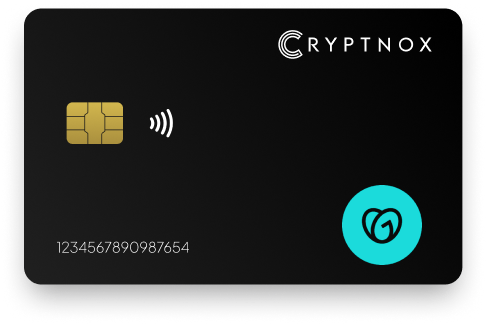
Yes. Add Cryptnox to GoDaddy through GoDaddy’s passkey and security-key route: Security page, Verification Methods, Add verification method, Passkey, name the passkey, then Add Passkey. GoDaddy describes this flow for passkeys and FIDO U2F-compatible hardware security keys, and GoDaddy requires a backup verification method when adding one. Use Cryptnox as an MFA-first security key for GoDaddy account verification.

CRYPTNOX products are also available worldwide through our official Amazon stores.

Faster FIDO2 sign-in on Windows: Click-to-Tap
When a service asks you to “tap your security key”, press the Click-to-Tap virtual button on the reader instead of pulling the card out and reinserting it. The card stays in the slot and the sign-in finishes in seconds.
The virtual button works on Windows with Cryptnox FIDO2 cards. On macOS and Linux the same reader operates as a standard PC/SC contact reader for any ISO 7816 card.
GoDaddy is one of the biggest domain registrar and web hosting platforms in the world. It is widely utilized by a large number of users.
By using a user-friendly Cryptnox security key as your GoDaddy 2FA, you can protect your account from takeovers, phishing and other cyber criminal elements, so you can concentrate on setting up a great website and running a successful brand.

Cryptnox fits GoDaddy through the passkey and security-key setup flow in the GoDaddy account security area. The route is specific: open the Security page, go to Verification Methods, choose Add verification method, select Passkey, name it, and use Add Passkey. GoDaddy then presents the browser setup prompt for the passkey or security key.
GoDaddy’s own help page for enabling an identity verification method for a GoDaddy account describes passkey setup and refers to FIDO U2F-compatible hardware security keys. That is the support route a GoDaddy account owner should use when enrolling the Cryptnox card.
This is an MFA-first GoDaddy use case. Treat the card as a verification method for a GoDaddy account, and enable 2-Step Verification under Enhanced Security if that is the account policy you want to apply. GoDaddy requires a backup verification method when adding a passkey or security key, so set that method up before you enrol Cryptnox.
The GoDaddy backup verification method and the second Cryptnox card solve different problems. GoDaddy’s backup method is part of GoDaddy account access. The second Cryptnox card is part of the Cryptnox Dual-Card Set wallet backup design.
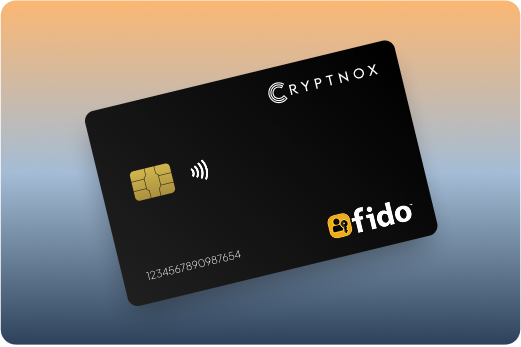
Prepare the Cryptnox card before you start the GoDaddy prompt. If you are setting up the card for security-key use for the first time, use the Cryptnox FIDO2 card startup guide before opening the GoDaddy Security page. That keeps card preparation separate from GoDaddy enrolment, which is useful when the browser is waiting for a security-key action.
Also confirm the GoDaddy backup verification method first. GoDaddy requires that backup method when adding a passkey or security key, so the clean order is backup method, card preparation, then GoDaddy passkey enrolment.
A clear GoDaddy passkey name matters because GoDaddy does not document a key limit for this flow. Do not build an access process around a specific number of enrolled keys. If more than one administrator uses the GoDaddy account, use names that make review and recovery easier later.
Cryptnox is a contact and NFC smart card. For GoDaddy use, that means the card can be tapped to a phone or inserted into a reader, depending on the device and setup path being used. It is a dual-interface card, so buyers can plan around both supported interaction methods rather than a single contactless-only workflow.
GoDaddy’s documentation describes browser prompts for passkey setup and FIDO U2F-compatible hardware security keys. The browser is therefore part of the GoDaddy enrolment experience. Test the same browser and operating system that the GoDaddy administrator normally uses before treating the card as the primary hardware security key for that account.
Those platform notes matter during GoDaddy testing because the GoDaddy flow relies on the browser prompt and the security-key action. Run a real sign-in test after enrolment, not only a setup test. A GoDaddy account that has been enrolled but never tested leaves uncertainty for the person who will need to sign in later.
Cryptnox generates private keys inside the secure element, and the private keys never leave it. The card uses an EAL6+-certified chip. That chip-level property is relevant to a GoDaddy buyer because the security-key operation is tied to hardware possession and to key material generated inside the card’s secure element.
For GoDaddy, that model is different from a copied code or a reusable account secret. The enrolled card must be present for the security-key step. The GoDaddy account still has its own backup verification requirement, so the card should be added as part of a broader access plan rather than as the only recovery path.
The Cryptnox Dual-Card Set ships uninitialised. During setup, the seed is generated inside both secure elements, so the second card is the backup. There is no recovery phrase to write down by default. Importing a BIP39 recovery phrase is an advanced option, not the default Dual-Card Set setup.
That backup model should be handled deliberately for a GoDaddy account. Store the second card away from the primary card, and record who controls each card if more than one person is responsible for the GoDaddy account. GoDaddy’s required backup verification method and Cryptnox’s second-card backup do different jobs, so keep both in the operating plan.
The product page for the Cryptnox Crypto Hardware Wallet – Dual-Card Set is the purchase page for this two-card hardware wallet set.
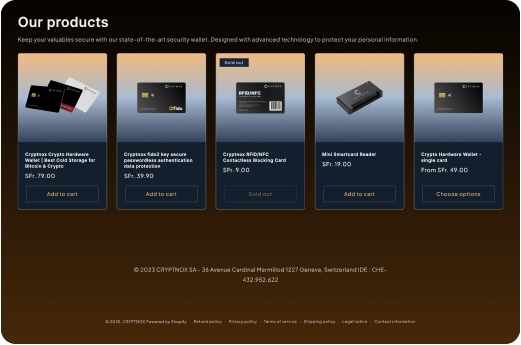
Some GoDaddy buyers also use the Cryptnox wallet workflow for Web3 activity. In that case, keep the GoDaddy passkey and security-key enrolment separate from wallet use in the Cryptnox app. Adding the card to GoDaddy does not add it to another service, and using the wallet workflow does not change GoDaddy’s backup verification requirement.
The free Cryptnox app is available on iOS and Android. For wallet use, it connects to Web3 through WalletConnect and works with MetaMask. For GoDaddy, the same card is added through GoDaddy’s Security page under Verification Methods, not through a wallet connection flow.
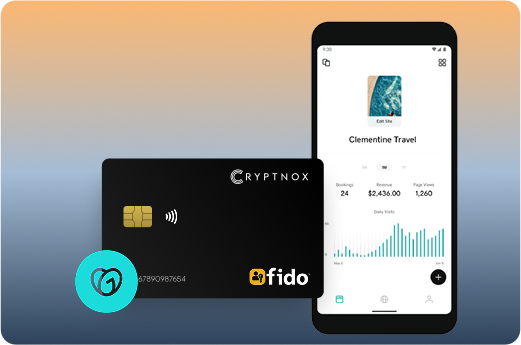
This distinction is practical for an owner who uses GoDaddy account access and also signs Web3 transactions. GoDaddy enrolment is about account verification. WalletConnect and MetaMask use are about the wallet workflow. In both cases, private keys are generated inside the secure element and never leave it, but the account rules are set by the service being used.
If you are building a security-key policy across several accounts, compare the GoDaddy flow with service-specific setup pages rather than assuming every account behaves the same way. The Binance FIDO2 card guide and the Fastmail security key guide cover different account flows, while GoDaddy uses its Passkey option under Verification Methods.
GoDaddy’s flow can involve passkeys and FIDO U2F-compatible hardware security keys. Cryptnox is one hardware-card route within that GoDaddy setup path. The better choice depends on whether the account owner wants a card carried and stored like a smart card, a browser-led passkey experience, or another FIDO U2F-compatible hardware security key format.
For a GoDaddy administrator, the important comparison is not a ranking. It is how the method will be enrolled, named, stored, tested and recovered inside GoDaddy. Cryptnox fits buyers who want a card-shaped security key, secure-element key handling and the Dual-Card Set backup model.
The broader FIDO2 security key card hub explains the card category for buyers comparing card-based keys. If your GoDaddy policy is being built alongside other account policies, the GoDaddy setup should still be checked separately from guidance for Bank of America security key cards or Bitfinex FIDO2 security key cards.
Buy the Cryptnox Dual-Card Set for GoDaddy if the GoDaddy enrolment route, the smart-card format and the two-card backup model match the way the account will be administered. The cards are made in Switzerland, and the product is Swiss-engineered, which may be relevant when the purchase needs to be documented for a business account.
For a buyer still comparing card-based security keys, the main FIDO2 hardware key buying guide is the parent guide for this GoDaddy page. When the GoDaddy setup plan is ready, purchase through the Cryptnox Dual-Card Set shop page.
Yes. Add it from the GoDaddy Security page under Verification Methods by choosing Add verification method, then Passkey. Name the passkey and select Add Passkey. GoDaddy describes this setup for passkeys and FIDO U2F-compatible hardware security keys, so Cryptnox is used through that GoDaddy security-key route.
Yes. Use Cryptnox for GoDaddy as an MFA-first security key. GoDaddy’s documented route is the Passkey option under Verification Methods, with 2-Step Verification available under Enhanced Security if desired. The GoDaddy account owner should treat the card as an account verification method and keep the required backup verification method available.
Yes. GoDaddy requires a backup verification method when adding a passkey or security key. Set that up before enrolling Cryptnox. The second Cryptnox card is the Dual-Card Set wallet backup created during setup, while GoDaddy’s backup verification method is part of GoDaddy account access.
Yes. Cryptnox ships worldwide from the official CRYPTNOX store. Orders to Switzerland, the European Union and the United States are dispatched from stock already held in each of those regions, so the parcel does not cross a customs border into your country and there are no import duties to pay. Orders to other destinations are shipped internationally, and any import duties or local taxes are set by the destination country and are the recipient’s responsibility. Current shipping rates are shown at checkout.
GoDaddy does not publish a documented key limit for this flow. Avoid relying on a specific number of enrolled cards. If more than one administrator needs access, give each GoDaddy passkey entry a clear name and keep a current internal record of who controls each verification method.
No. Cryptnox is a contact and NFC smart card. You can tap it to a phone or insert it into a reader. For GoDaddy, the browser prompt and device environment still matter, so test the same setup the account administrator will use.
No. The card itself has no fingerprint or face sensor. When using the Cryptnox app, unlock can use the phone’s face or fingerprint check. Private keys are generated inside the secure element and never leave it.
The Dual-Card Set ships uninitialised. During setup, the seed is generated inside both secure elements, so the second card is the backup. There is no recovery phrase to write down by default. Importing a BIP39 recovery phrase is an advanced option, not the default setup.