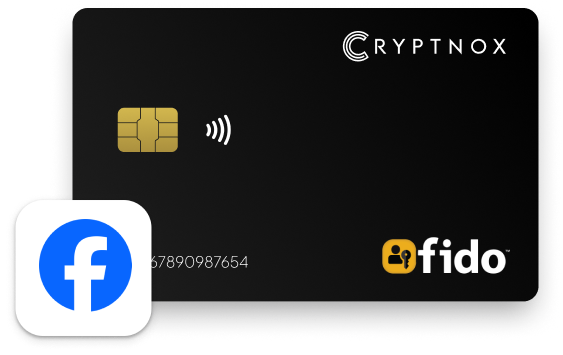
How to setup Cryptnox FIDO2 card to Facebook Account
Step by step tutorial to setup Cryptnox FIDO2 card to
Facebook account
Passkey Support Across Operating Systems and Web Browsers:
The availability of passkey support may vary based on the operating system and web browser in use.
MacOS: Passkey support is available in browsers such as Safari and Firefox.
Windows: Most modern web browsers provide passkey support.
Mobile devices: It is recommended to use the mobile web version of the service, as many applications redirect users to a mobile browser to complete the passkey setup proces
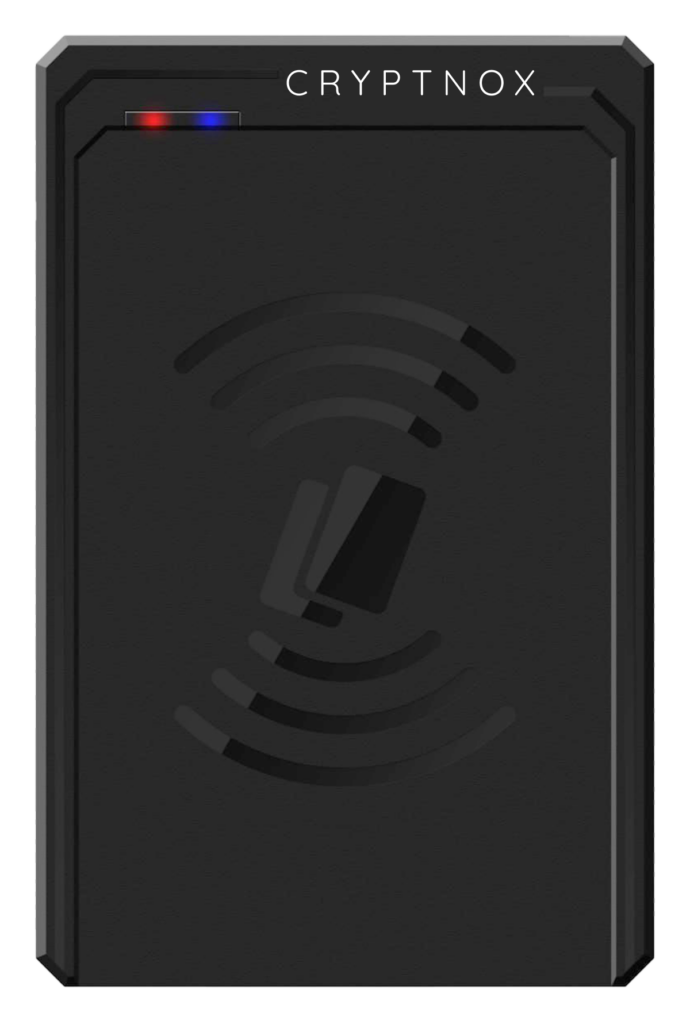
Before you start to setup FIDO2 card to Facebook account, make sure you have a contactless reader that is compatible with ISO 14443 for contactless or ISO 7816 for contact reader.
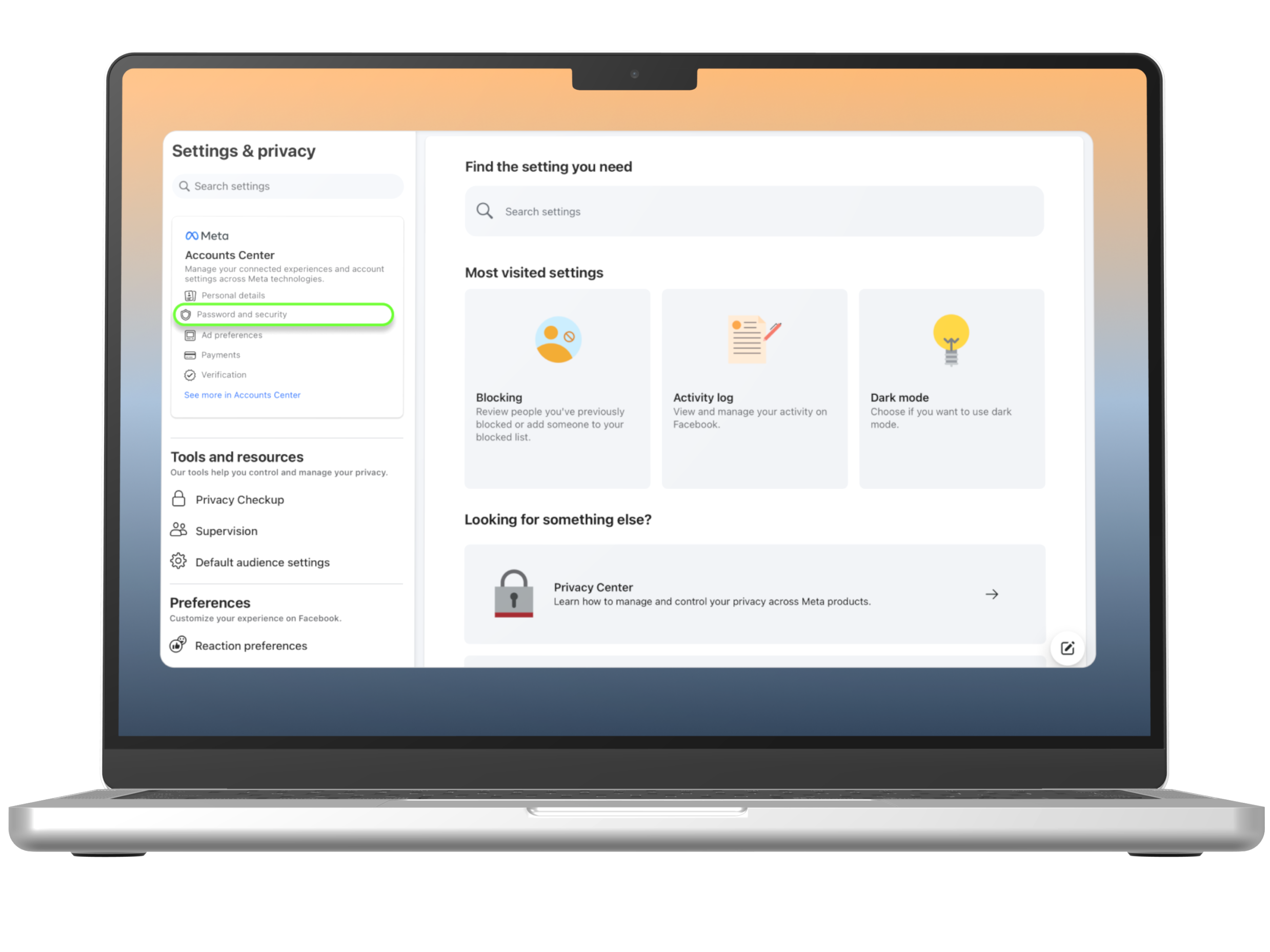
Step 1
Log in to your Facebook account and go to Settings & privacy. Then select “Password and security” as shown.
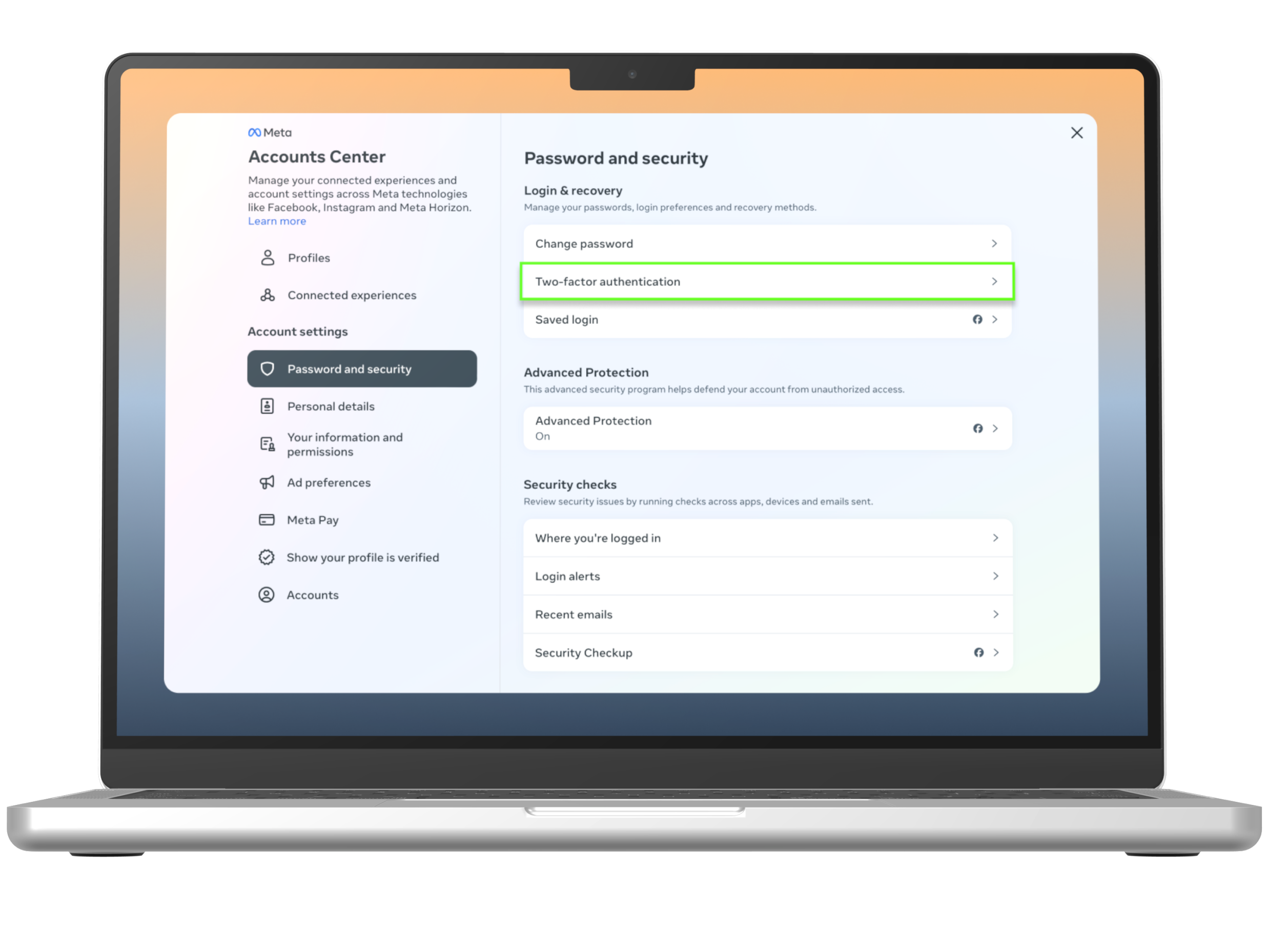
Step 2
Go to “Password and security“ and select “Two-factor authentication”.
Step 3
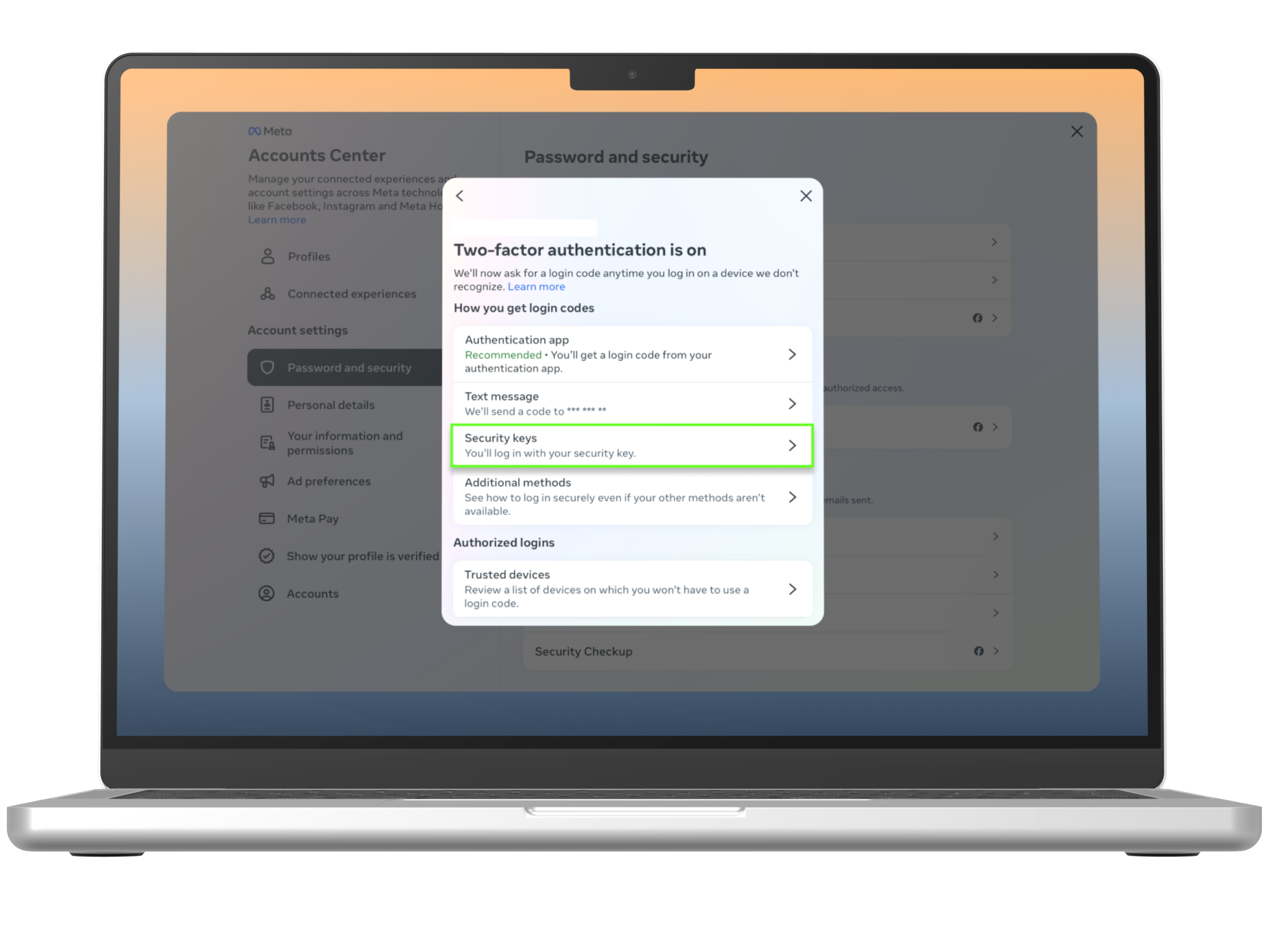
In the pop up, select “Security keys” option.
Step 4
Select “Add” to start adding the passkey.
Step 5
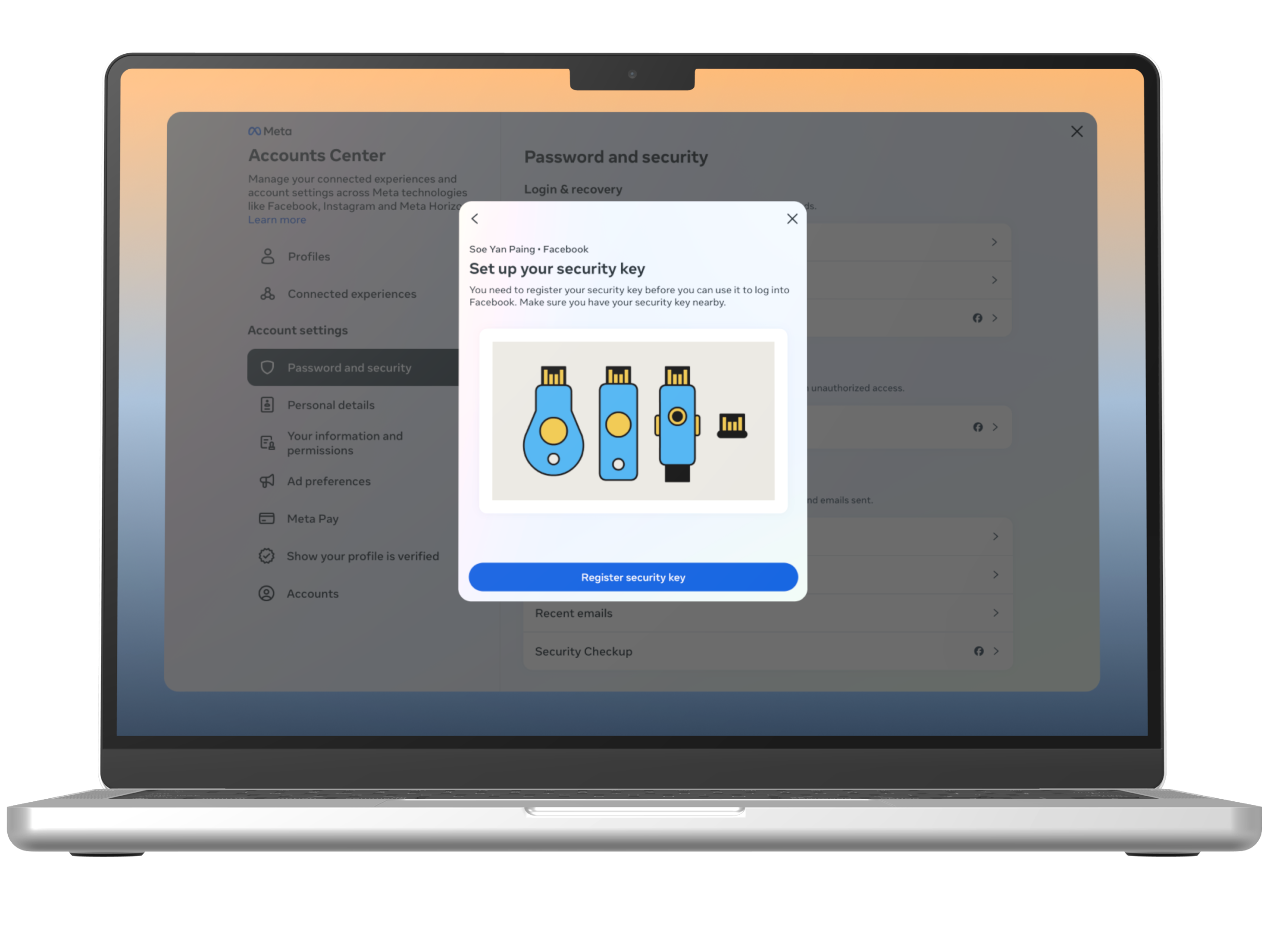
Select “Register security key”.
Step 6
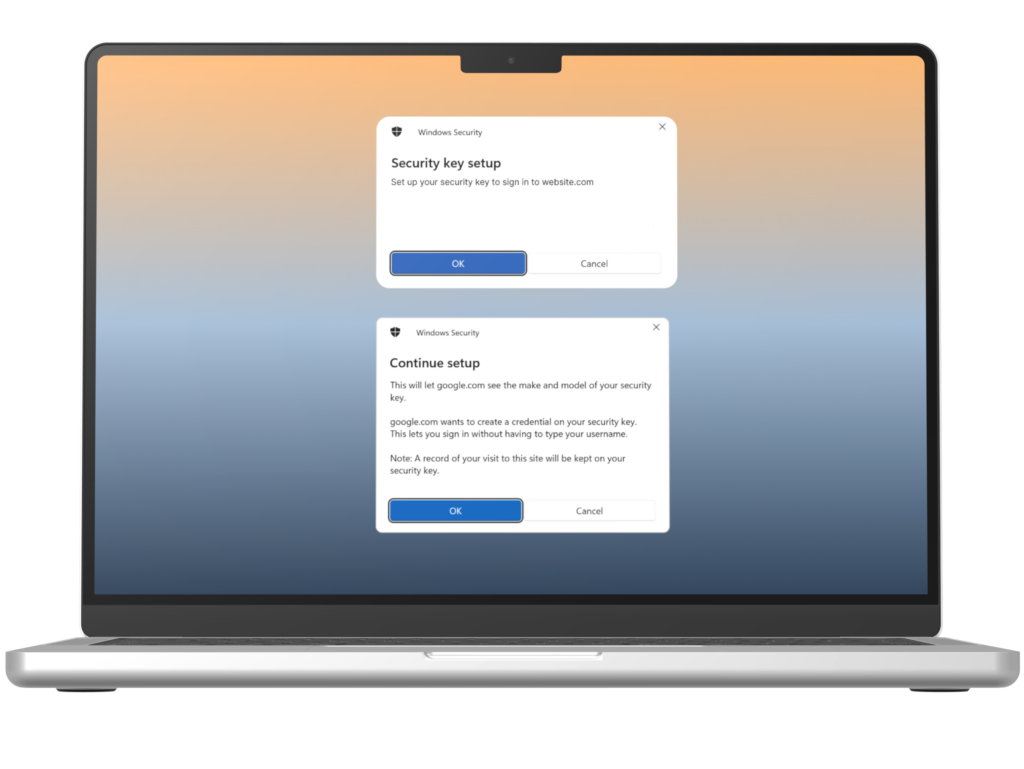
The system will prompt the available options to setup a passkey. Ensure to select the “OK” on pop ups.
Step 7
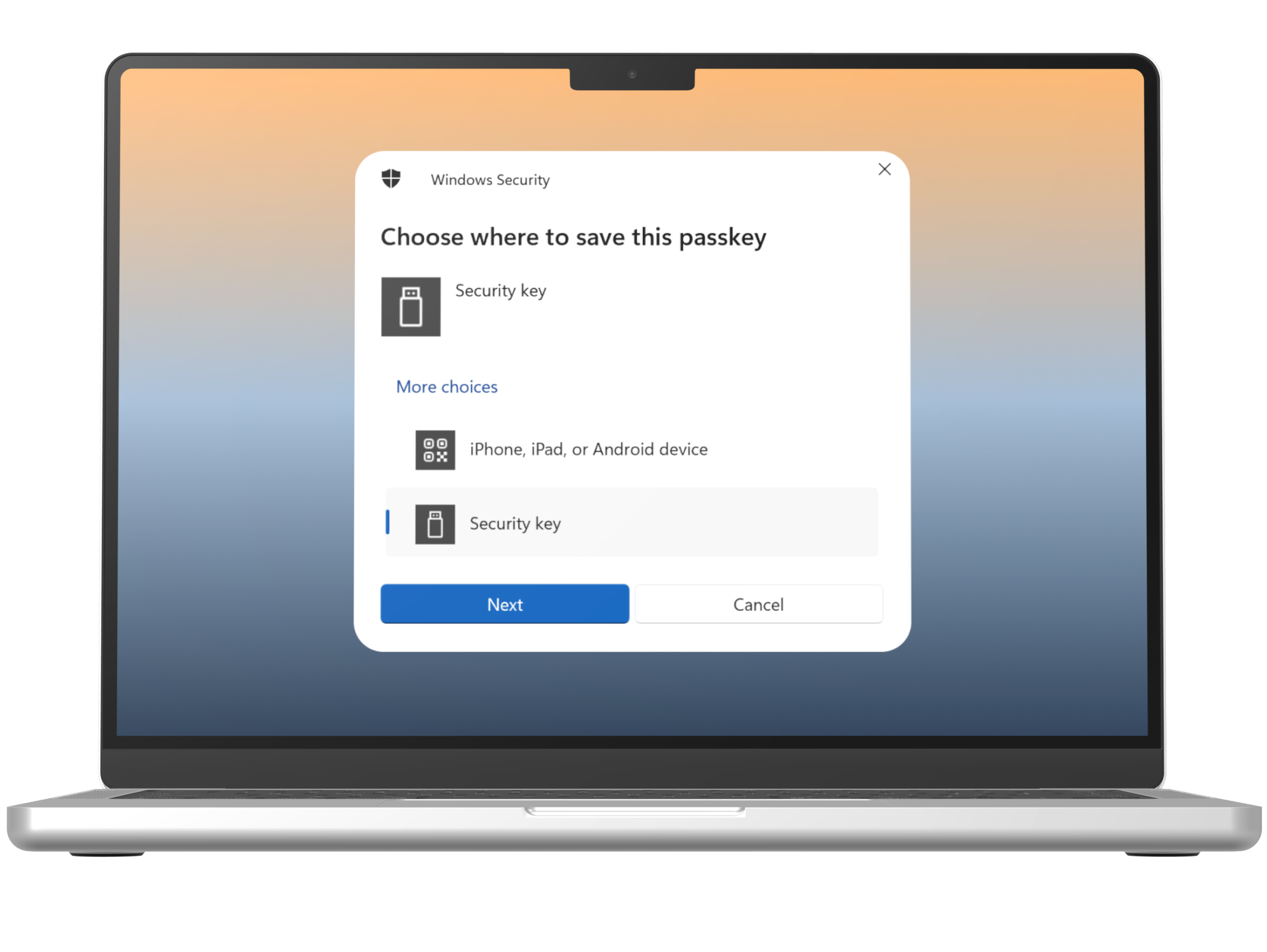
The system will prompt the available options to setup a passkey. Ensure to select the “Security key” and select “Next”.
Step 8
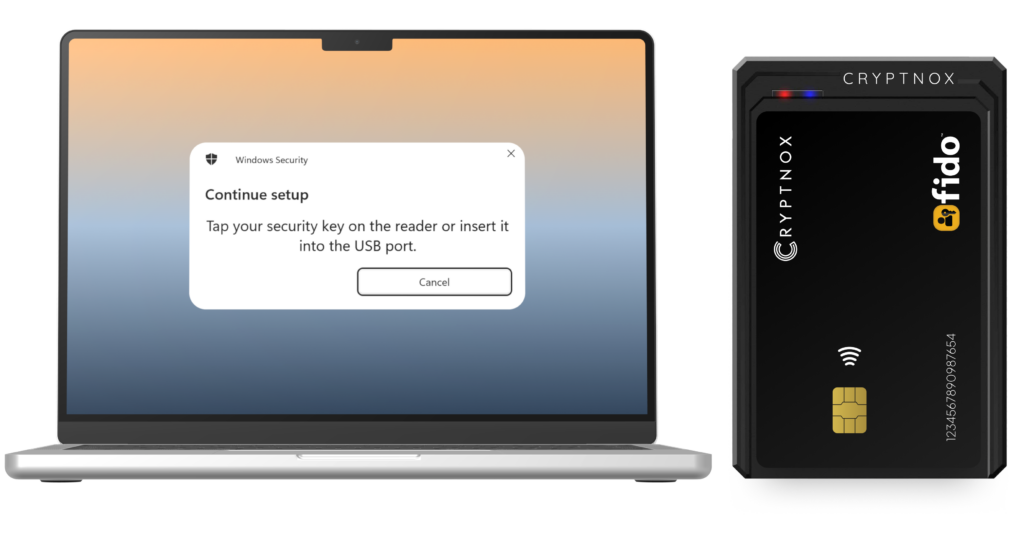
The system will prompt the message to setup the security key. While the prompt is opening, place the card on the contactless reader.
Step 9
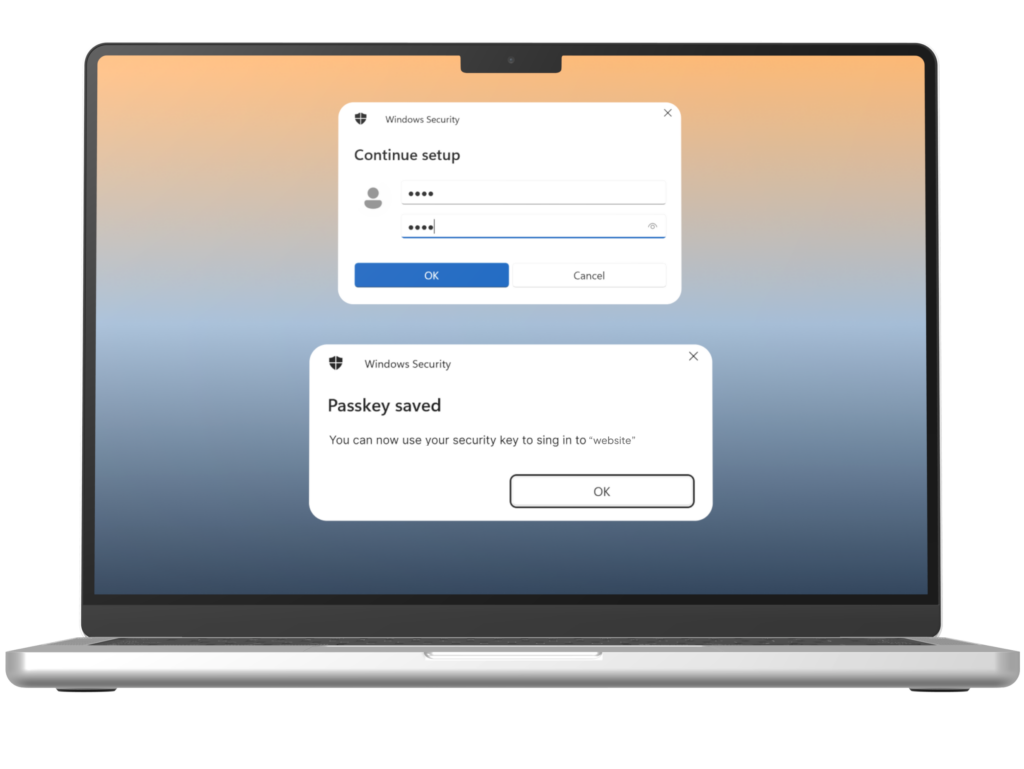
Once the card is registered properly, the system will ask you to put the PIN. Once you put in the PIN, select “OK” and in the next pop up, select “OK” again.
Important: Ensure you remember your PIN. It is advisable to save it securely or write it down in a safe place. You will need this PIN the next time you log in to a site where you have set up passkey authentication.
Step 10
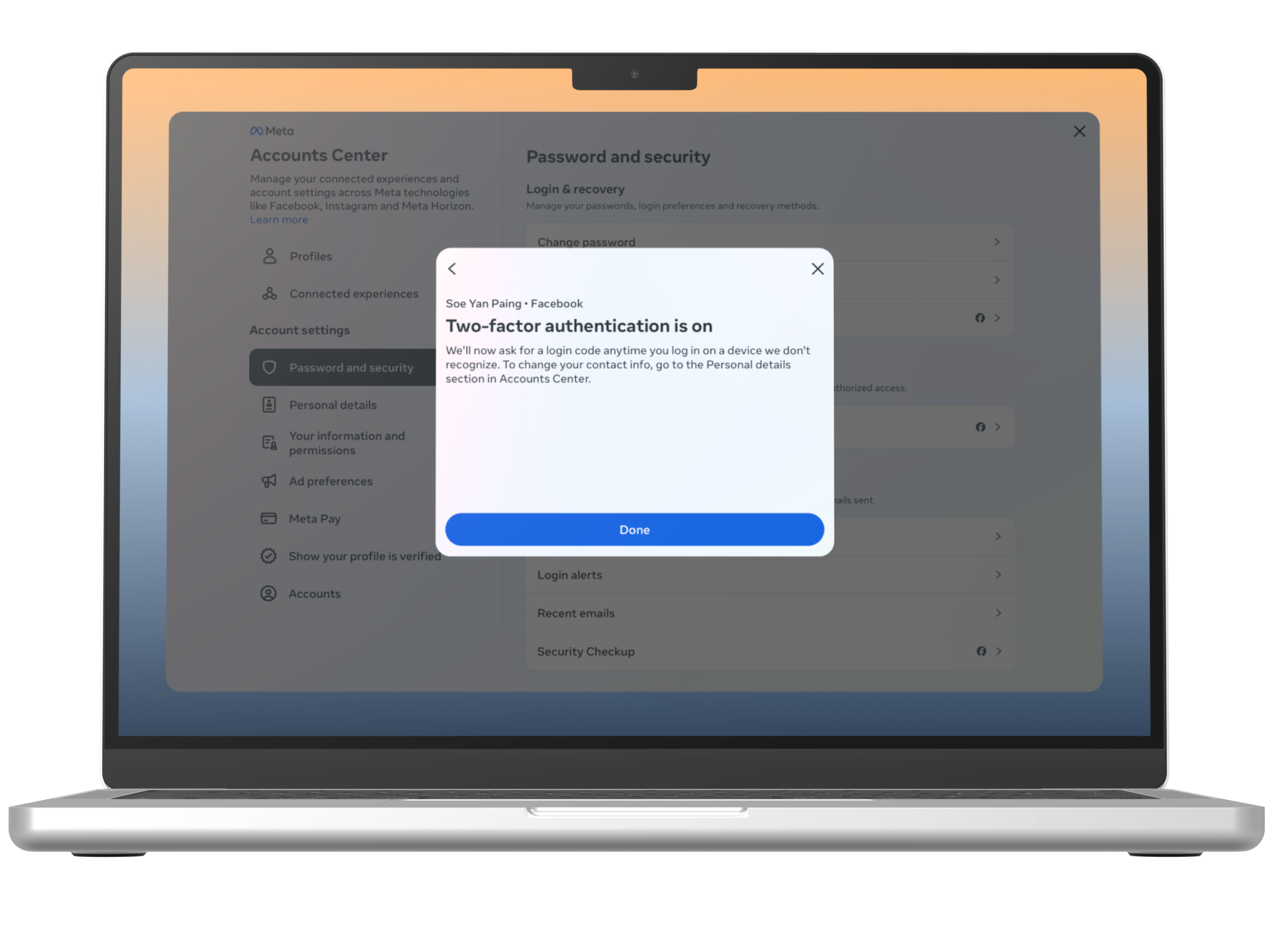
You have successfully setup the Cryptnox FIDO2 passkey on Facebook account.
Need another card for additional security key? Visit our Official Store to explore more Cryptnox products