
Important notice
Resetting the security key (your Cryptnox FIDO2 card) returns the device to its factory settings and deletes all credentials and account registrations stored on the card. If you use the card to sign in into websites, Microsoft accounts, or other services, those registrations will stop working until you re-enroll the key with each service. Enroll a back up card or configure an alternative method before resetting the device to ensure you maintain access to your accounts and devices.
No setup required
Windows provides built-in management for FIDO2 Security Keys. You do not need additional drivers — simply connect a compatible Smartcard Reader connected and have your Cryptnox FIDO2 card ready
Note: This Settings workflow is available on Windows versions that support built-in security key management (Windows 10 1903+ / Windows 11)
Step 1
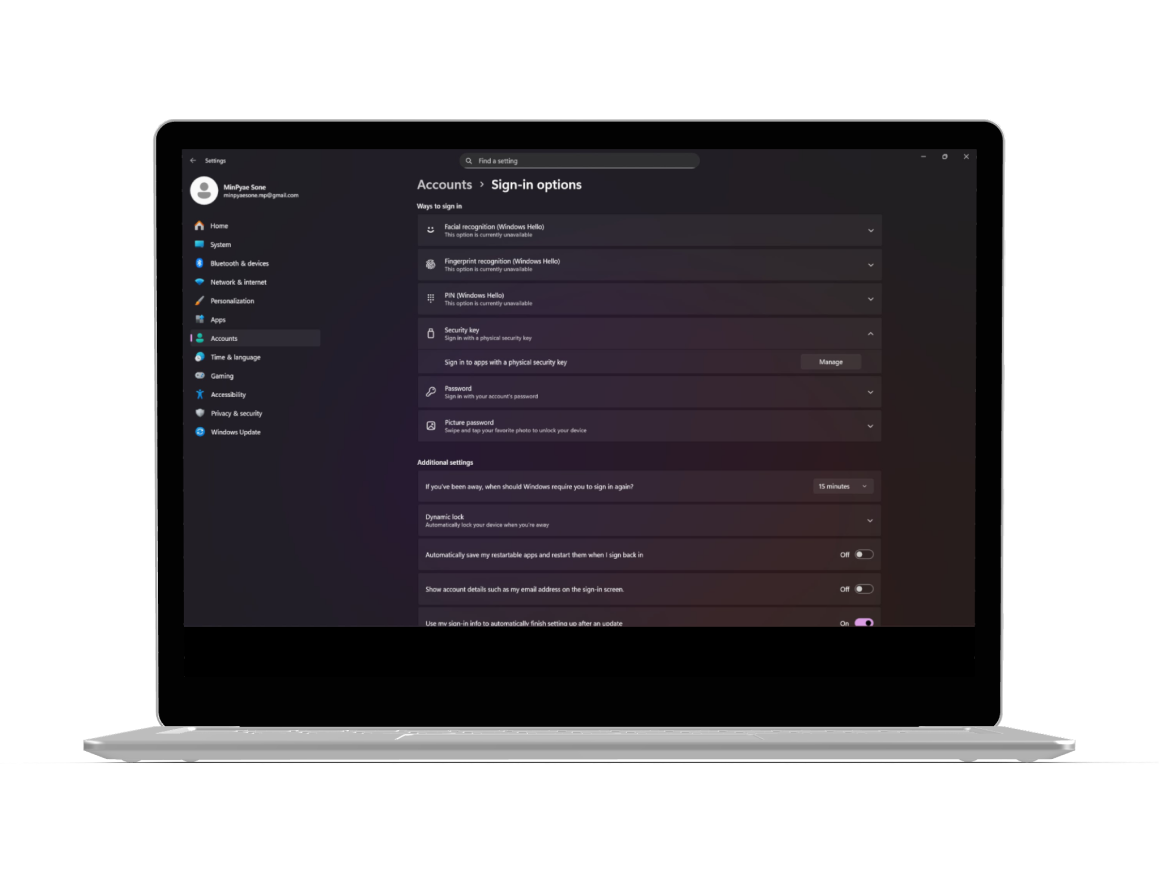
Go to Settings → Accounts → Sign-in options
Scroll down until you find the Security key under the list of sign-in methods
Click on “Manage” to open the Windows security key management window
Step 2
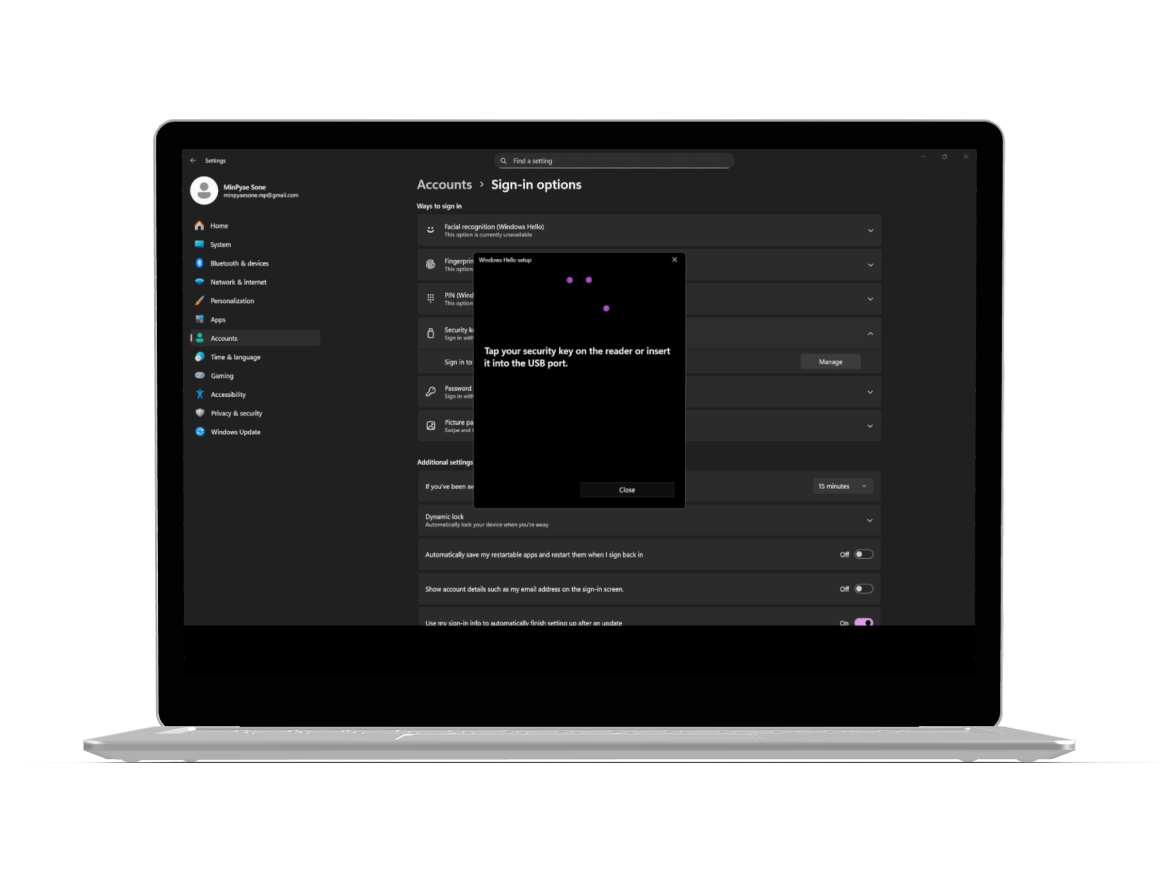
When prompted, tap your Cryptnox FIDO2 card on the NFC reader, extract or insert it into a contact reader, or click the FIDO2 button if using the Cryptnox “Click to Tap” contact reader to continue
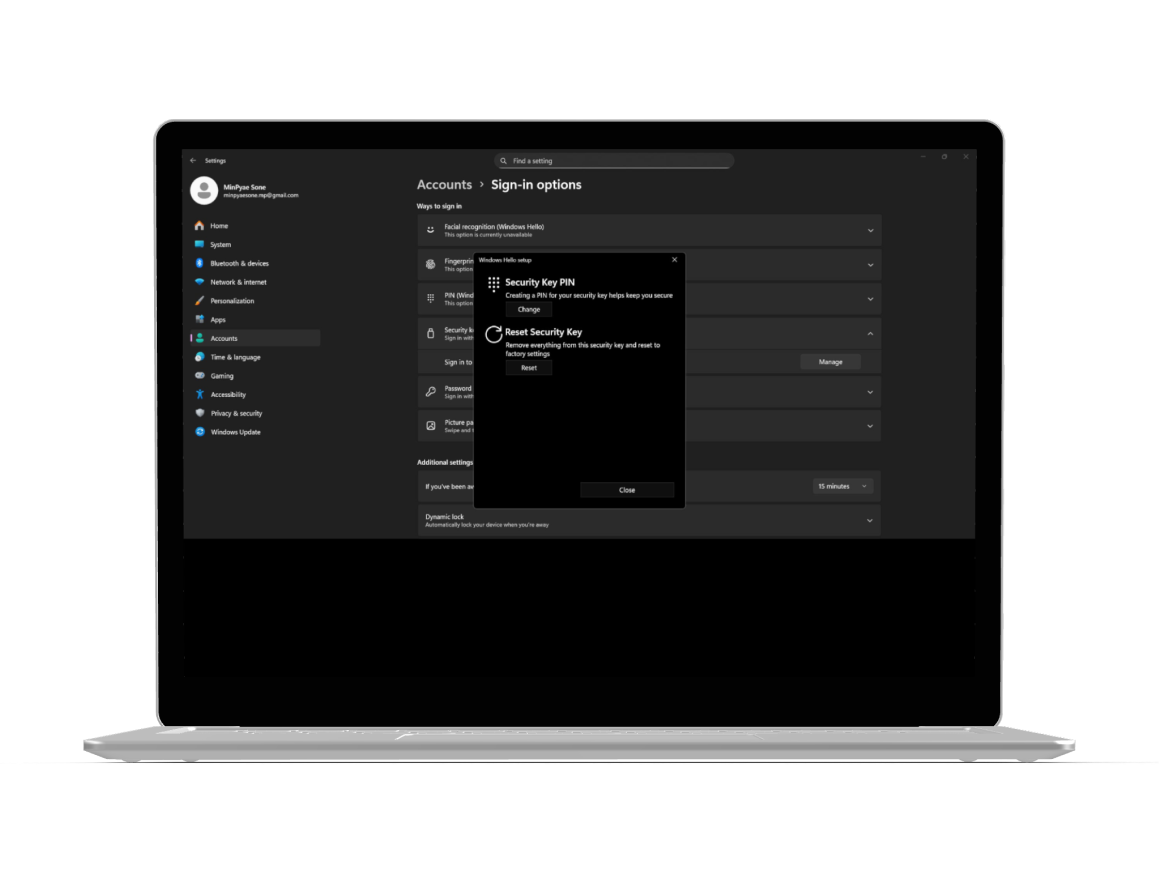
Once confirmed, the Security Key Settings screen will appear with options such as Change PIN, and Reset

Step 3
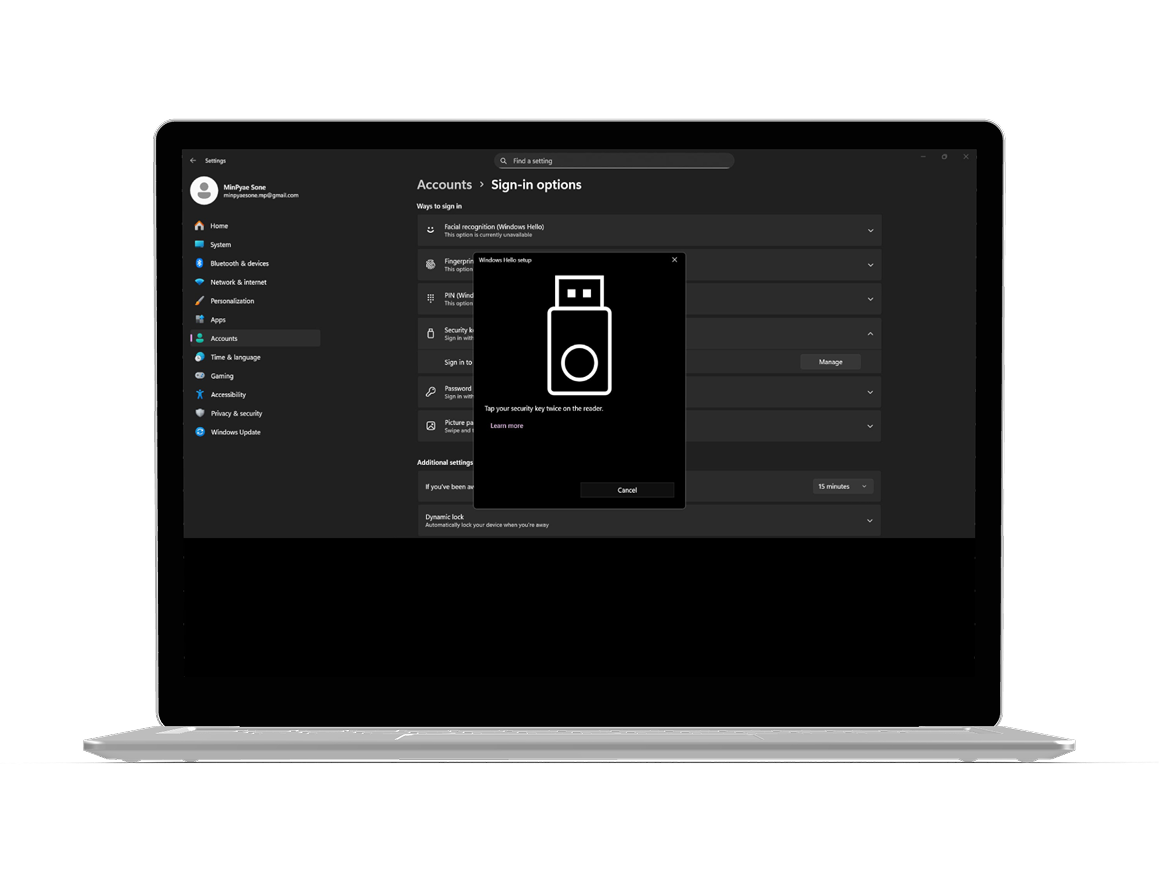
On the Security Key Settings screen, select “Reset Security Key”.
After that, the system will ask you to tap / extract – insert or click twice on the reader for verification
Next, Windows will display a warning message indicating that all credentials on the key will be permanently deleted; and confirm the action by clicking “Proceed”
Wait until Windows completes the process
Step 4
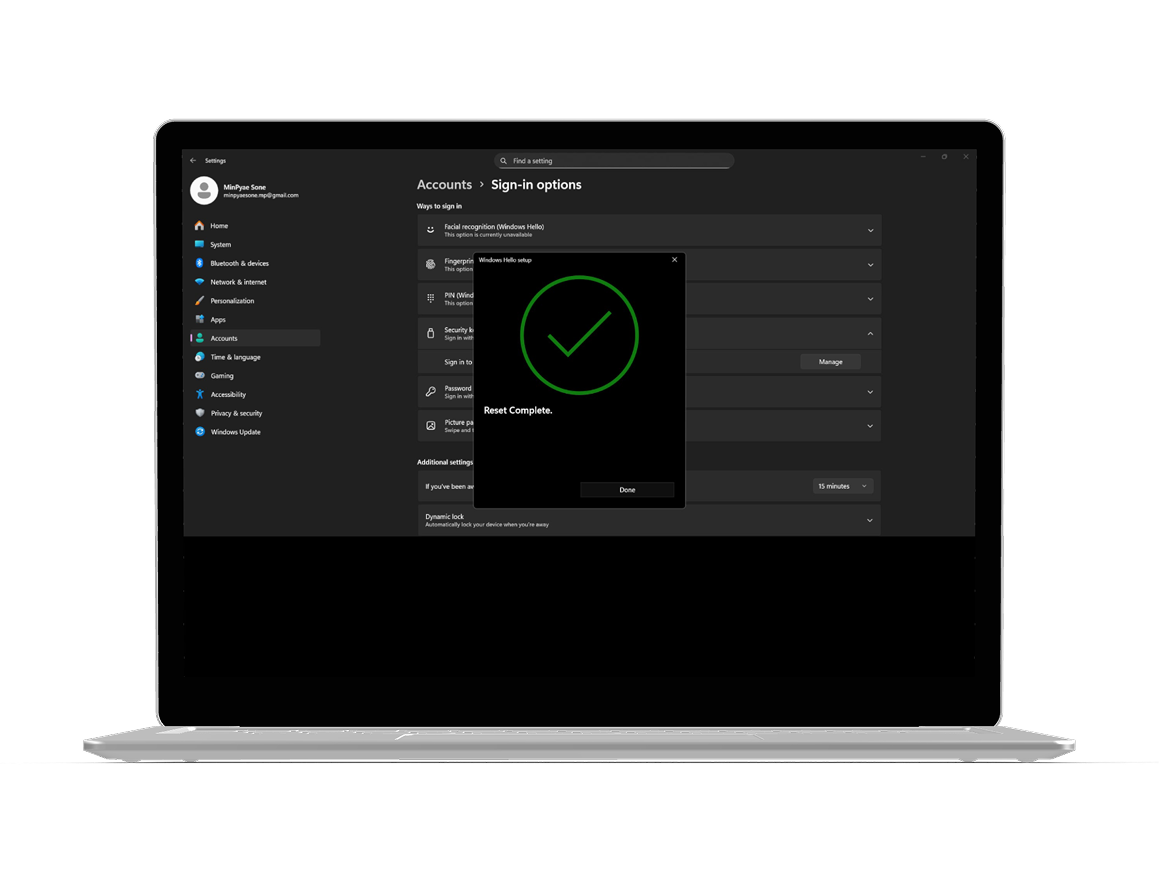
When the process finishes, Windows will confirm that your security key has been reset Click “Done” to exit the dialog
Your Cryptnox FIDO2 card is now restored to factory settings and ready for a new setup.
FIDO2 represents a major security advancement over traditional password-based systems by eliminating the vulnerabilities that make passwords the weakest link in digital security Traditional passwords are susceptible to phishing, credential stuffing, and data breaches – problems that cost businesses millions annually FIDO2 uses public key cryptography instead, where your private key never leaves your device and cannot be intercepted or stolen by hackers When you authenticate with a FIDO2 security key, the service receives only your public key, making it useless to attackers even if the server gets compromised
The authentication speed difference is significant FIDO-based logins take about 7 seconds, compared to 14 seconds for password entry Enterprises adopting passwordless authentication save nearly $2 million compared to organizations using passwords with multi-factor authentication Microsoft reduced its authentication costs by 87% after switching, and after Accenture introduced passwordless authentication, phishing attacks dropped by 60%, demonstrating measureable real-world security improvements For users managing multiple accounts across platforms like Google, Microsoft, and Cloudflare, FIDO2 cards eliminate the need to remember dozens of complex passwords
FIDO2’s architecture makes it inherently phishing-resistant because cryptographic keys are bound to specific websites and applications If attackers trick you into visiting a fake login page, your FIDO2 card will not authenticate because the domain does not match the registered service This protection works automatically – you do not need to verify URLs or manually detect sophisticated phishing attempts Traditional passwords offer no such protection; users can unknowingly enter credentials into malicious sites, giving attackers full access to their accounts
The technology also defends against replay attacks and man-in-the-middle attacks, where hackers intercept authentication data during transmission Since FIDO2 credentials are not shared between services, a breach at one company cannot compromise your accounts elsewhere This isolation is especially critical for users who rely on security keys for sensitive platforms such as Binance, Coinbase, or banking services Organizations report 100% improvements in both security and user experience after adopting FIDO standards, along with notable reductions in help desk support issues
Half of U.S. enterprises have already adopted some form of passwordless authentication, and 92% of security executives report that their organizations have implemented or plan to implement passwordless solutions This rapid adoption stems from both security improvements and operational efficiency gains Enhanced employee productivity and improved user experience rank among the primary advantages cited by information security officers Companies are moving away from overhead of password management, which includes frequent reset requests, help desk tickets, and security training costs
The shift toward FIDO2 authentication is accelerating in sectors that handle sensitive data, including government services, financial platforms, and e-commerce operations For organizations managing remote workforces, FIDO2 security keys provide consistent protection across distributed teams without relying on VPNs or additional security layers The technology’s interoperability allows employees to use the same security key for Windows computers, iPhone devices, and web services, simplifying IT management and reducing administrative complexity
While the security benefits are clear, successful passwordless adoption requires effective communication with staff about the authentication changes Employees accustomed to password-based workflows need training on how to use FIDO2 smartcards and understanding of why the transition improves their security posture Organizations should provide detailed startup guides and access to troubleshooting resources during the rollout phase
Technical compatibility can also present challenges, as not all legacy systems immediately support FIDO2 standards Companies need to audit their authentication infrastructure and prioritize upgrading critical systems first Investing in high-quality hardware, such as Cryptnox FIDO2 card, helps ensure long-term reliability and cross-platform compatibility Many enterprises start with pilot programs for IT and security teams before expanding deployment across the entire organization This phase approach allows them to identify integration issues and refine their implementation strategy before full-scale rollout
Resetting your FIDO2 card brings it back to factory defaults, but you may encounter a few common issues afterward Device verification errors often occur when attempting to re-register the card with online services This happens because the previous credentials were deleted, and the service needs time to recognize the reset device If you see messages such as “We couldn’t verify your device” or “Security key doesn’t look familiar”, remove the old security key registration from your account settings first Then add the card again as a new security key
Some Windows users experience sign-in delays or conflicts with Windows Hello Face, which can override your FIDO2 card as the default authentication method You can resolve this by going to Settings → Accounts → Sign-in options and adjusting your preferred sign-in method priority Another common issue is timeout errors during re-registration These typically happen when you take too long to tap or insert the card during the verification step The solution is straightforward: respond quickly when prompted, and make sure your card reader has a stable connection
After the reset, you will need to re-enroll your Cryptnox FIDO2 card with every service or website where it was previously used for authentication Start with your most important accounts, like Microsoft, Google, and banking services, to ensure uninterrupted access Each platform has slightly different enrollment steps, but the general process typically includes:
Keep a list of all services where the card was previously registered before performing the reset Popular platforms such as Cloudflare, Shopify, and Binance support FIDO2 registration, and you can complete the setup in just a few minutes per service Having backup authentication methods enabled before resetting prevents lockouts; this is why the warning at the start of the reset process is so important
You will lose immediate access to any account that relies solely on your FIDO2 card for authentication This is why setting up a backup security key or alternative authentication method before resetting is critical Most services allow you to register multiple security keys or generate backup codes Make sure at least one alternative method is enabled before proceeding with the reset If you are already locked out, you will need to use the account recovery options provided by the service such as recovery email addresses, phone numbers, or customer support verification processes, which can take several days
Yes, once the reset completes, your card works immediately with compatible NFC readers and contact smart card readers The factory reset does not affect the card’s hardware capabilities; only the stored credentials and registrations are erased However, you will need to re-register it with each service before it can authenticate you Make sure your NFC reader is properly connected and that your device supports NFC-compatible FIDO2 authentication before attempting to use tap-and-go functionality
Cryptnox keys are FIDO2 Level 1 certified and use modern standards-based authentication Resetting erases all credentials, registrations, and settings, returning the card to factory defaults You will need to re-enroll with every service Changing your PIN only updates your personal identification number without affecting your existing registrations or credentials If you simply forgot your PIN or want to update it for security reasons, use the PIN change function instead of a full reset A reset is only necessary when you want to completely wipe the card, transfer ownership, or troubleshoot persistent authentication failures that PIN changes cannot fix
The double-tap requirement is a safety mechanism to prevent accidental resets Since resetting permanently deletes all credentials on the card, Windows requires two separate physical confirmations to ensure you intentionally want to proceed The first tap initiates the reset command, and the second confirms your decision after reviewing the warning message This two-step verification protects you from accidentally wiping your security key with a single misplaced tap, which would lock you out of all registered accounts
No, a factory reset does not change your card’s hardware specifications or its compatibility with operating systems Your Cryptnox FIDO2 card will continue to work with Windows, macOS, Linux, Android, and iOS devices that support FIDO2 standards The reset only clears stored credentials; the card’s technical capabilities remain unchanged After resetting, you can register it with services on any compatible platform, just like when the card was brand new
If Windows displays an error or the process stalls, first remove and and reinsert the card into your reader Then, restart the reset process from Settings → Accounts → Sign-in options Ensure your smart card reader drivers are up to date and that no other security software is interfering with the connection If problems persist, check the troubleshooting guide for reader-specific issues or contact support In rare cases, trying the reset on a different Windows device can help identify whether the issue originates from your computer or the card